
It’s important to verify that the Click Buddha tracking script is properly installed on your website.
A quick test ensures tracking, IP blocking, and protection features are working correctly.
Step 1: Log in to Click Buddha
Login into your account & Open your Click Buddha Dashboard.
Step 2: Go to Domain Settings
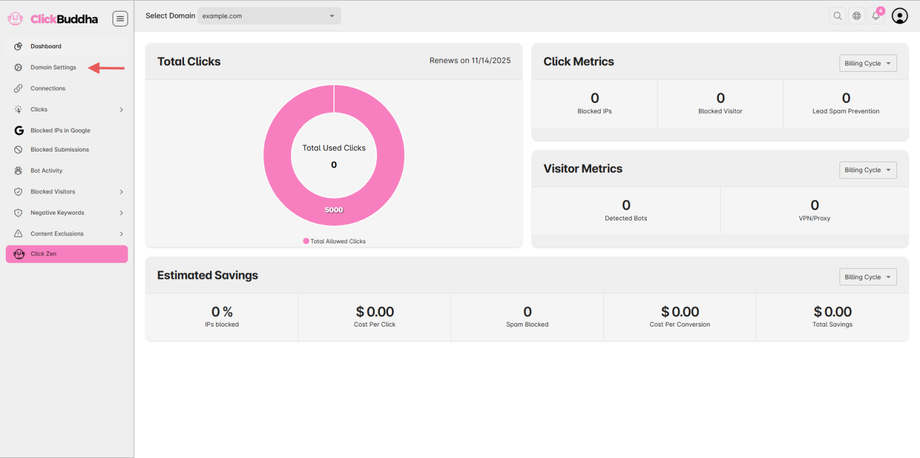
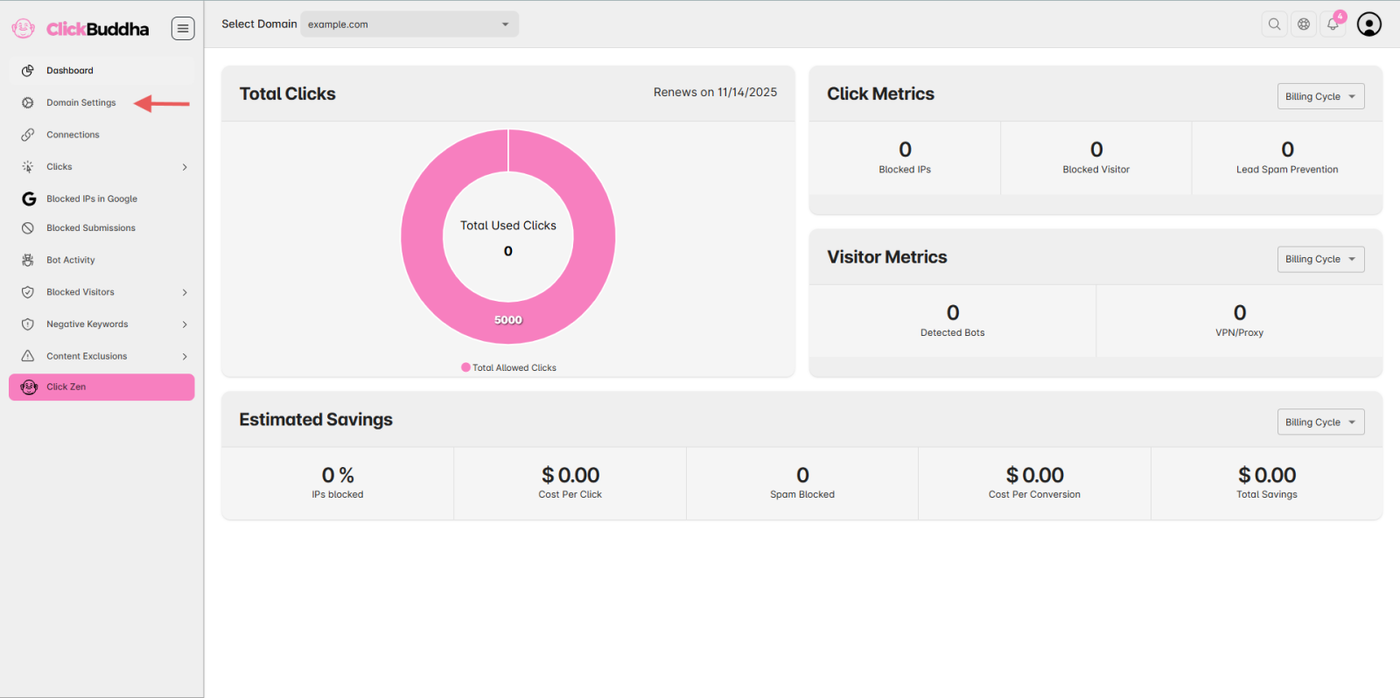
From the sidebar, open Domain Settings.
Step 3: Check Installation
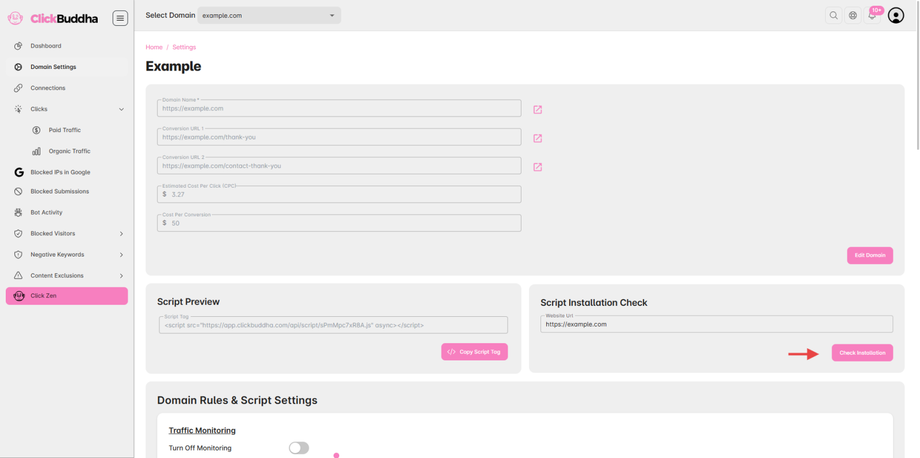
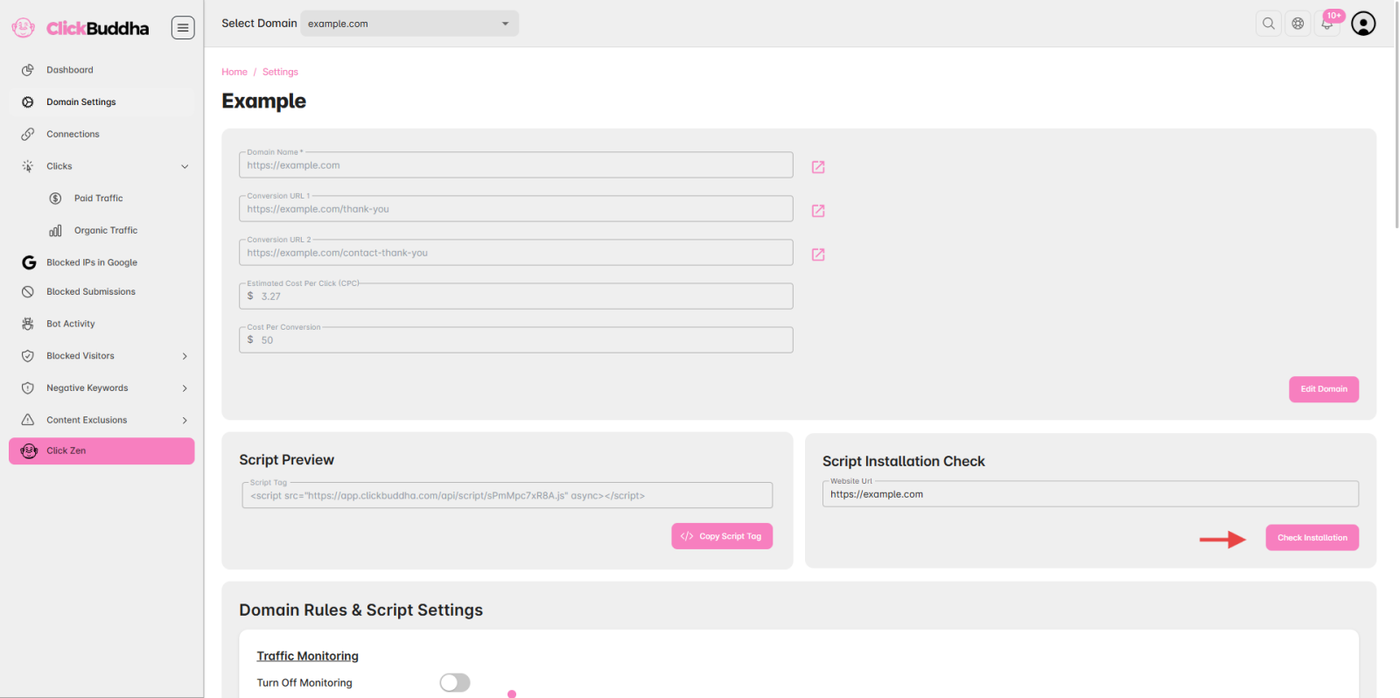
Scroll down to "Script Installation Check" section.
Click Check Installation Button.
If you see a green color growl message "Script Detected!". (This confirms that the script is active.)
If you see a red color growl message "Script not Detected!". (This confirms that the script is in-active.)
Step 4: Verify from Click Buddha Dashboard
Return to your Click Buddha Dashboard.
Open your domain’s Overview or Dashboard page.
If the script is installed correctly, you’ll see recent activity or page visit counts being recorded in real time.
✅ Tip:
Make sure the script is placed inside the
<head>tag of your website.If you’re using a website builder (like WordPress, Wix, or Web flow), ensure it’s added in the Header Scripts section.