
You can easily view or download your past invoices directly from the Billing section in your Click Buddha dashboard.
Step 1: Log in to Click Buddha
Login to your account and Go to your Click Buddha Dashboard.
Step 2: Navigate to Billing
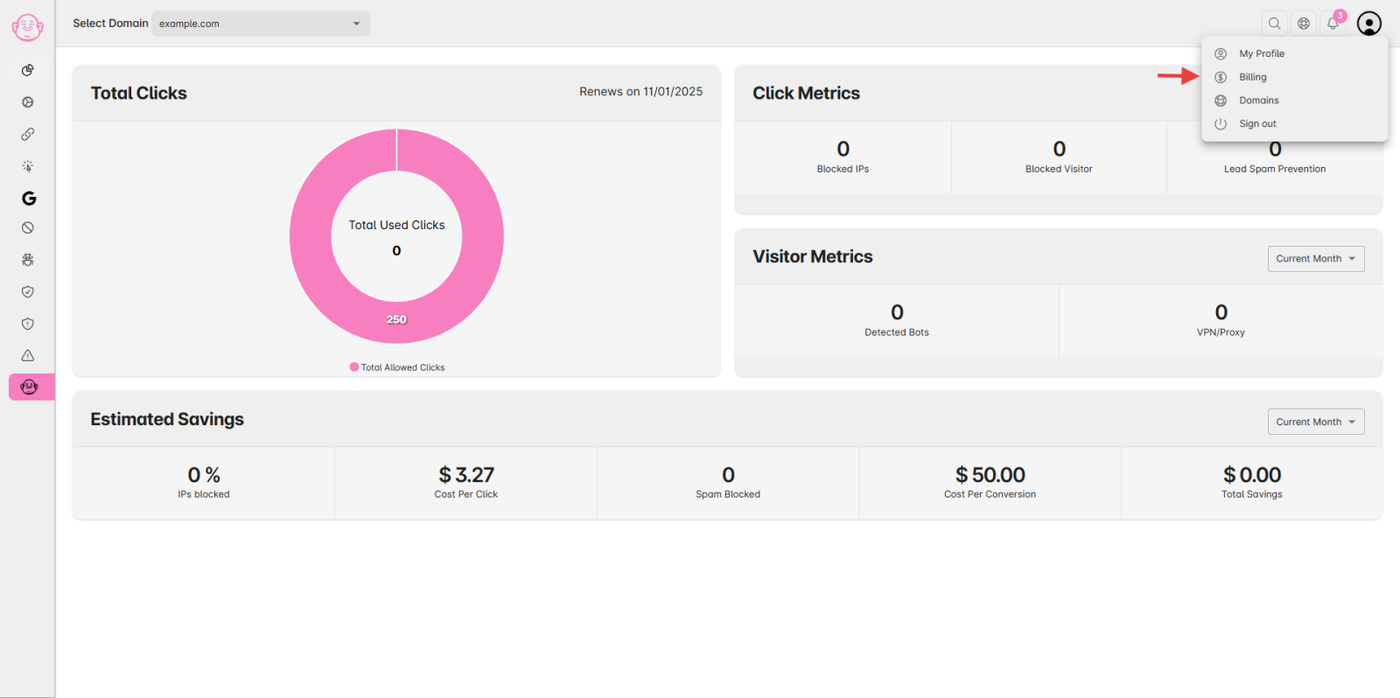
From the User Profile menu, click Billing.
(This option is only available for Admin or Account Owner roles.)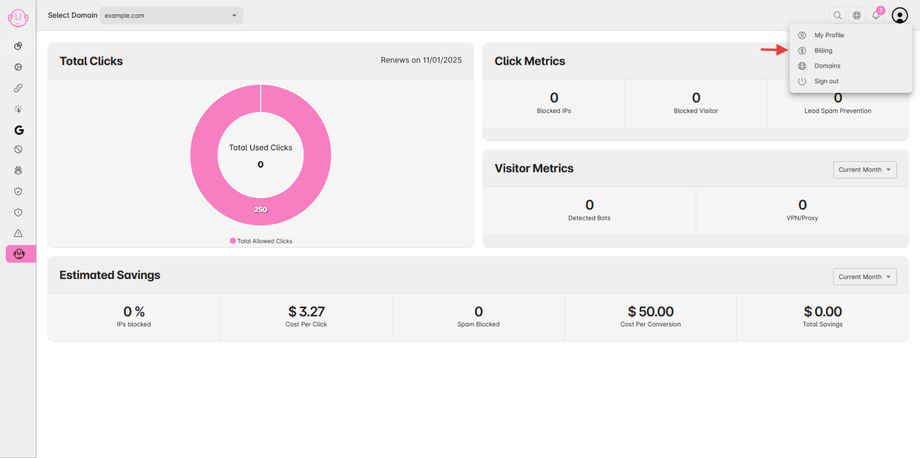
Step 3: Open Billing History
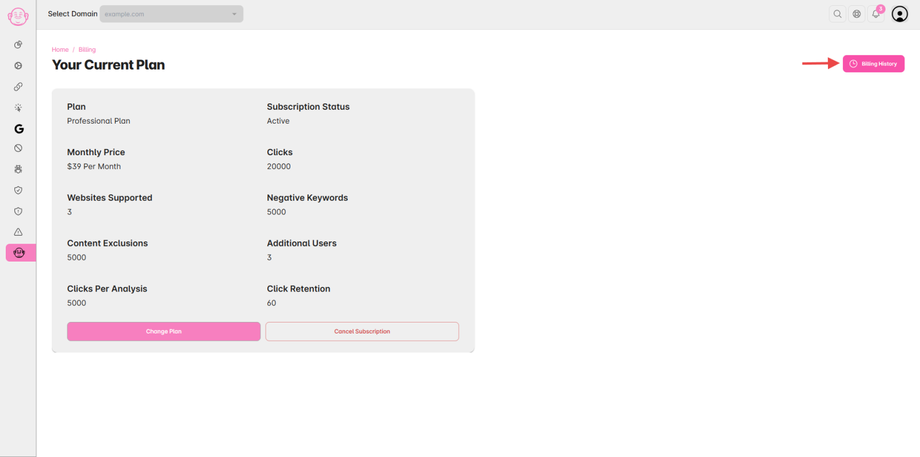
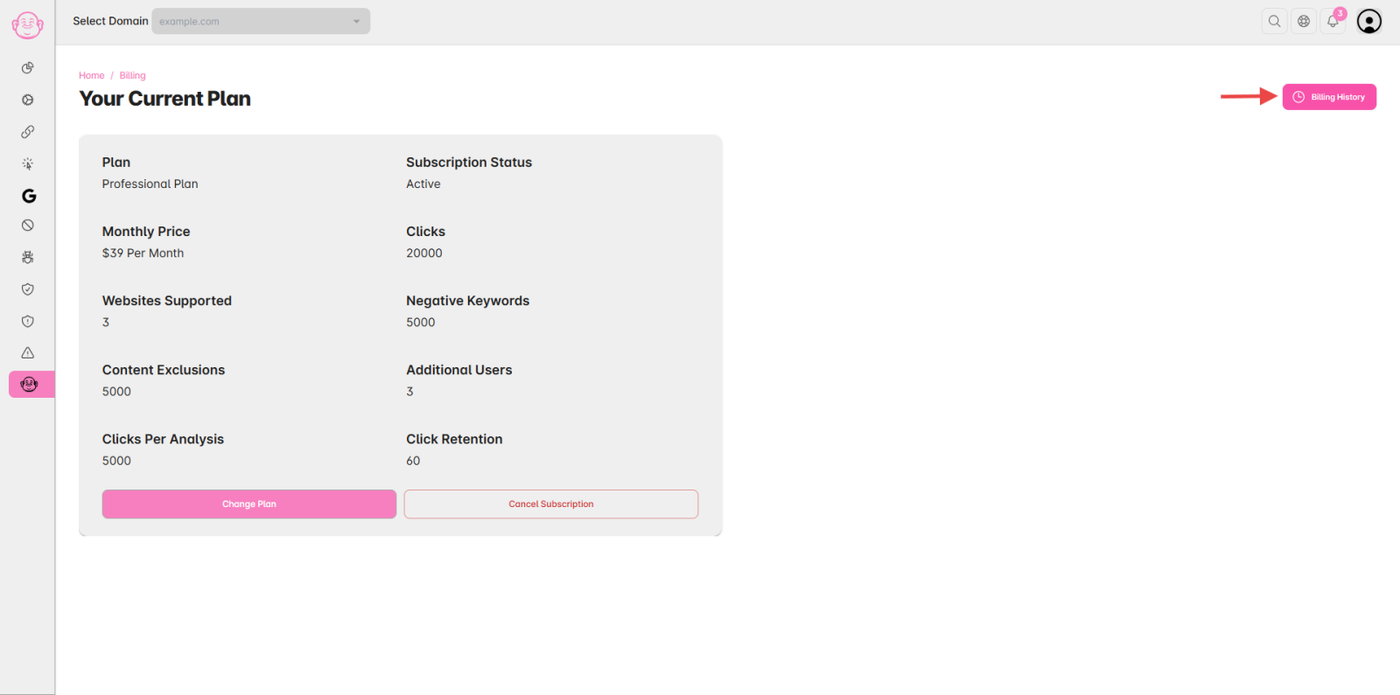
Click on the “Billing History” button in the top-right corner of the Billing page.
Step 4: View or Download Invoices
You’ll see a list of all your past invoices.
Click View to see invoice details or download to save a copy for your records.
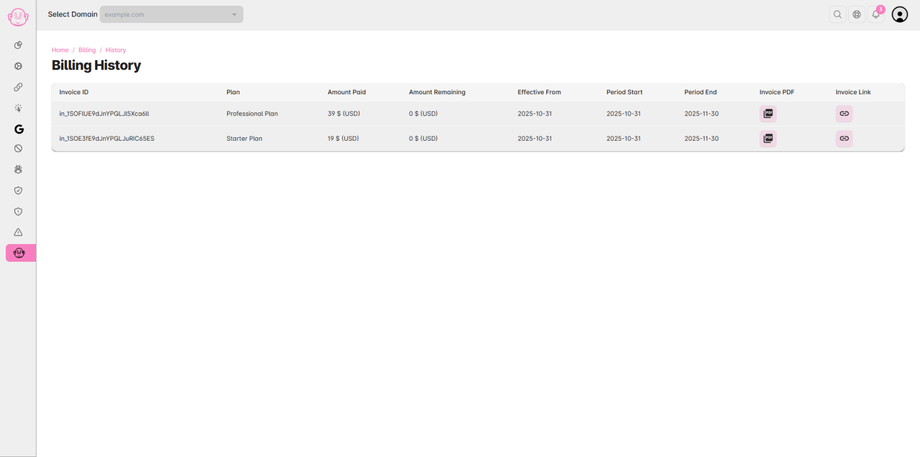
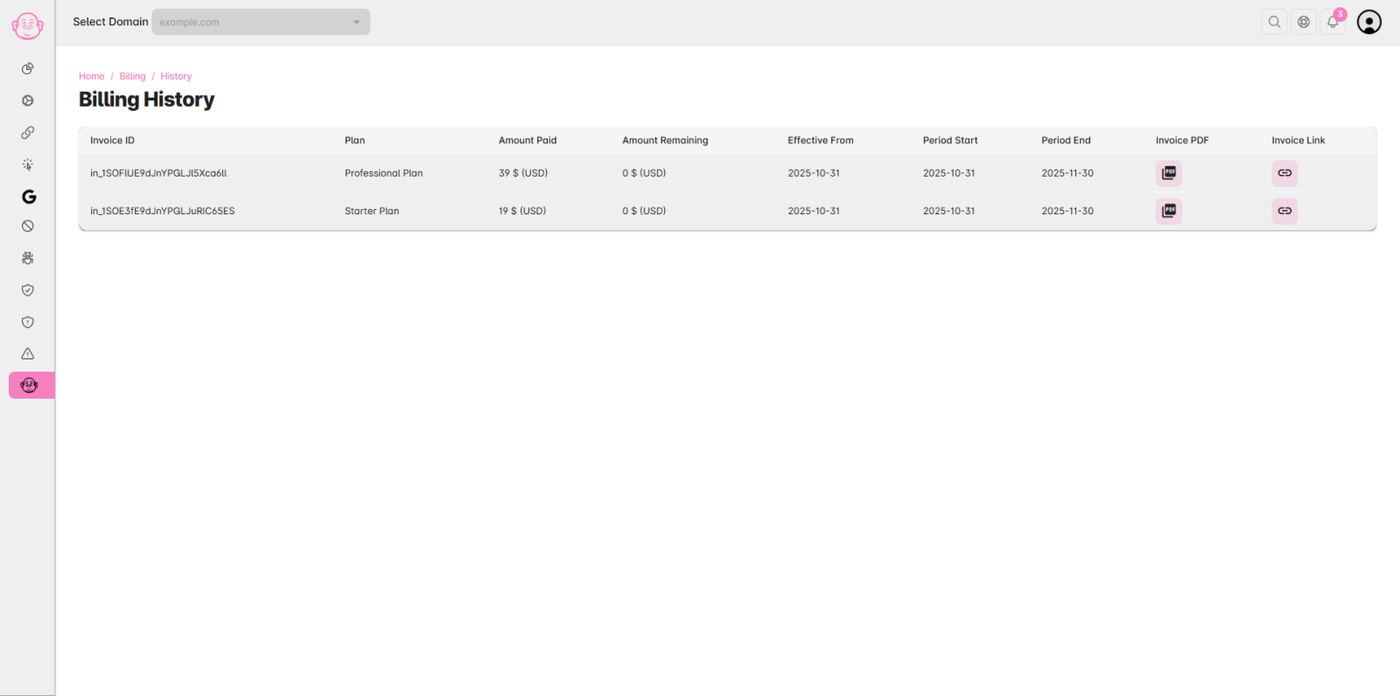
✅ Note: Invoices include details such as plan name, billing period, payment method, and transaction amount. Also, data shown in Images are sample or dummy data.