
Yes! Click Buddha lets you personalize the warning or blocking message that appears when a bot or suspicious visitor is detected.
This helps you maintain brand consistency and provide a user-friendly message, even during a block event.
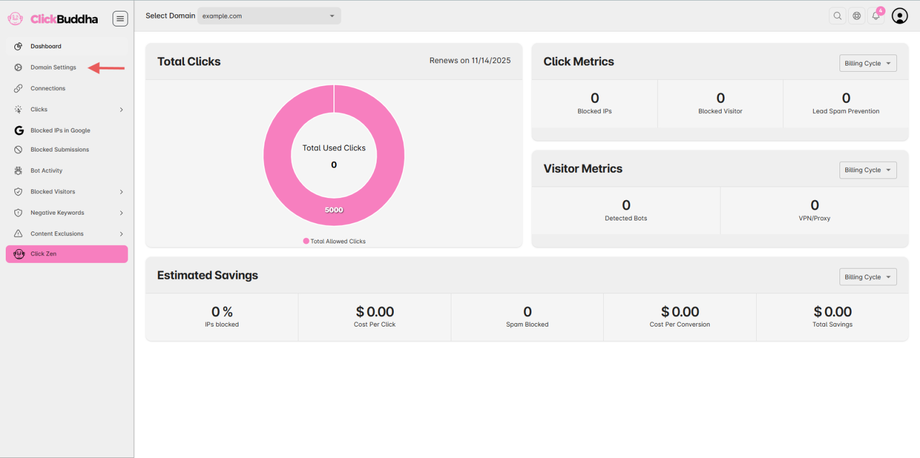
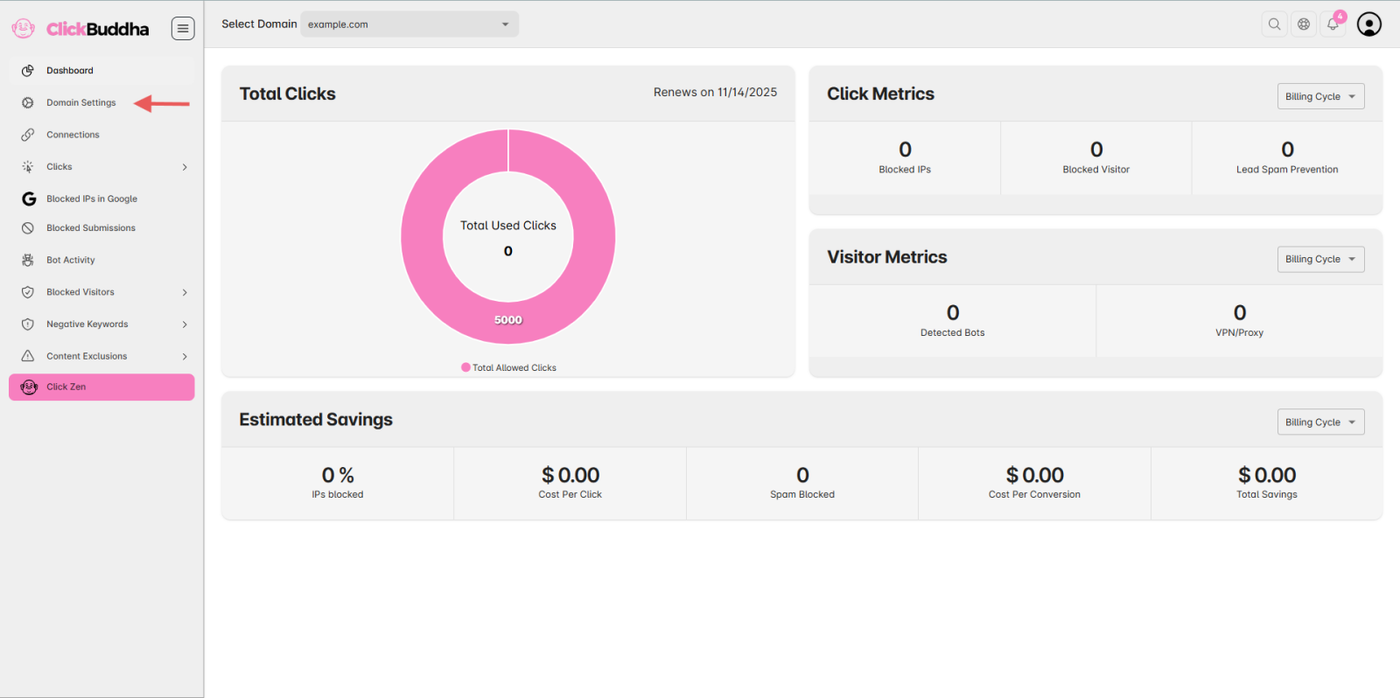
Step 1: Open Domain Settings
From the sidebar and Open Domain Settings.
Step 2: Go to Website Protection
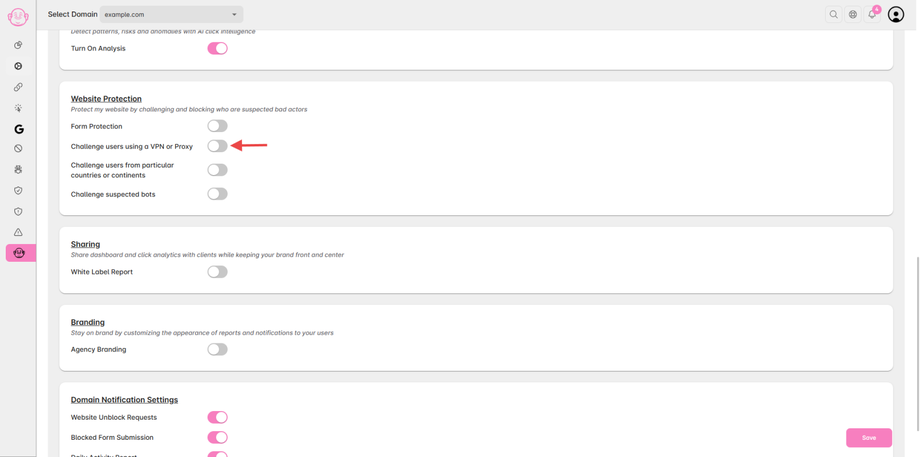
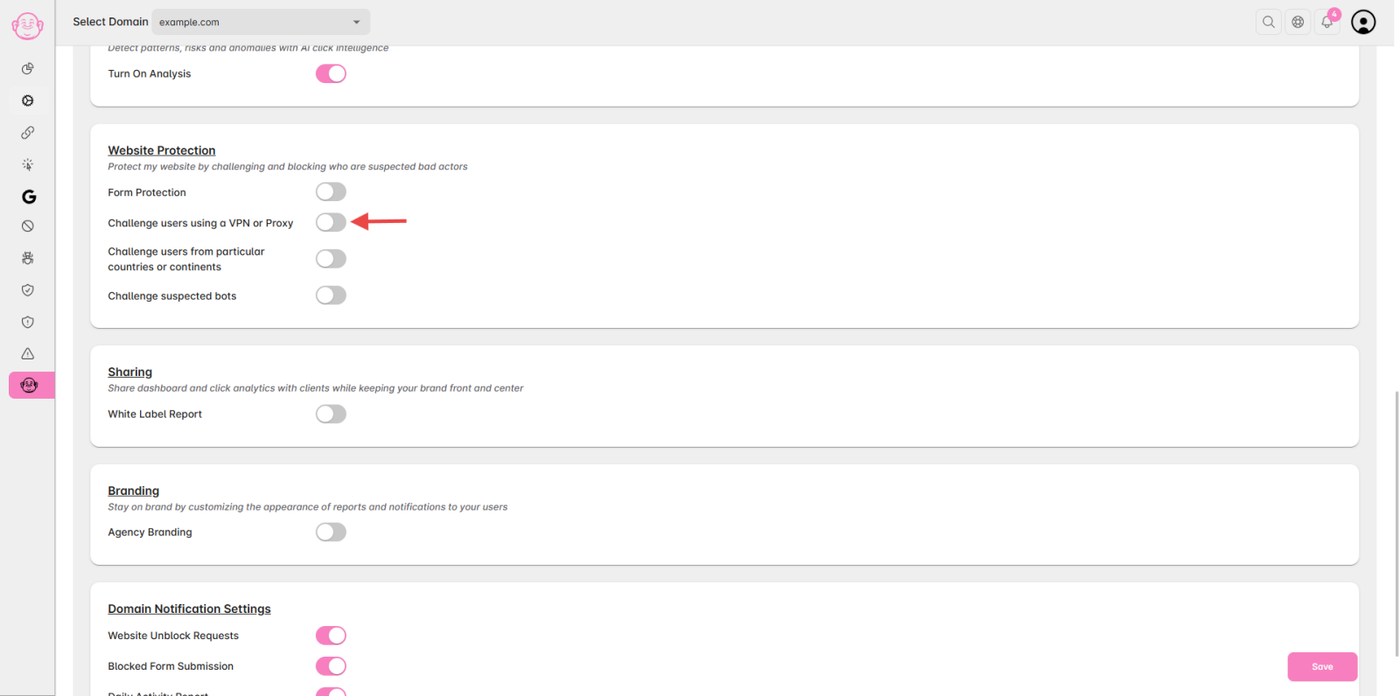
Scroll to the Website Protection section.
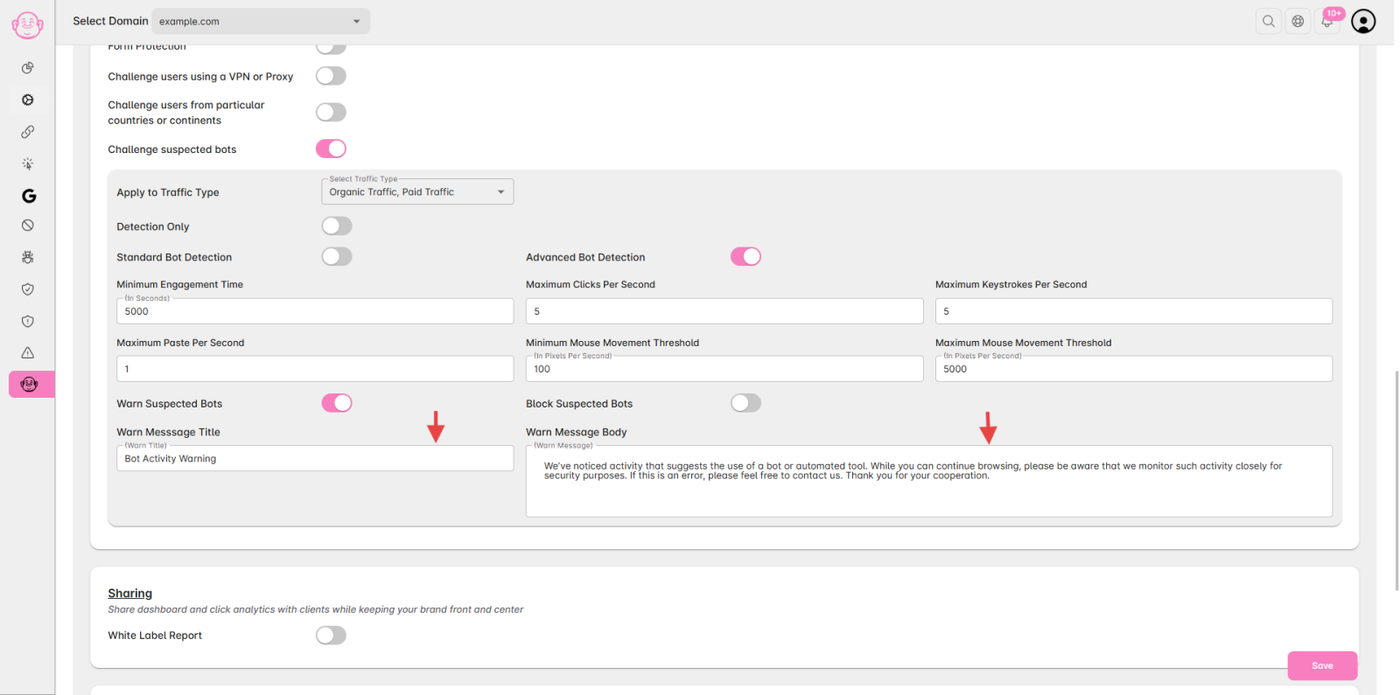
Make sure “Challenge suspected bots” is enabled.
Step 3: Customize the Message
Below the Warn and Block toggle, you’ll find a Text Field to Edit Warning/Blocking Title & Edit Warning/Blocking Message.
By Default, Title and Message is set.
You can modify the:
Title/Heading (e.g., “Access Restricted”)
Message Content (explain why access is blocked or challenged)
Contact Option (e.g., email or link for verification)
Step 4: Save and Apply Changes
Click Save Changes to update the settings.
The customized message will now appear whenever a bot or suspicious visitor is blocked or warned.
✅ Tip:
Use clear and polite wording — e.g.,
“Your request appears automated. Please contact support if this is an error.”
This ensures genuine visitors mistakenly flagged as bots can still reach you easily.