
Click Buddha allows you to fine-tune the Bot Sensitivity Level — controlling how aggressively the system detects and blocks automated traffic.
This helps you balance between accurate detection and minimizing false positives (real users flagged as bots).
Step 1: Log in to Click Buddha
Login into your account and Open your Click Buddha Dashboard.
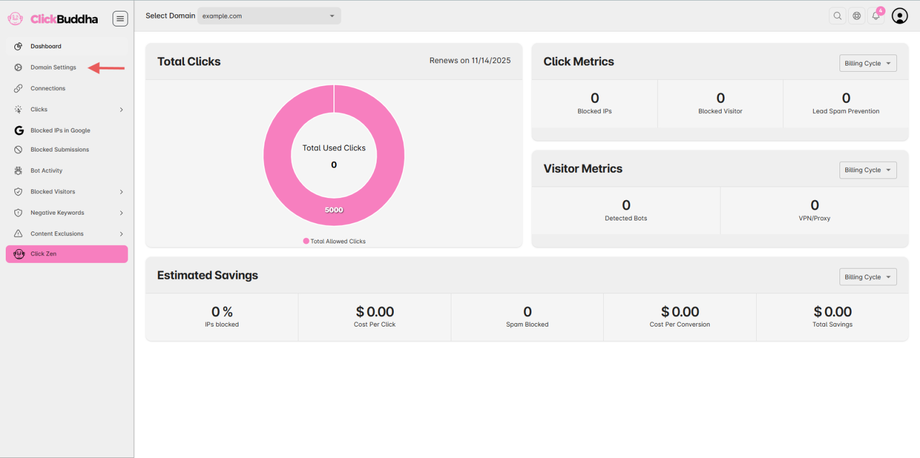
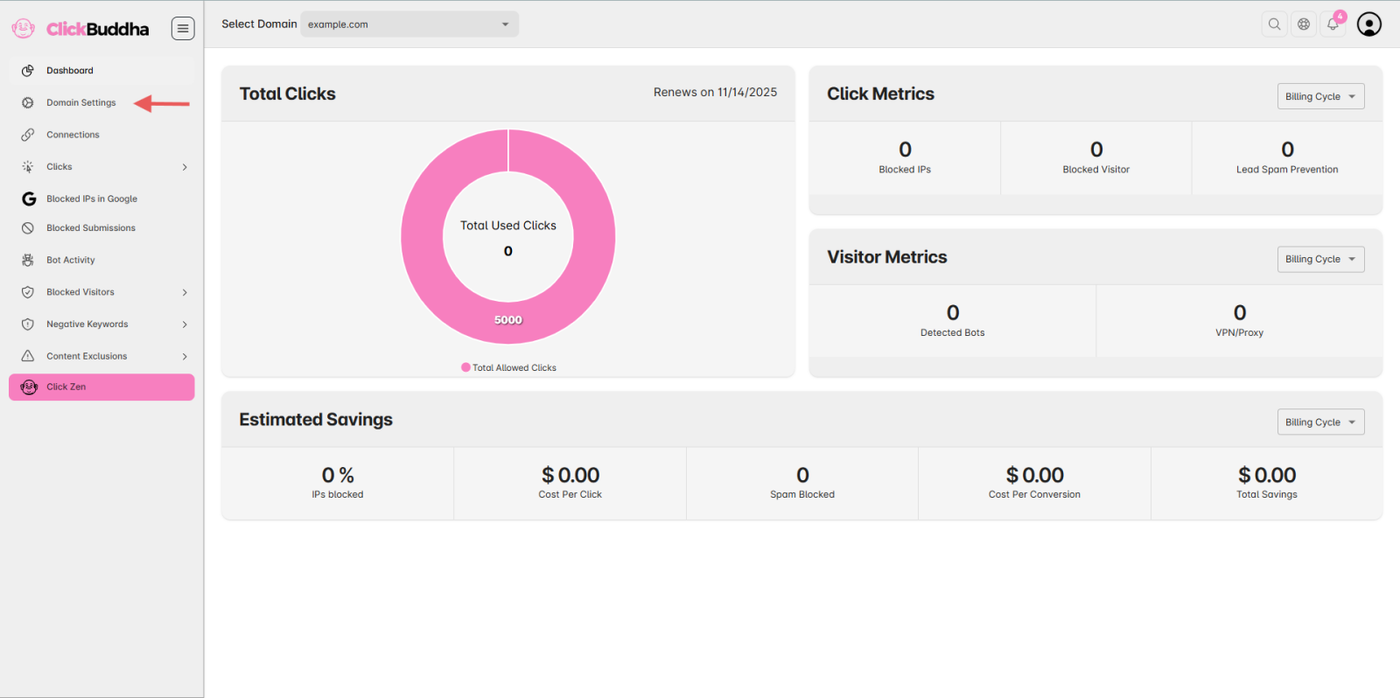
Step 2: Go to Domain Settings
From the sidebar and Open Domain Settings.
Step 3: Go to Website Protection Section
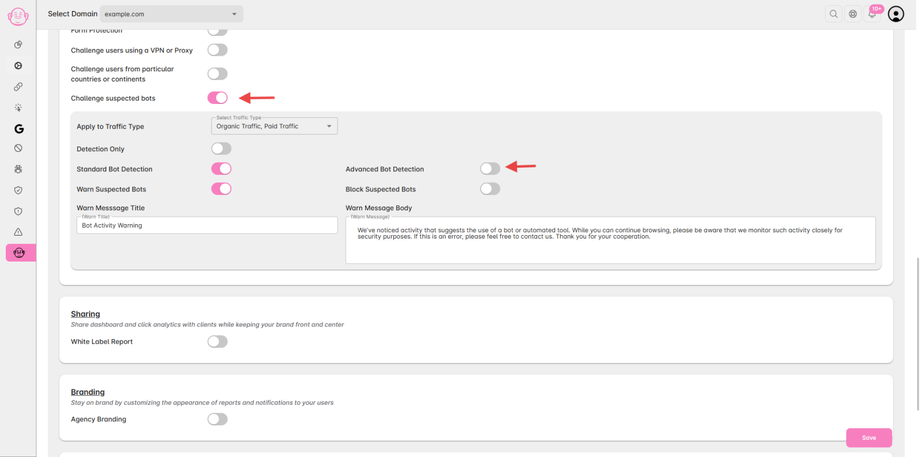
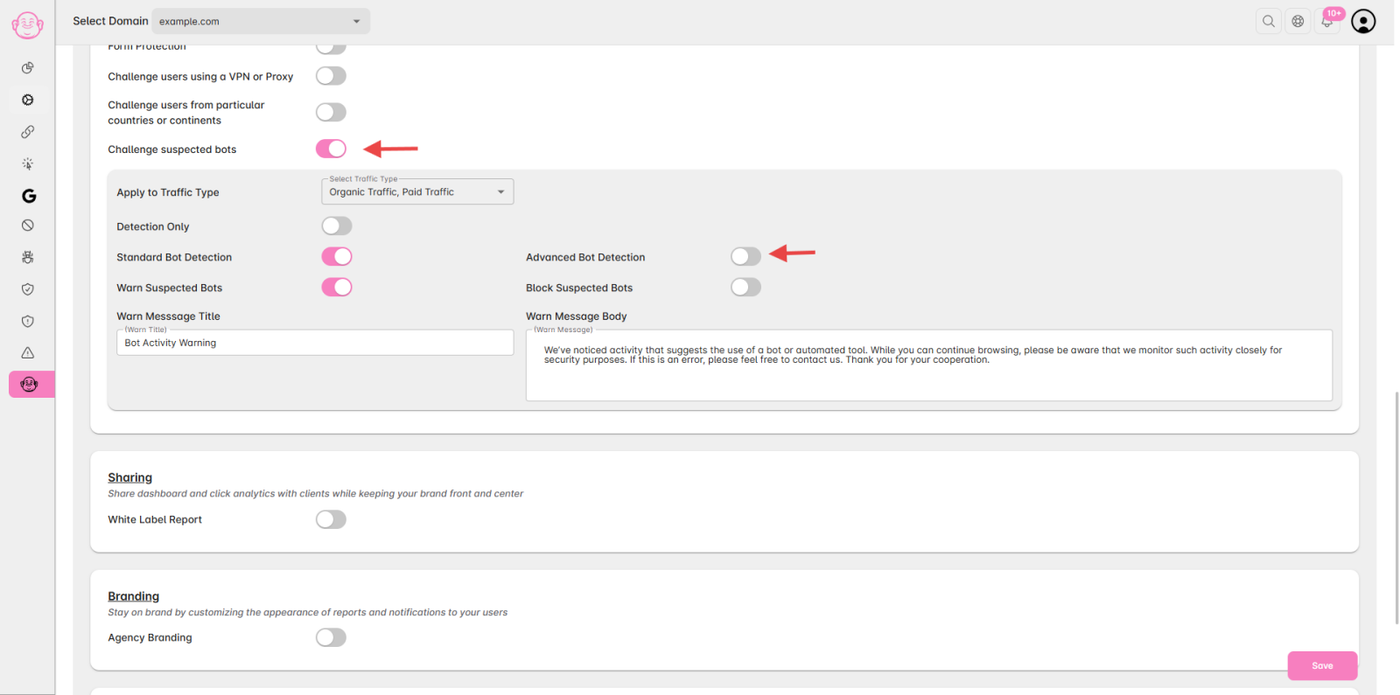
Scroll to the Website Protection section.
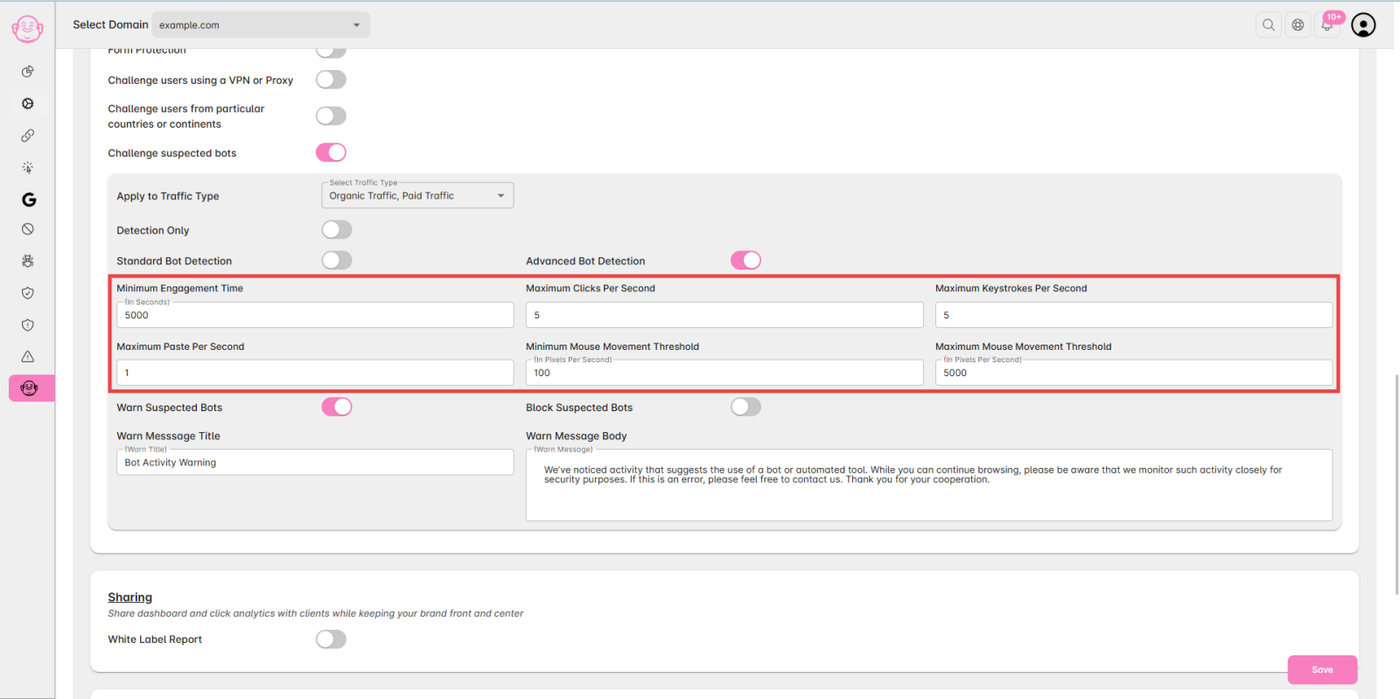
Make sure “Challenge suspected bots” is enabled.
Ensure "Advanced Bot Detection " Toggle is enabled.
Step 4: Adjust Sensitivity Level
Set your Bot Sensitivity Level by configuring the following parameters:
Minimum Engagement Time:
The shortest time a visitor must spend on a page before being considered human.
(Bots that close or redirect instantly are flagged.)Maximum Clicks Per Second:
The highest number of clicks allowed per second.
(Higher rates usually indicate automated scripts.)Maximum Keystrokes Per Second:
Detects unnatural typing speed that exceeds human capability.Maximum Paste Per Second:
Tracks rapid form pasting or autofill actions typical of spam bots.Minimum Mouse Movement Threshold:
Defines the lowest acceptable mouse movement range —
(Bots often show no or linear movements.)Maximum Mouse Movement Threshold:
Caps excessive, erratic mouse movements to catch automation attempts.
After setting your desired limits, fine-tune each value based on your website’s average user behavior.
Step 5: Save Changes
After selecting your preferred sensitivity level, click Save Changes to apply it.
✅ Tip: Start with default medium thresholds, then gradually tighten limits based on your traffic analytics. Pair this with VPN/Proxy Security for maximum accuracy.