
Click Buddha’s Bot Detection system helps you automatically identify and block harmful or fake bot traffic in real time — protecting your ads, analytics, and website performance.
Step 1: Log in to Click Buddha
Login into your account Open your Click Buddha Dashboard.
Step 2: Open Domain Settings
From the sidebar and open Domain Settings.
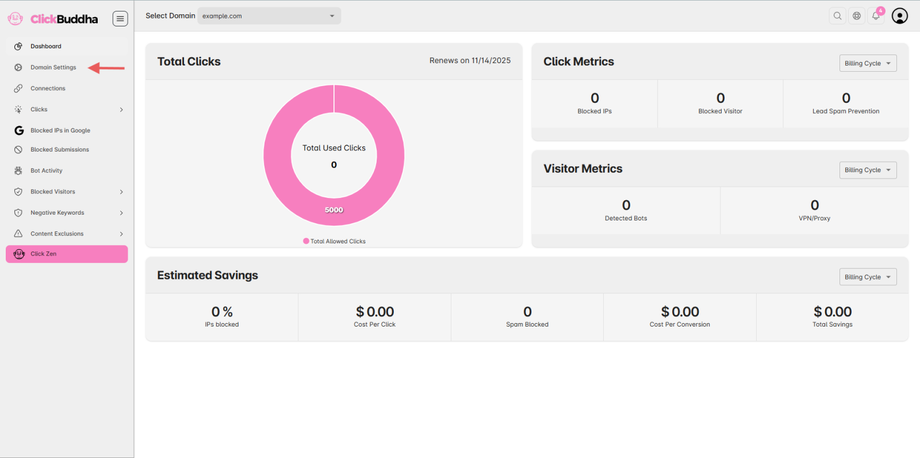
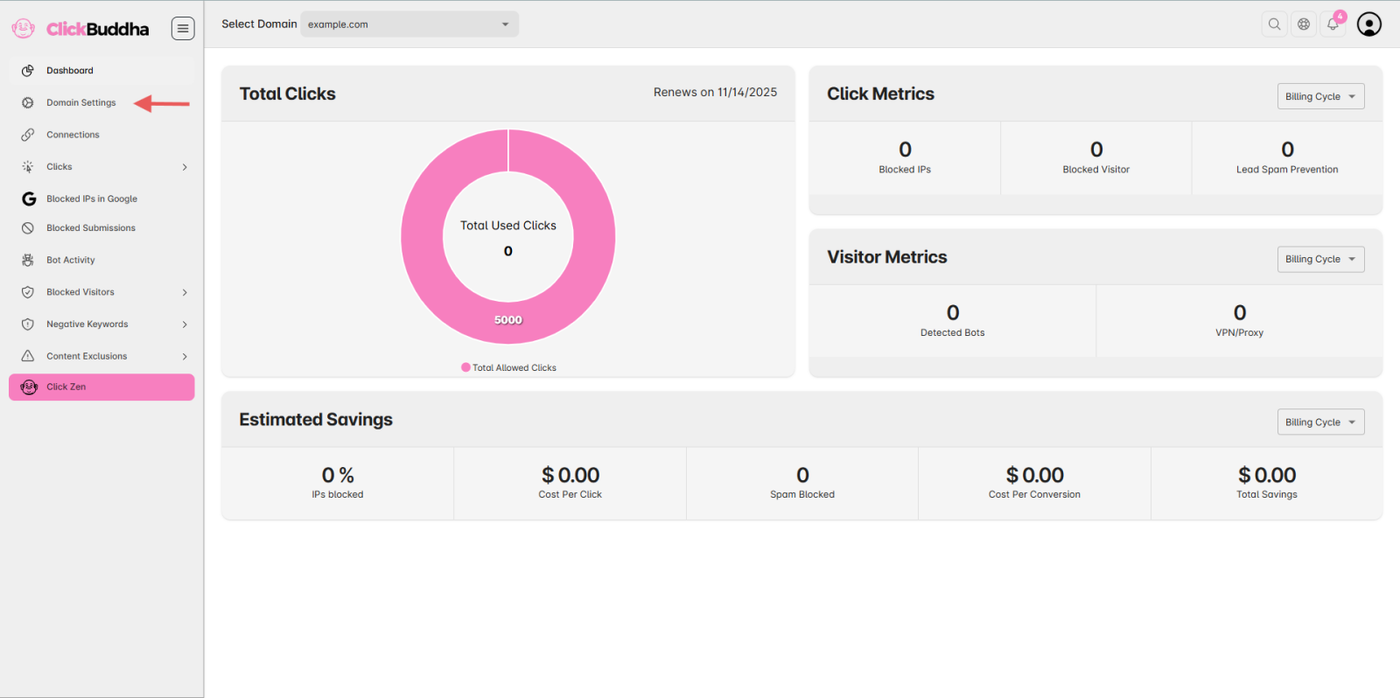
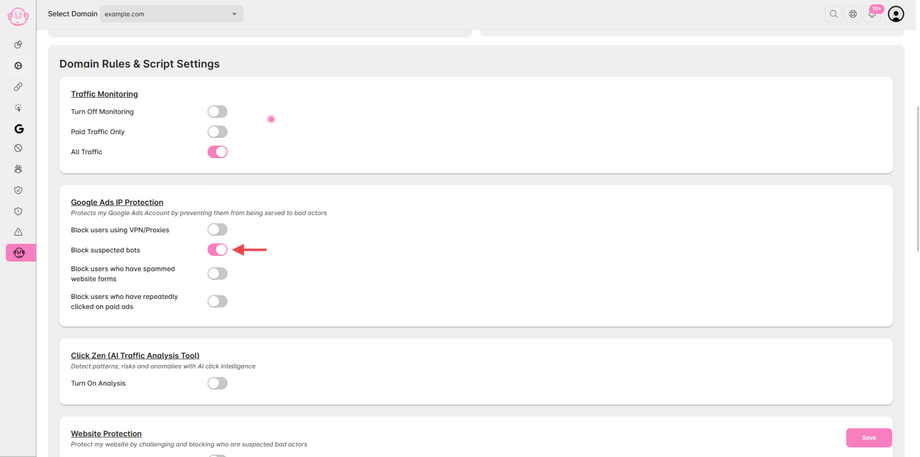
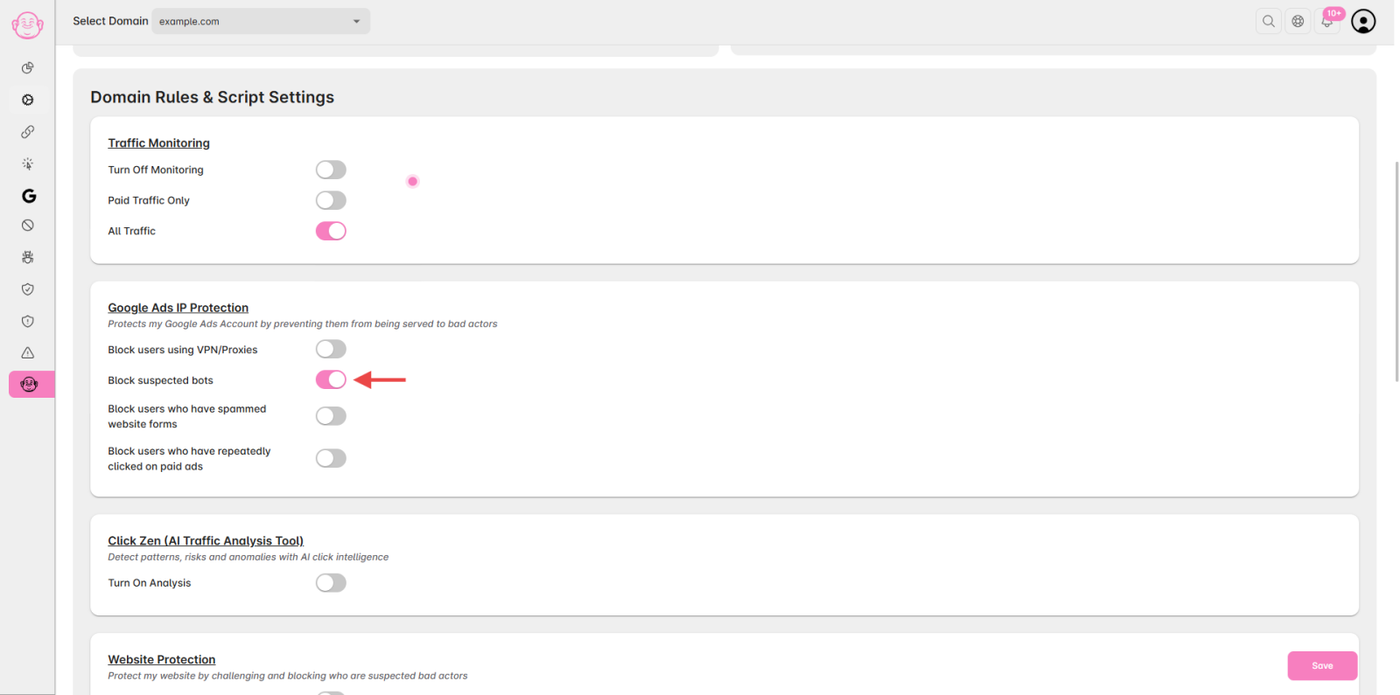
Step 3: Enable Google Ads Form Protection
Scroll down to the Google Ads IP Protection section.
Enable the toggle “Block suspected bots”.
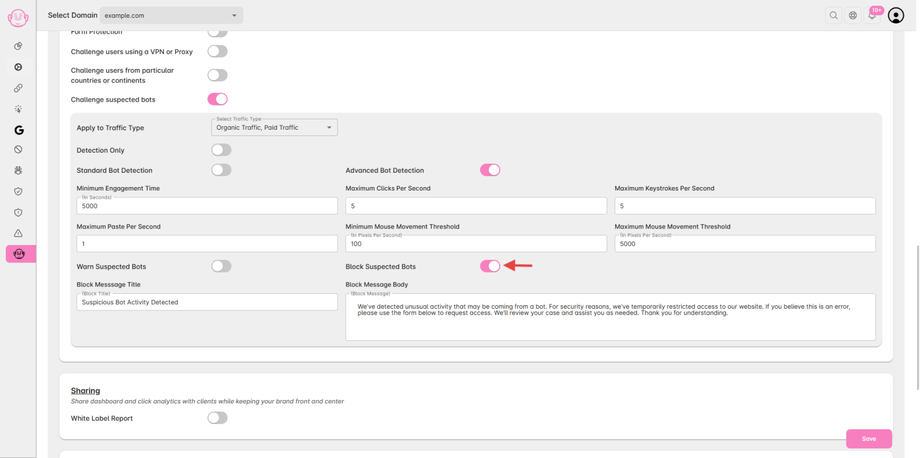
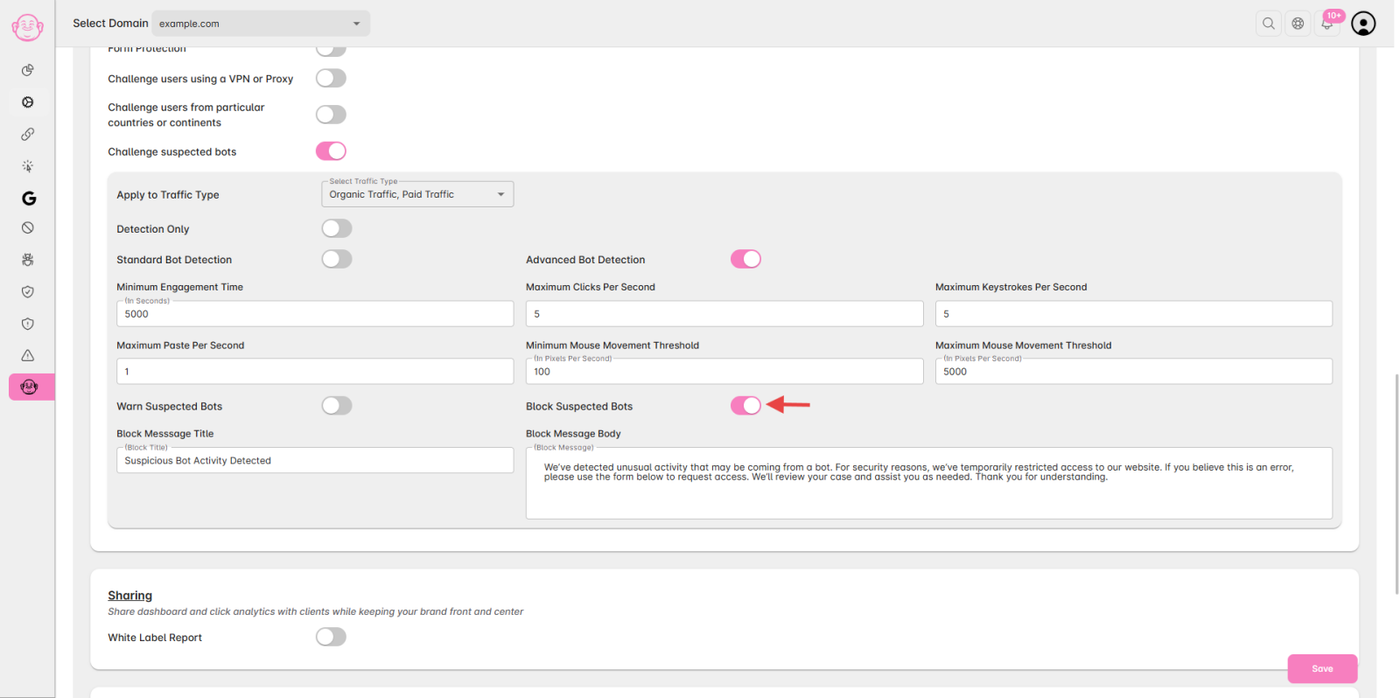
Step 4: Configure Website Bot Blocking
Scroll down to Website Protection.
Select the Traffic Type (Paid, Organic, or Both) for detection or blocking actions.
Select the Bot Detection Type 1. Standard Detection 2. Advanced Detection
Enable the toggle "Block Suspected Bots". (It will block the bot when detected and show a Popup with a form for unblock request to the visitor.)
Step 5: Monitor Bot Activity
Once enabled, Click Buddha continuously tracks bot traffic.
You can view detection logs under:
1. Dashboard → Click Logs
2. Dashboard → Bot Activity
Each entry includes:
Visitor IP Address
Bot Type (Crawler, Click Bot, Scraper, etc.)
Detection Mode
Action Taken (Detected / Blocked)
Source & Timestamp
Step 6: Verify Blocking Actions
Perform a test by simulating bot-like behavior or checking the blocked IP list to ensure the setting is active.
✅ Tip:
If you notice recurring bots from certain data centers or regions, use Country & Continent Security to block them entirely.
For full protection, pair Advanced Bot Detection with VPN/Proxy Security for layered defense.