
Click Buddha records every bot detection event — whether detected, warned, or blocked — so you can easily monitor suspicious activity and fine-tune your protection settings.
Step 1: Log in to Click Buddha
Login into your account and Open your Click Buddha Dashboard.
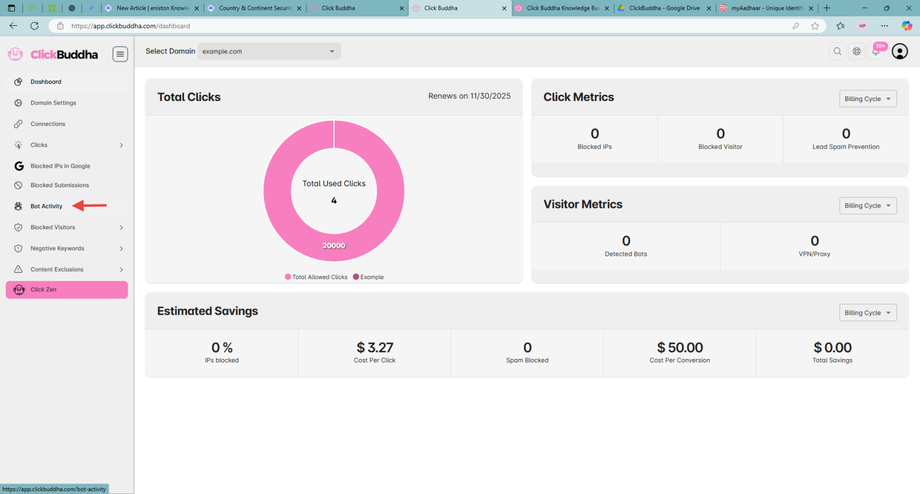
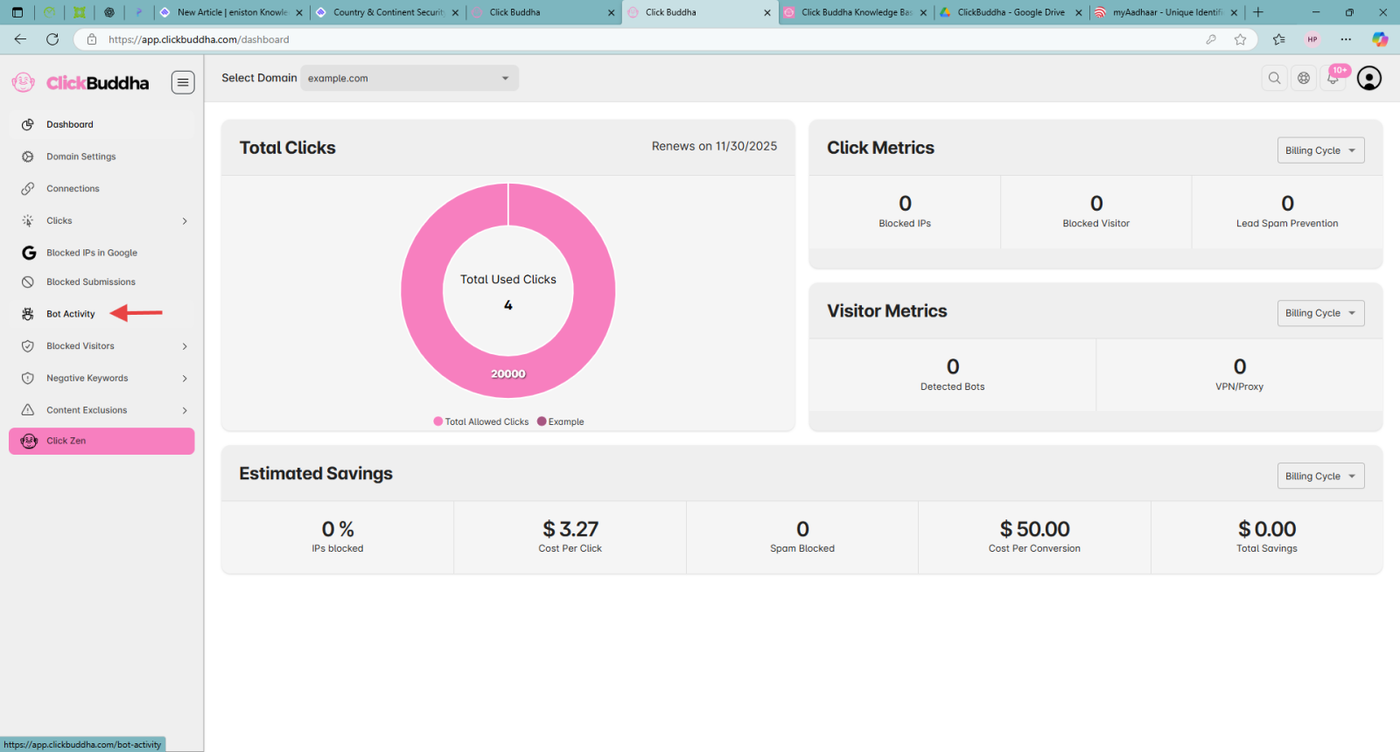
Step 2: Go to Bot Activity Menu
From the sidebar, open Bot Activity.
This section displays all recent detection and blocking activities.
Step 3: View Click Logs or Bot Activity List
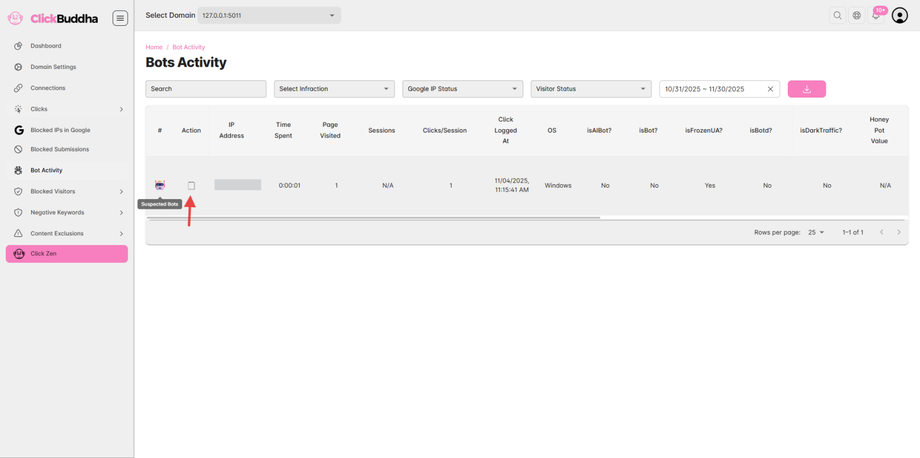
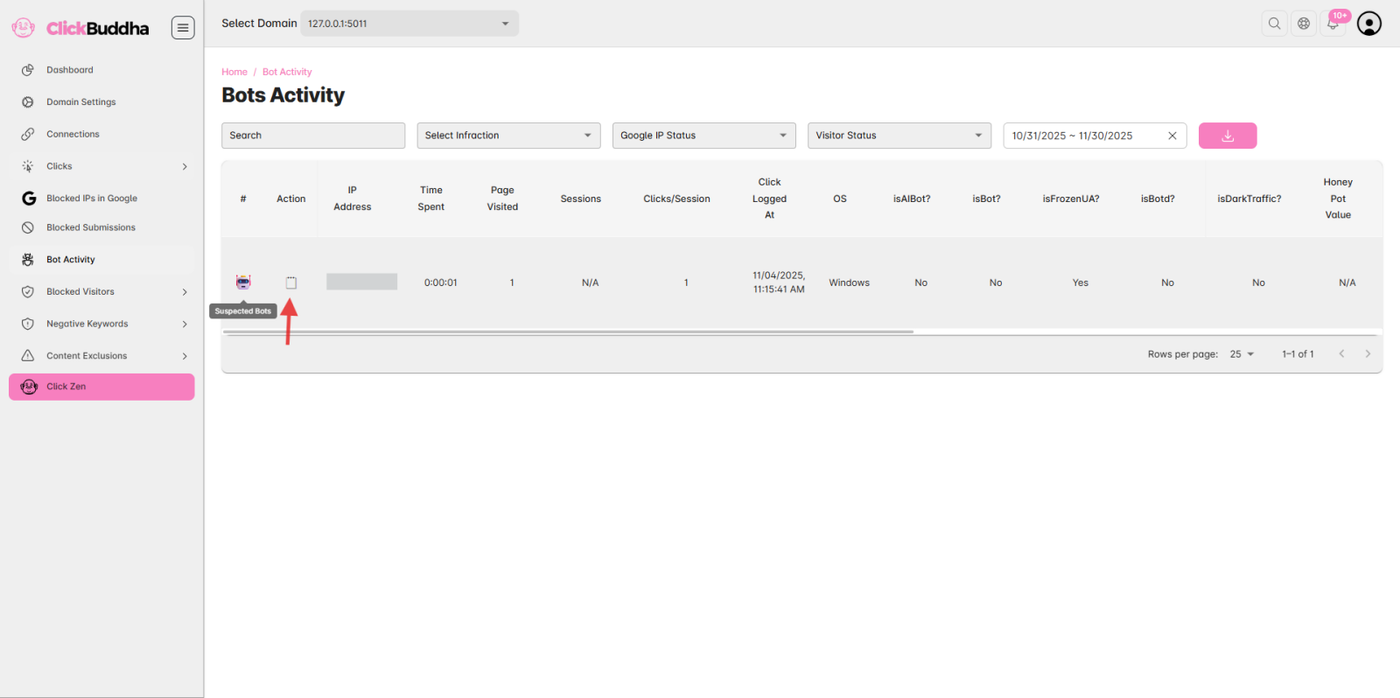
View Click Logs or Bot Activity List.
In the table, look for the 🗒️ (Details) icon in the Action column for more Detailed View.
Bot Detection Click marked with this icon (🤖).
Step 4: Review Detected Entries
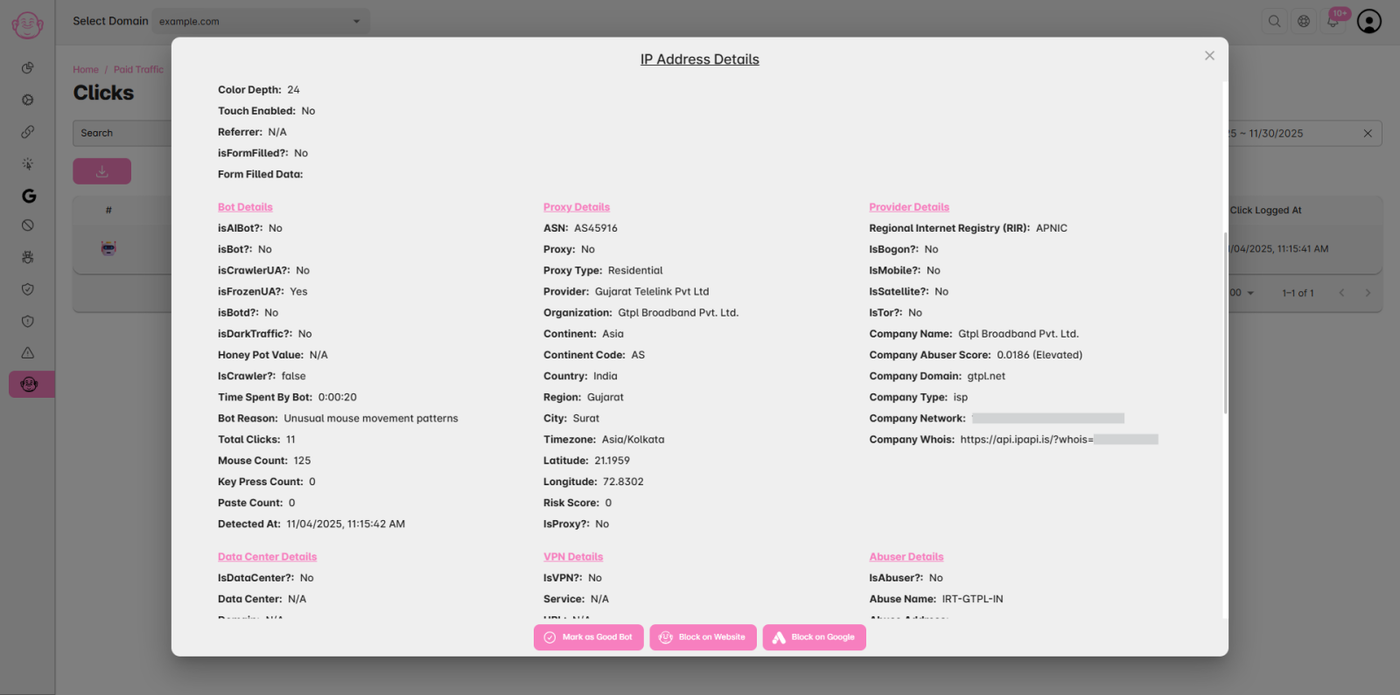
Each log entry includes detailed information such as:
Visitor IP Address
Bot Type (Crawler, Click Bot, Scripted Bot, etc.)
Detection Mode (Standard / Advanced)
Action Taken (Detected / Warned / Blocked)
Traffic Type (Paid / Organic)
Timestamp & Domain
✅ Tip:
If you see consistent bot activity from the same network or country, you can block that region using Country & Continent Security.
Adjust your Bot Detection level (Standard → Advanced) for stronger defense.