
Click Buddha allows you to add or exclude placements directly from a specific campaign — perfect when you want precise control over where your ads appear (or don’t appear) without affecting other campaigns.
Step 1: Log in to Click Buddha
Sign in with your account and Open your Click Buddha Dashboard.
Step 2: Go to Google Ads Placements
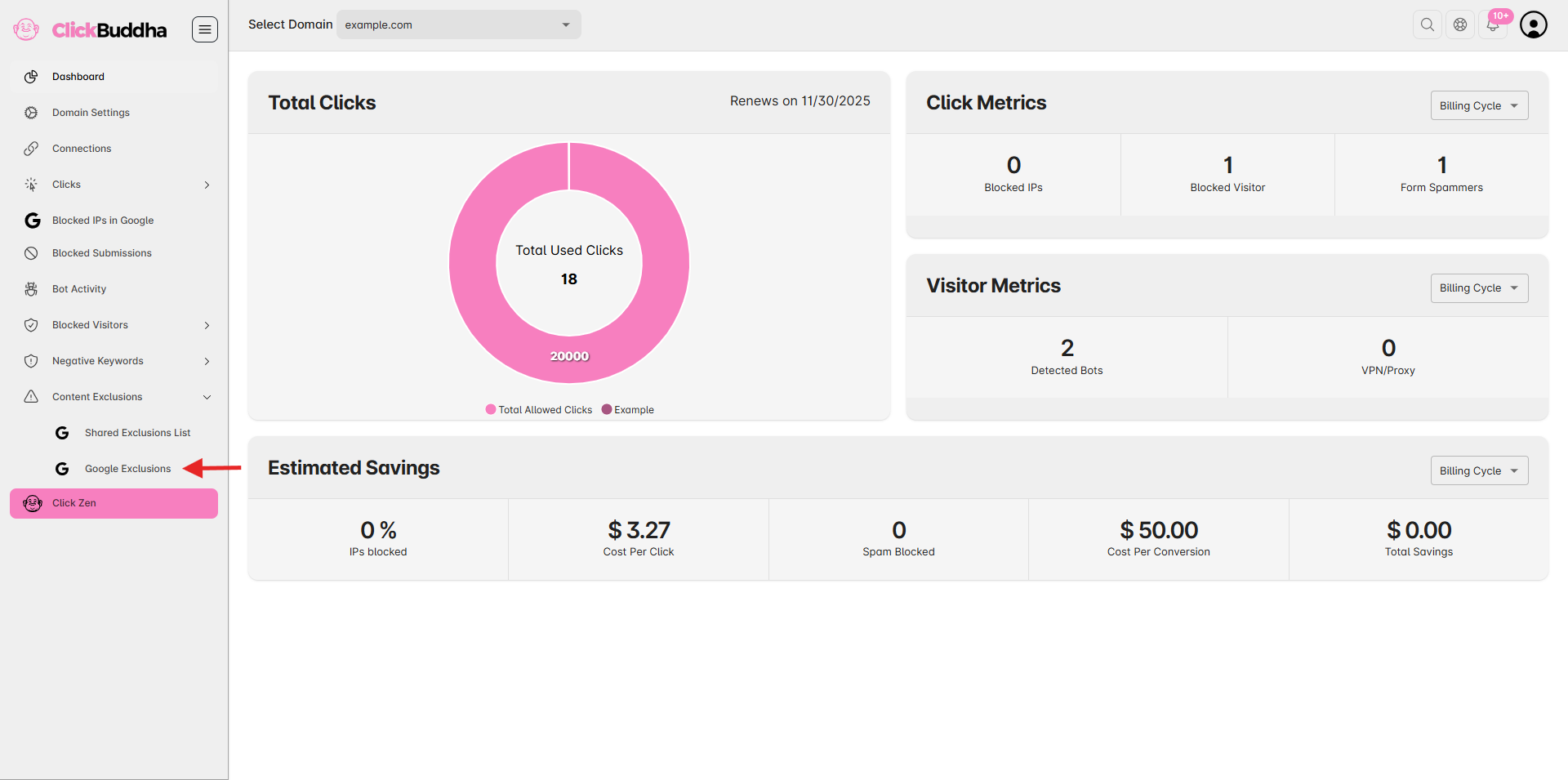
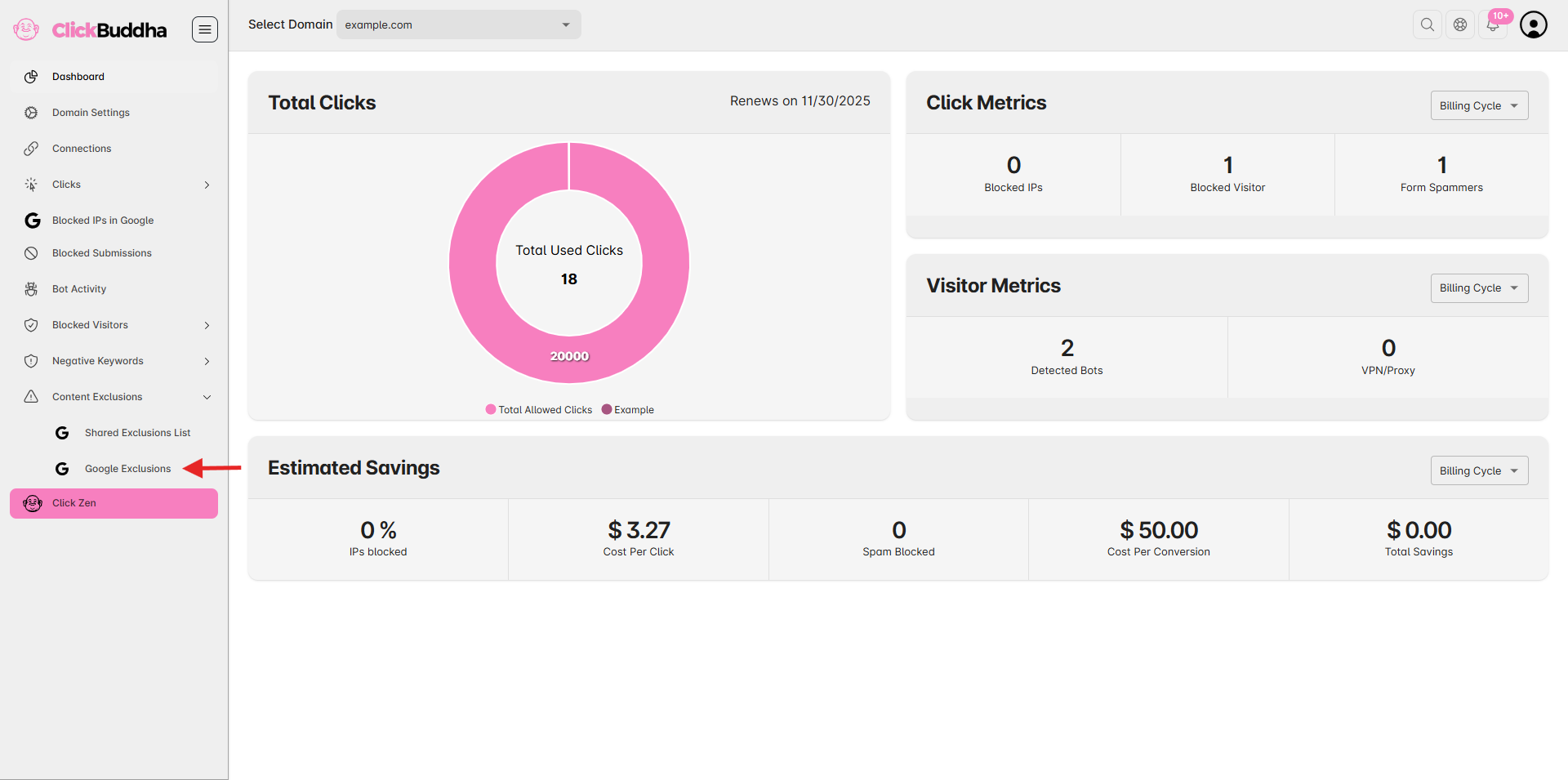
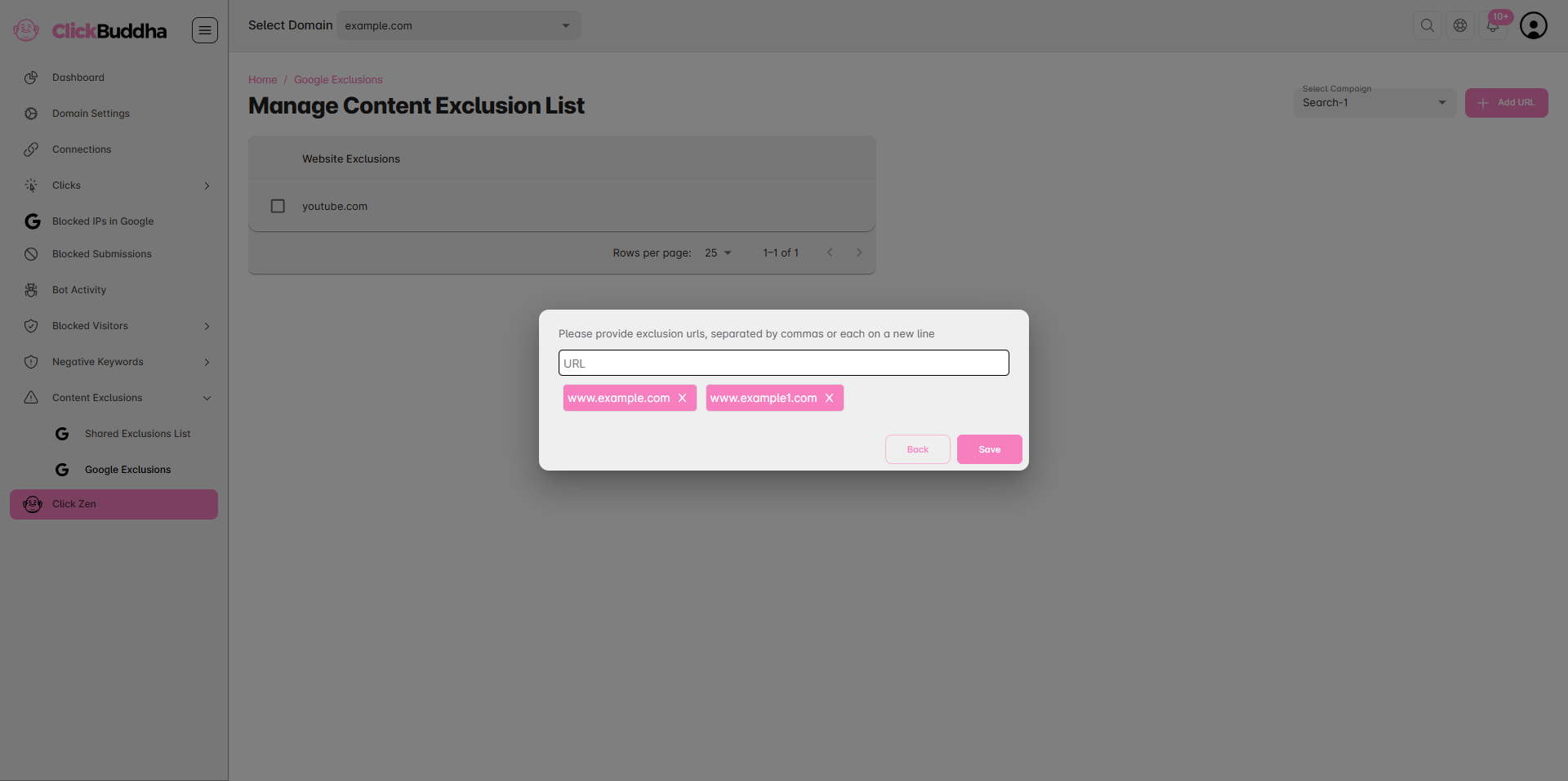
From the sidebar, navigate to Content Exclusions → Google Exclusions.
Step 3: Choose Your Campaign
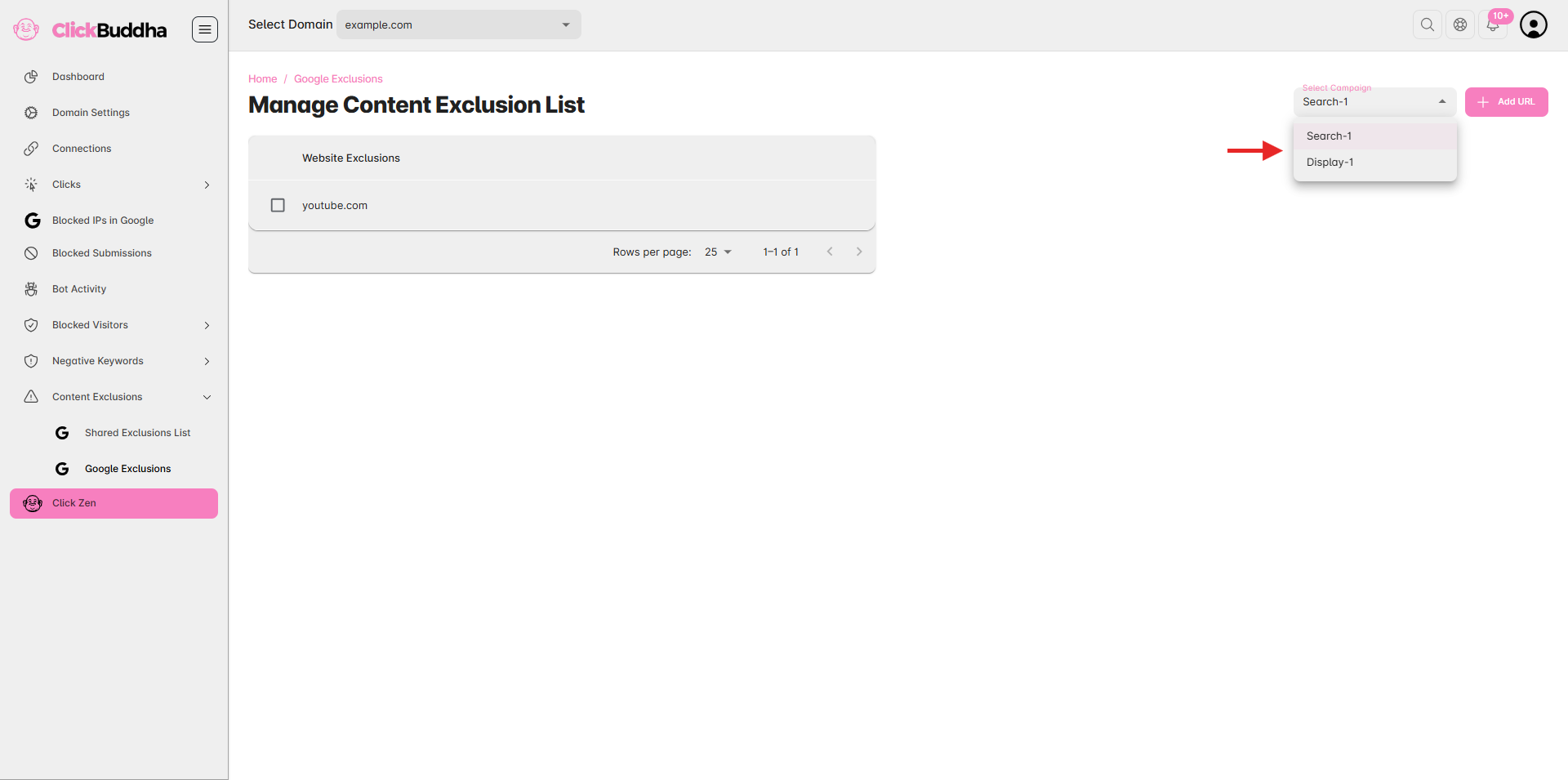
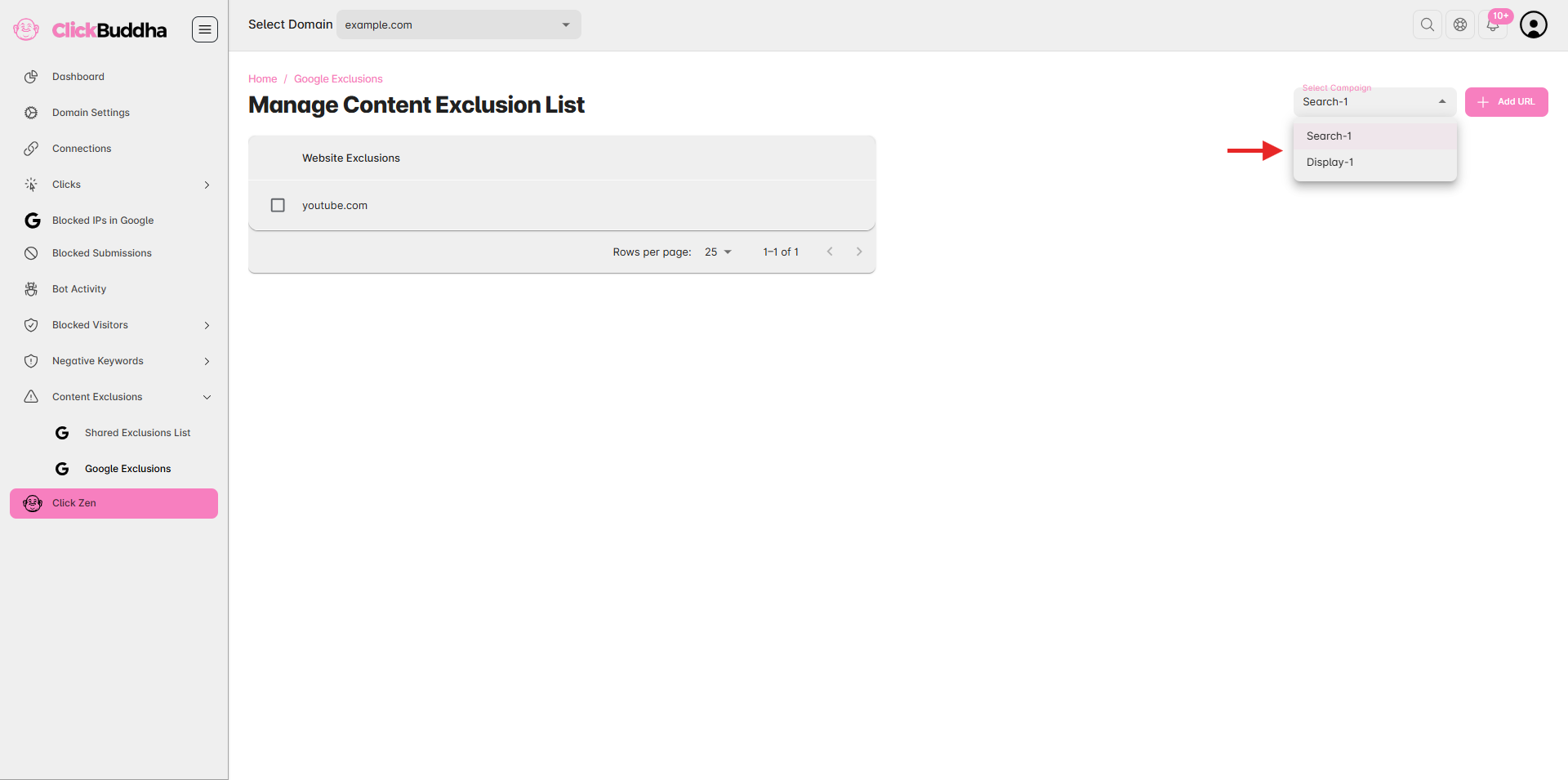
You’ll see all your campaigns listed along with their placement details.
Locate the campaign where you want to add or exclude placements.
Click on the “Add URL” button in the top-right corner of the campaign’s section.
Step 4: Add Placements
Enter the website URLs you want to exclude. (Note: This Feature only support websites no other placement types.)
You can paste multiple placements — comma separated.
i.e. www.example.com, www.example1.com
Step 5: Save and Apply
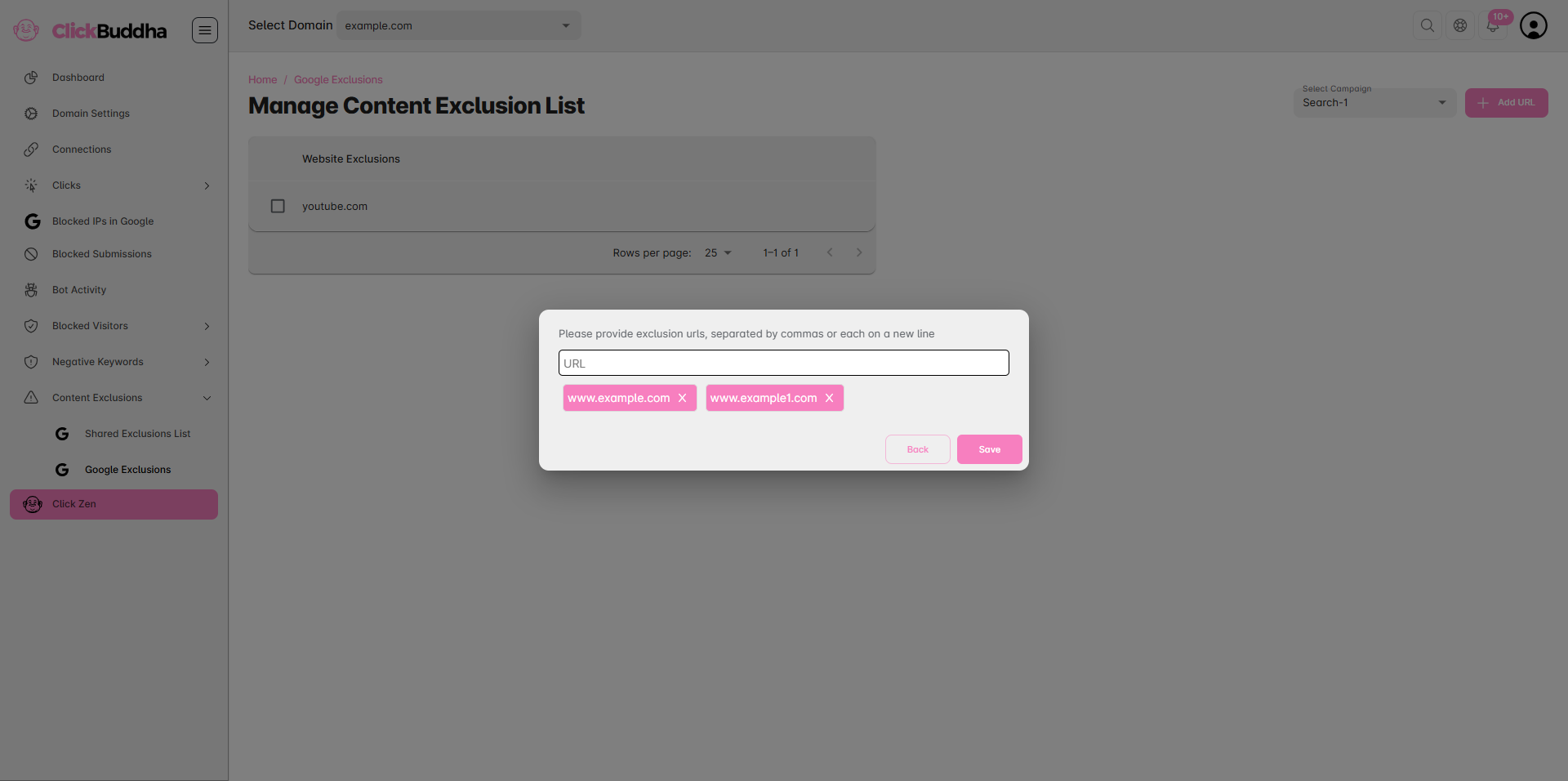
Once your placements are added, click Save Changes.
Your campaign will now automatically sync these placements with Google Ads.
✅ Tip: Exclude low-quality or irrelevant sites and focus on placements that deliver higher engagement and conversions.