
Click Buddha allows you to create and manage Shared Placement Lists — a convenient way to apply the same excluded or targeted placements across multiple Google Ads campaigns.
This helps you save time and maintain consistent ad safety settings for all your campaigns.
Step 1: Log in to Click Buddha
Sign in with your account and Open your Click Buddha Dashboard.
Step 2: Navigate to Placement Exclusion
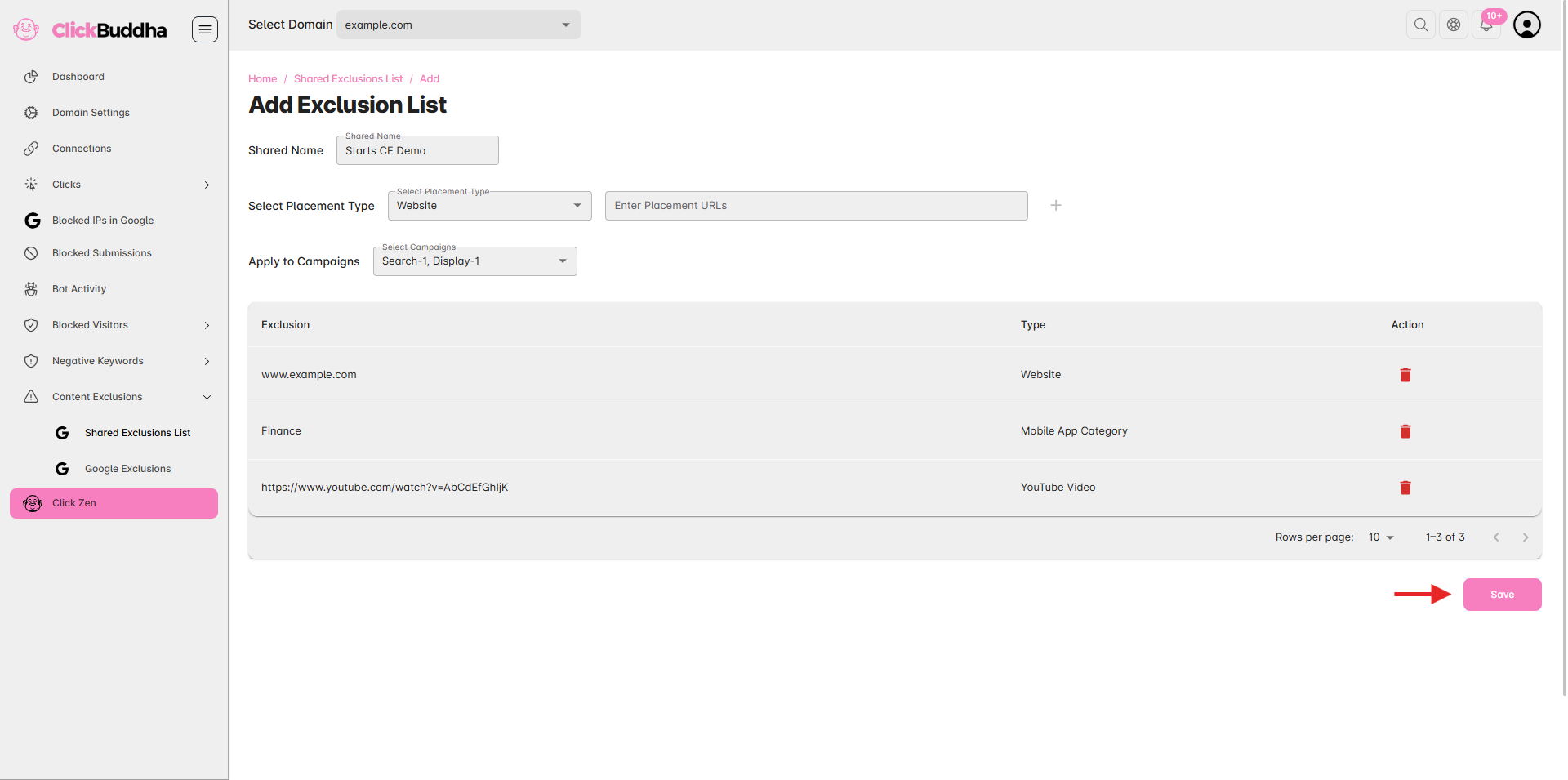
From the sidebar, go to Content Exclusions → Shared Exclusion Lists.
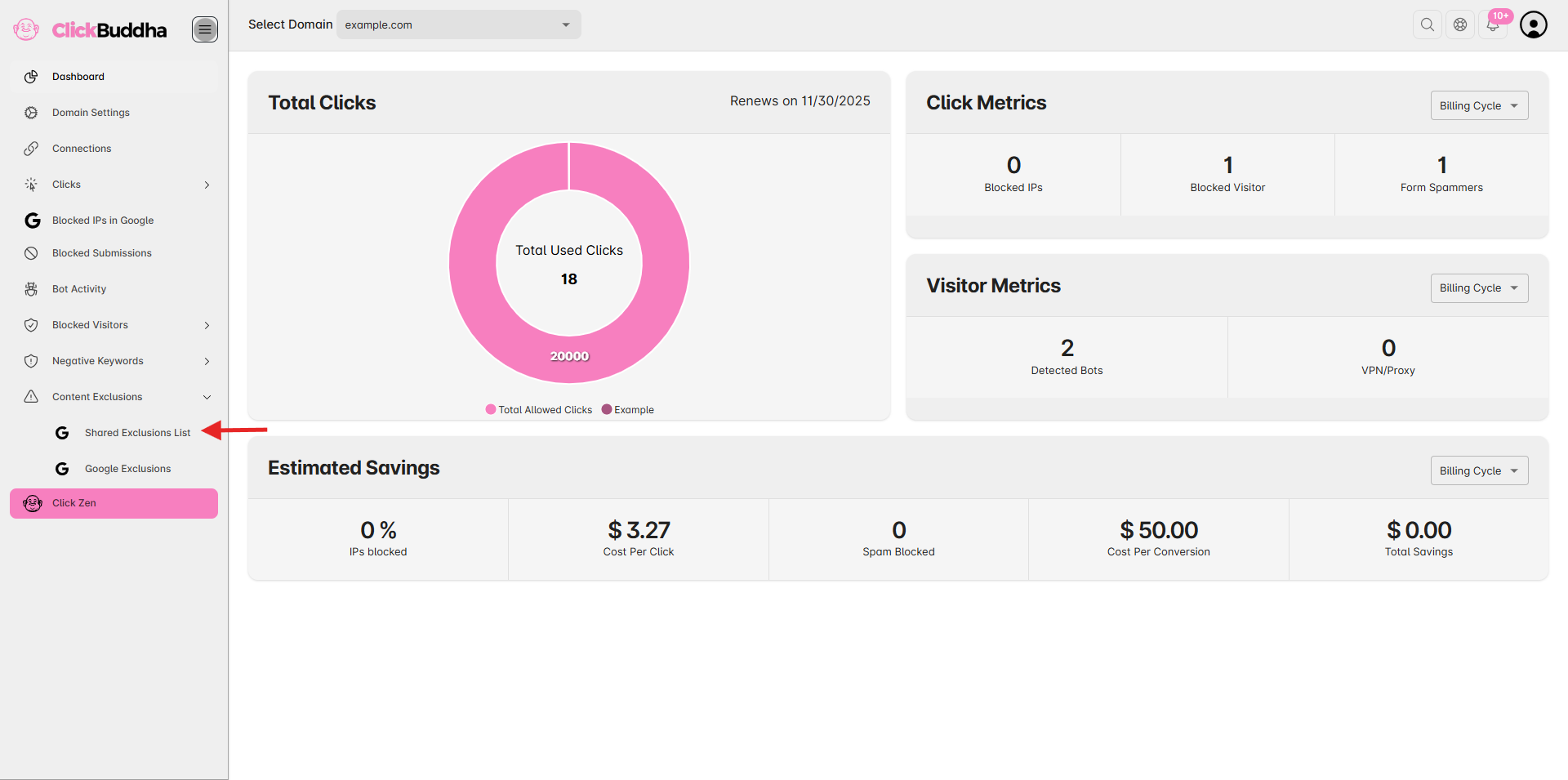
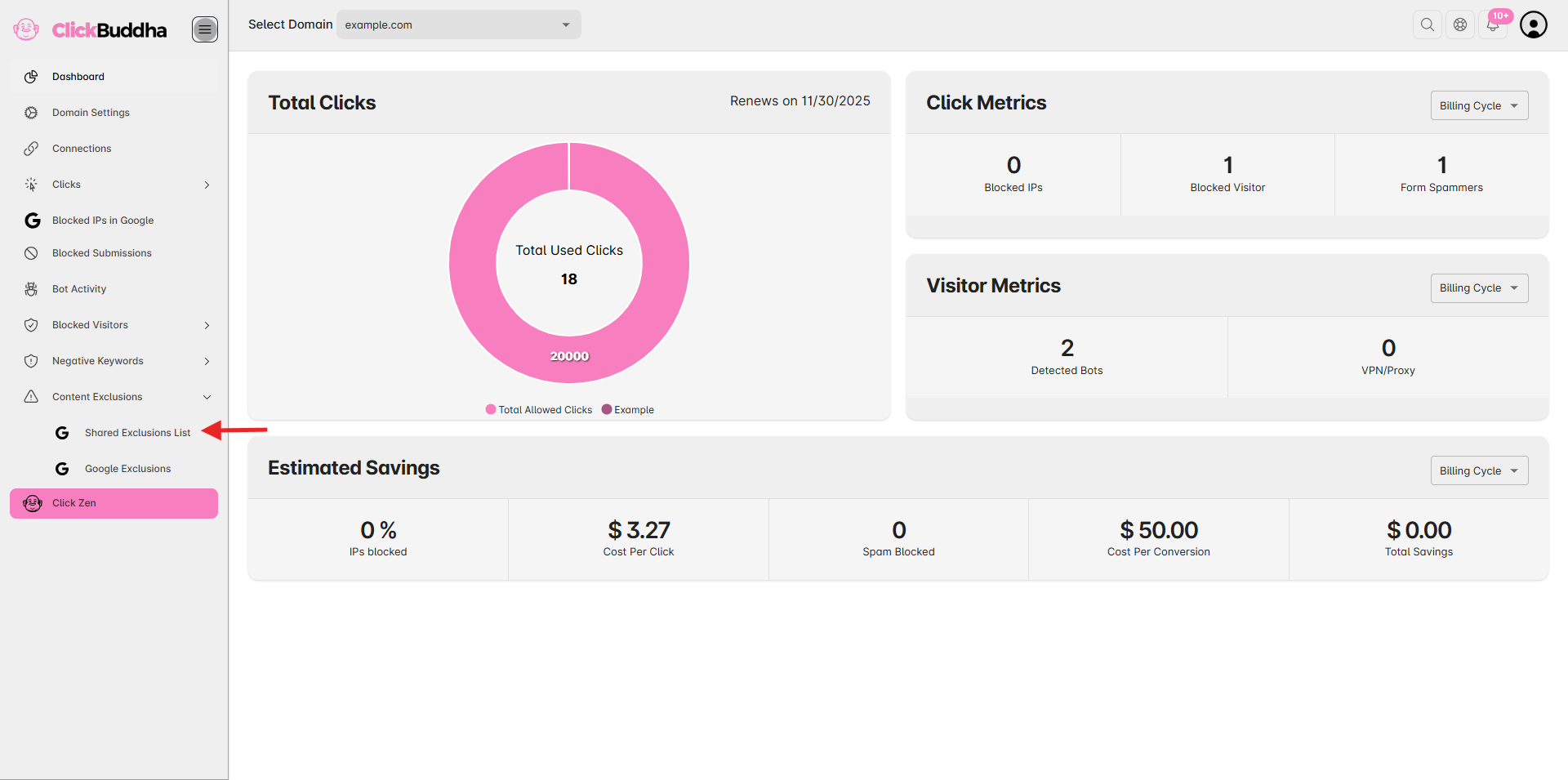
Step 3: Create a New Shared Placement List
Click on the “Add Placement List” button at the top-right corner.
Enter a List Name (for example, “Low-Quality Sites” or “Brand Safety List”).
Select Placement Types: I.e. Websites, Mobile App Category, YouTube Videos, YouTube Channel.
Add the URLs or placement domains you want to exclude or target.
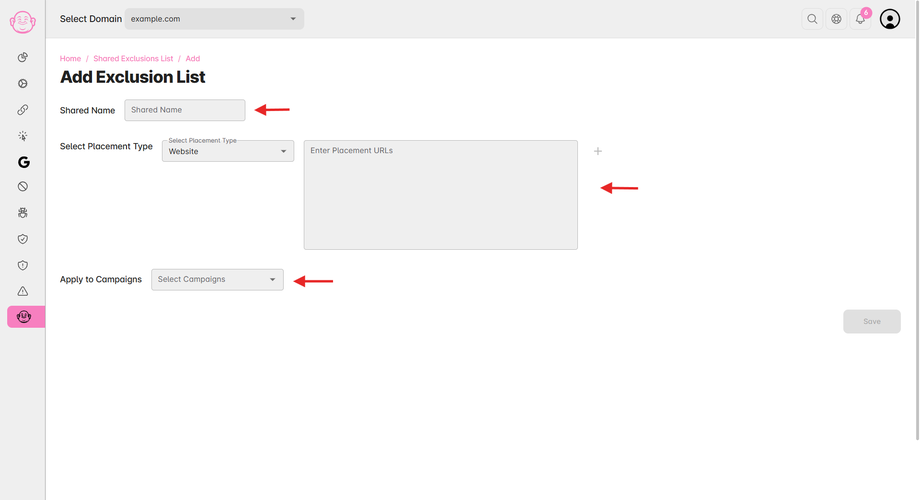
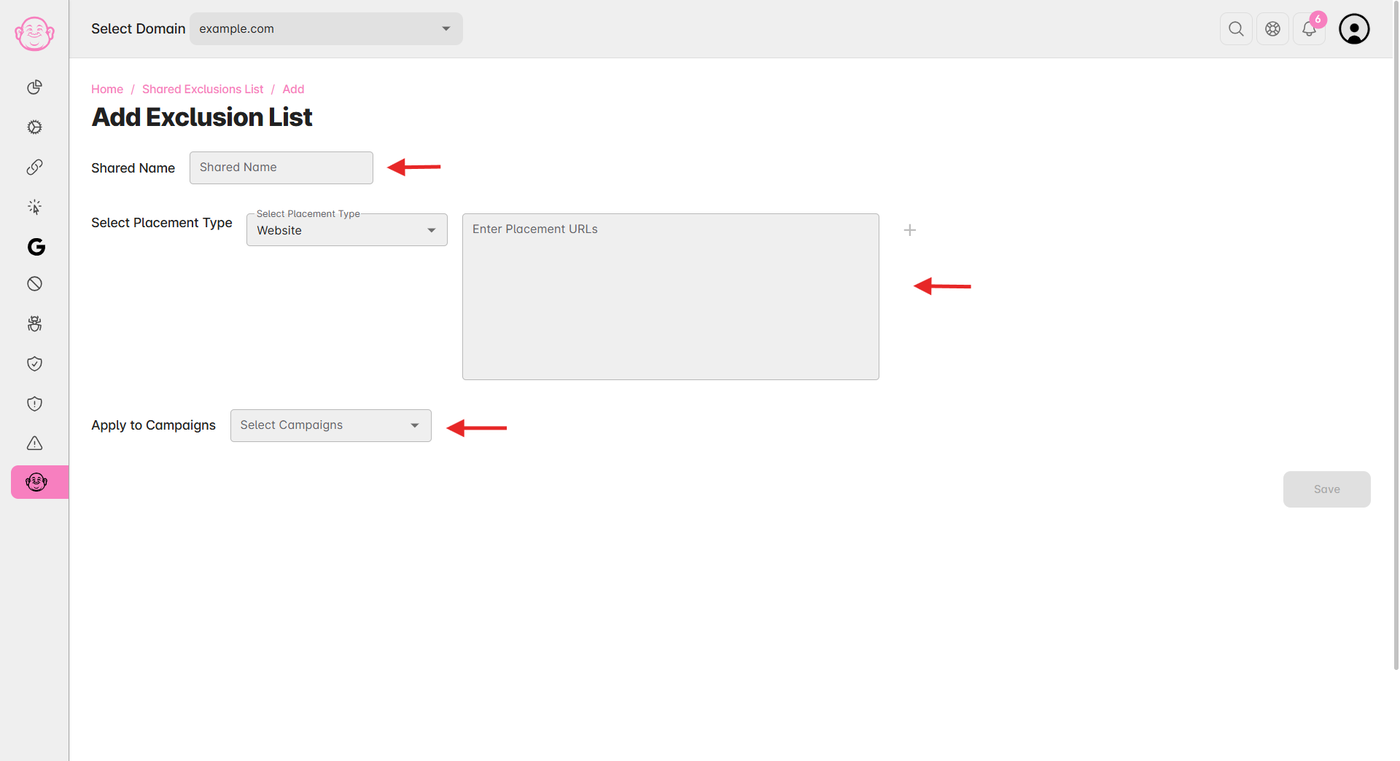
Step 4: Assign the List to Campaigns
Select the campaigns you want to apply this placement list to.
Click Save & Apply to confirm your selection.
Your placement list is now active and applied to all selected campaigns.
Step 5: Manage or Update Later (Optional)
You can return anytime to:
✏️ Edit the placement list (add or remove domains).
🗑️ Delete the list if it’s no longer needed.
🔁 Reapply or assign it to new campaigns.
✅ Tip: Creating shared placement lists ensures consistent content filtering across campaigns — helping you exclude unwanted sites and maintain brand safety with minimal effort.