
Click Buddha makes it easy to manage your shared exclusion placement lists so you can keep your ad targeting clean, relevant, and brand safe. You can edit a list to update placements or delete it entirely when it’s no longer needed.
Step 1: Log in to Click Buddha
Sign in with your account and Open your Click Buddha Dashboard.
Step 2: Navigate to Shared Placement Lists
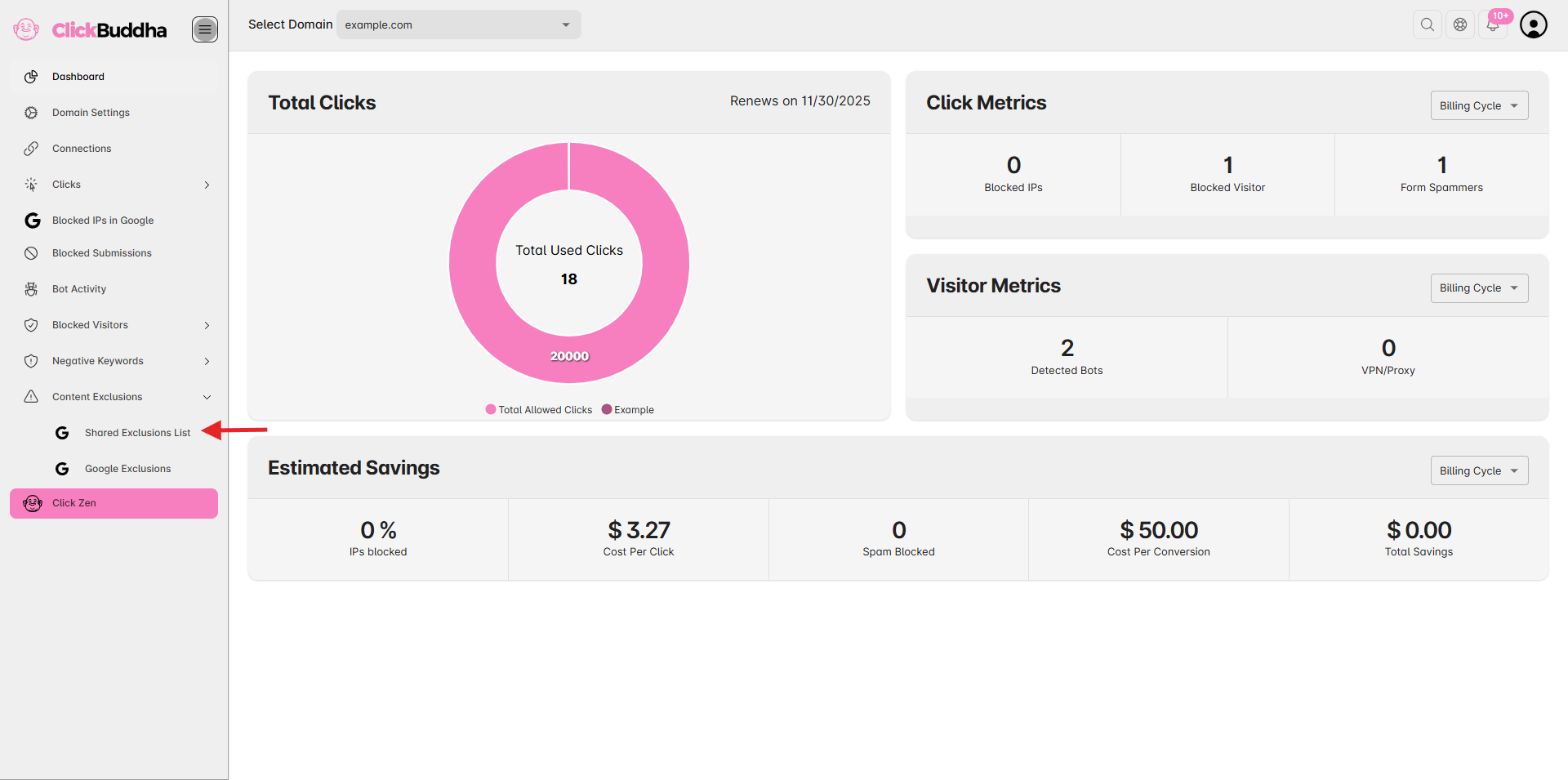
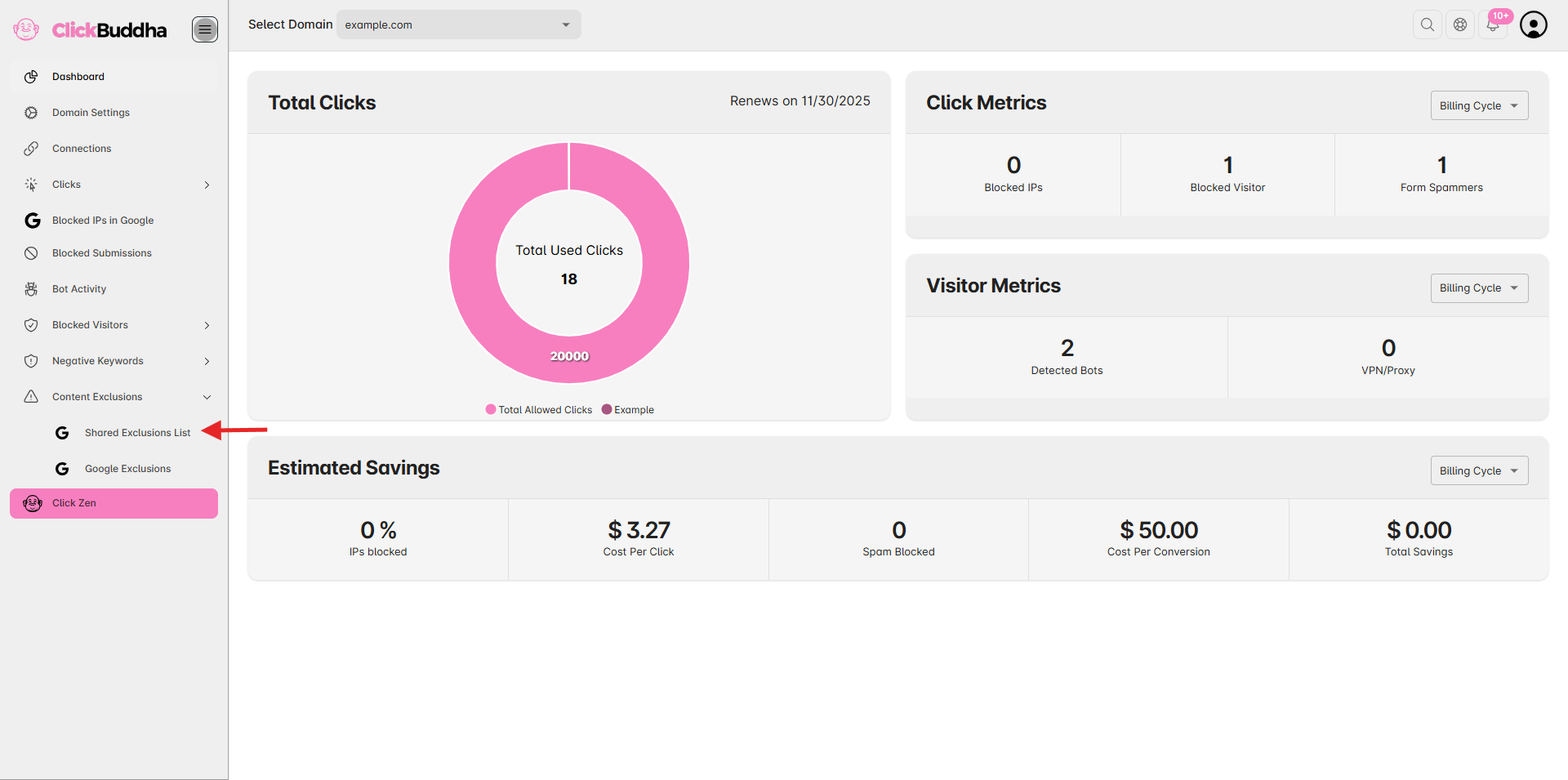
From the sidebar, go to Content Exclusions → Shared Exclusion List.
Step 3: Edit a Shared Placement List
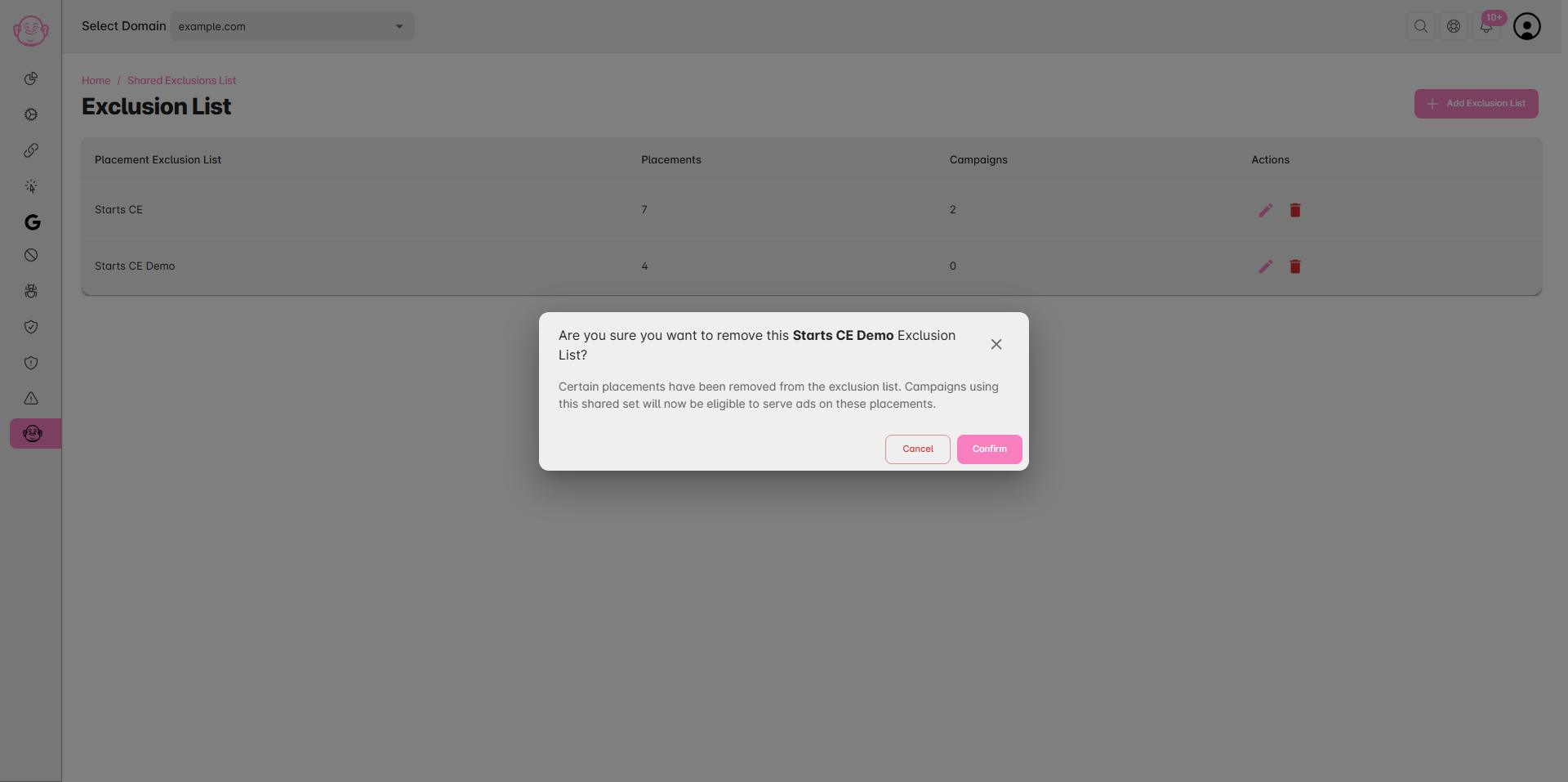
You’ll see a table of all your existing exclusion placement lists.
Locate the list you want to modify.
In the Action column in a table, you’ll see options to:
✏️ Edit – Modify placement URL/category or associated campaigns.
🗑️ Delete – Permanently remove the list from Google Ads and all connected campaigns.
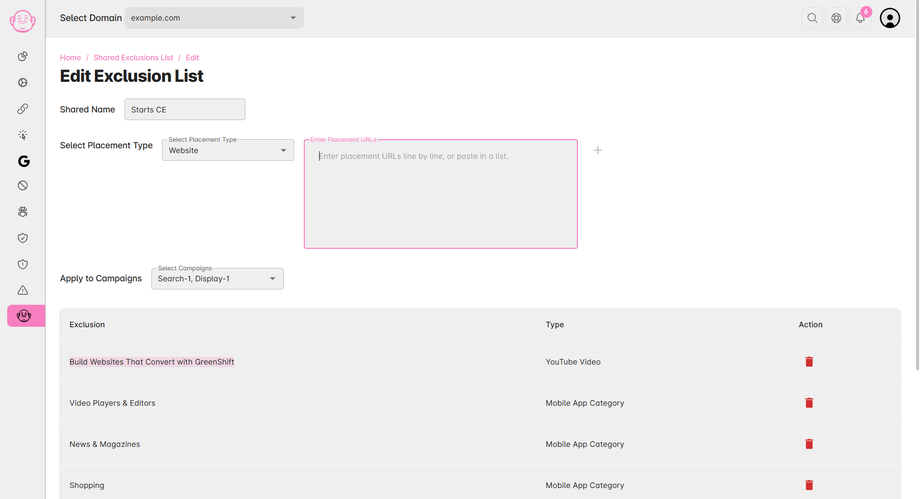
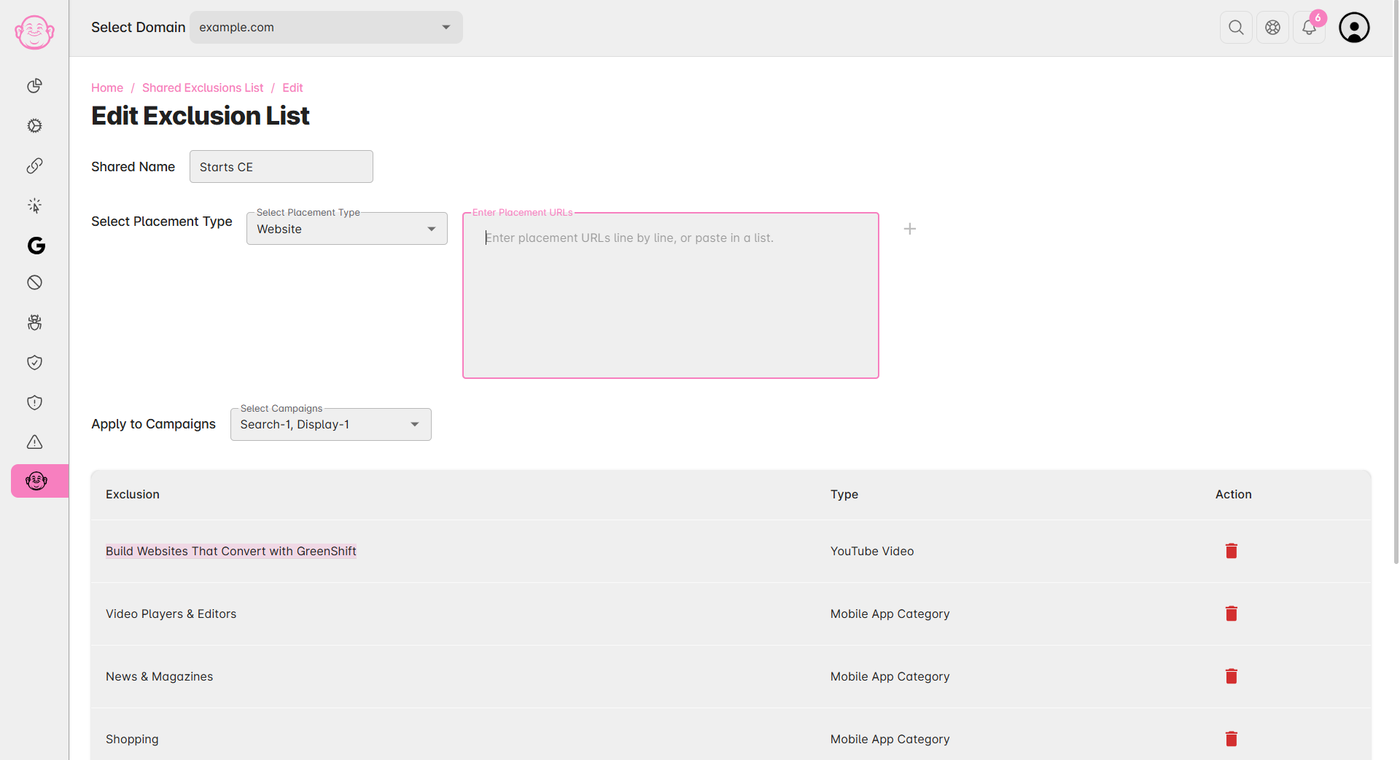
Update the list name, add or remove URLs/domains, or change campaign assignments.
Once done, click Save Changes to update the list across all linked campaigns.
Step 4: Remove a Shared Placement List
To delete a list, click the Delete (🗑️) icon next to it.
A confirmation prompt will appear — click Confirm to permanently delete the list.
Once deleted, the placement list will automatically be unlinked from all campaigns.
✅ Tip: Regularly review and update your exclusion lists to maintain brand safety and improve ad performance — especially when new low-quality or irrelevant placements are identified.