
Click Buddha lets you personalize the warning message shown to visitors from countries or continents that are restricted under your Country & Continent Security settings.
This helps you maintain a branded, user-friendly experience even when access is limited.
Step 1: Log in to Click Buddha
-
Login to your account and Open your Click Buddha Dashboard.
Step 2: Go to Domain Settings
-
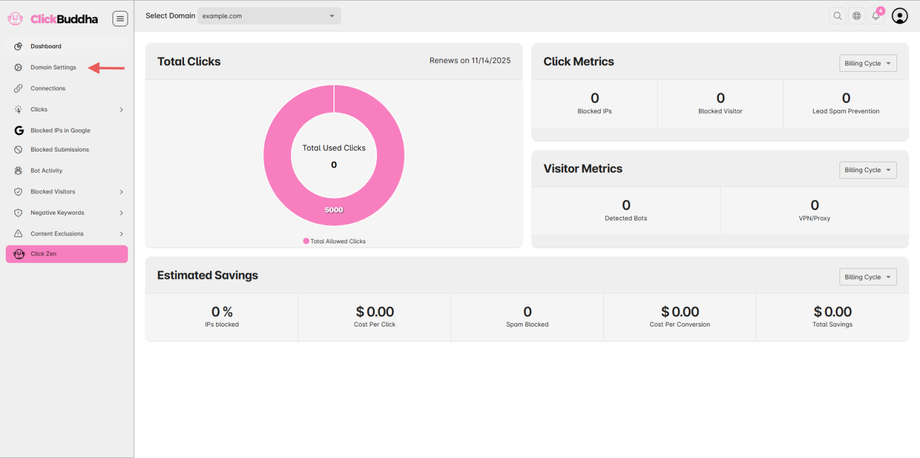
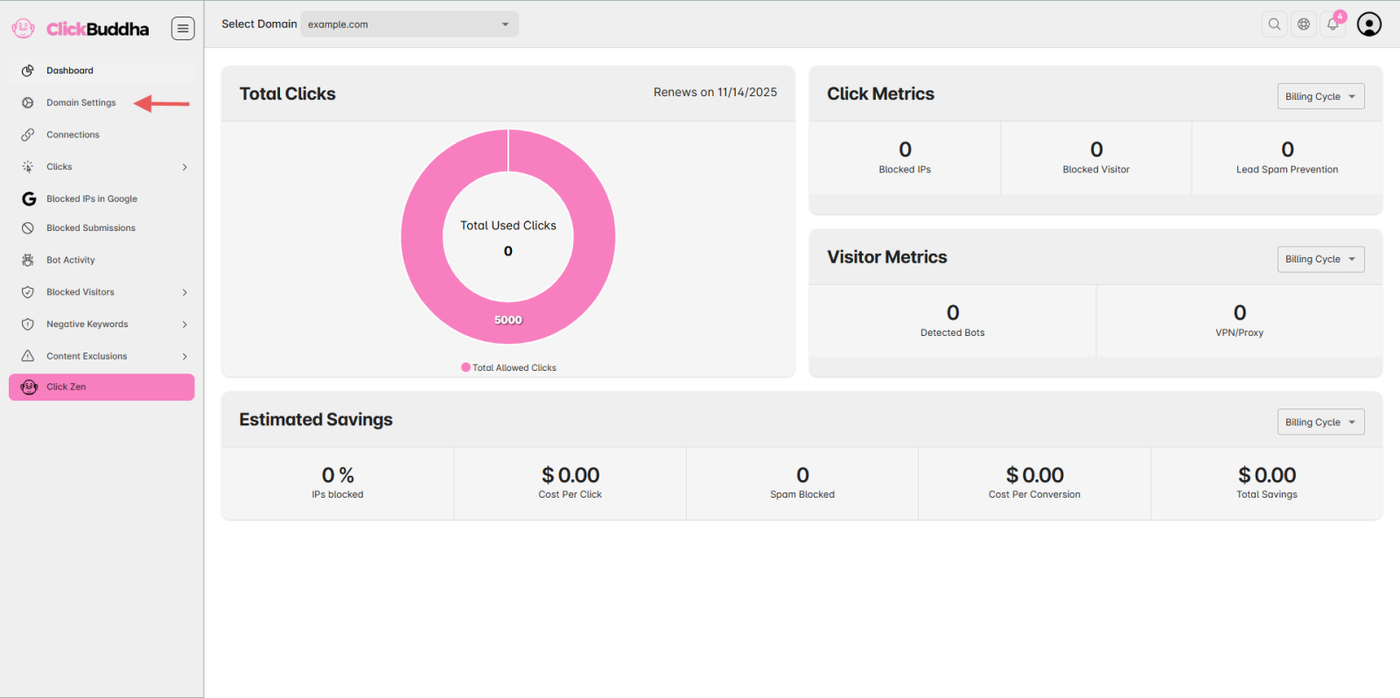
From the sidebar, open Domain Settings.
Step 3: Scroll to Country & Continent Security
-
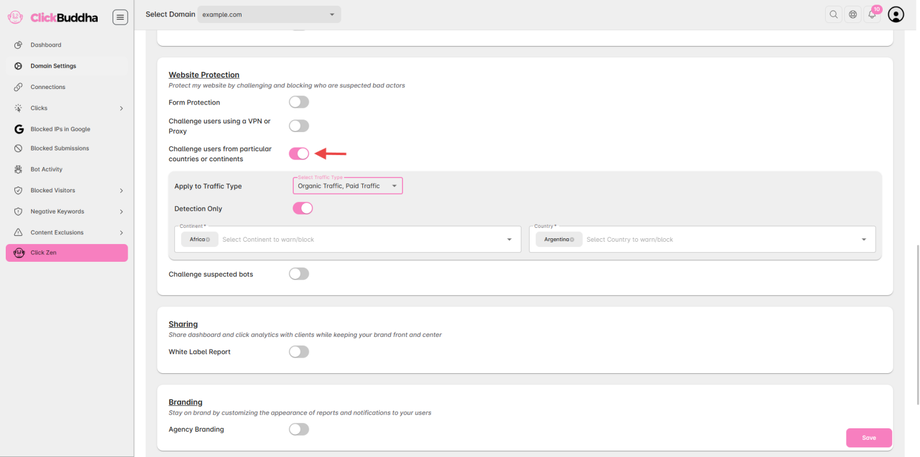
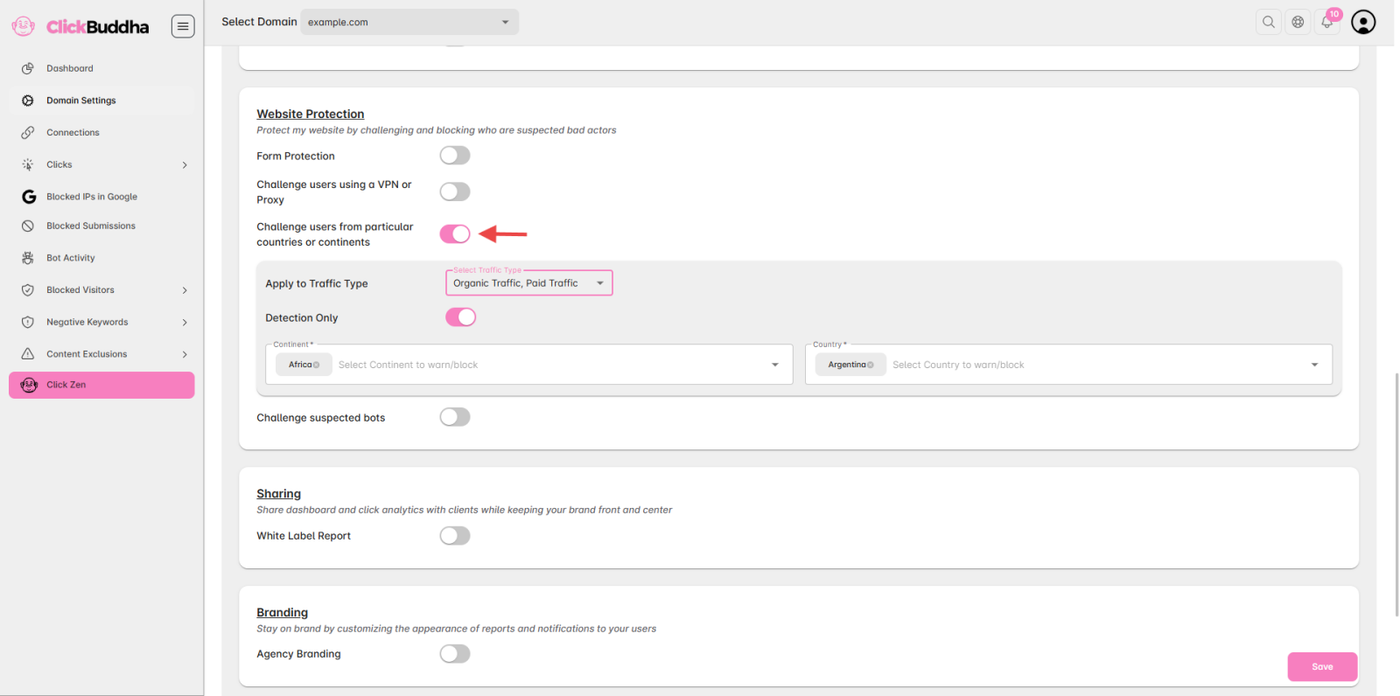
Scroll to the Website Protection.
-
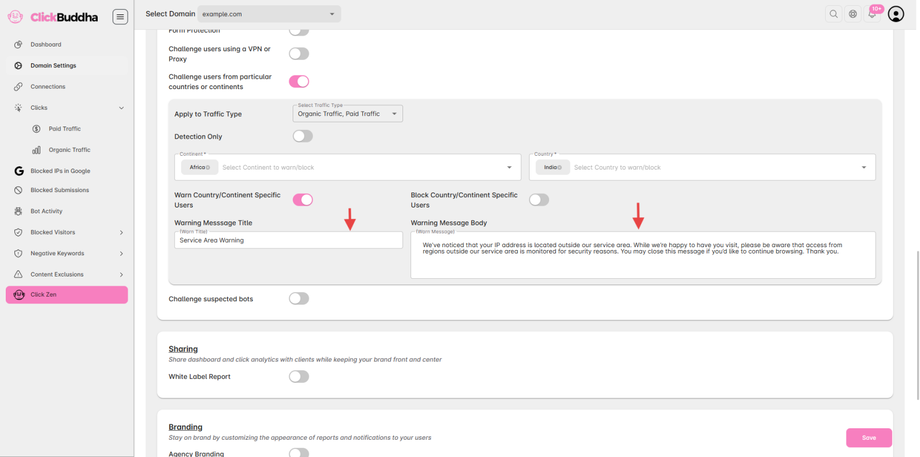
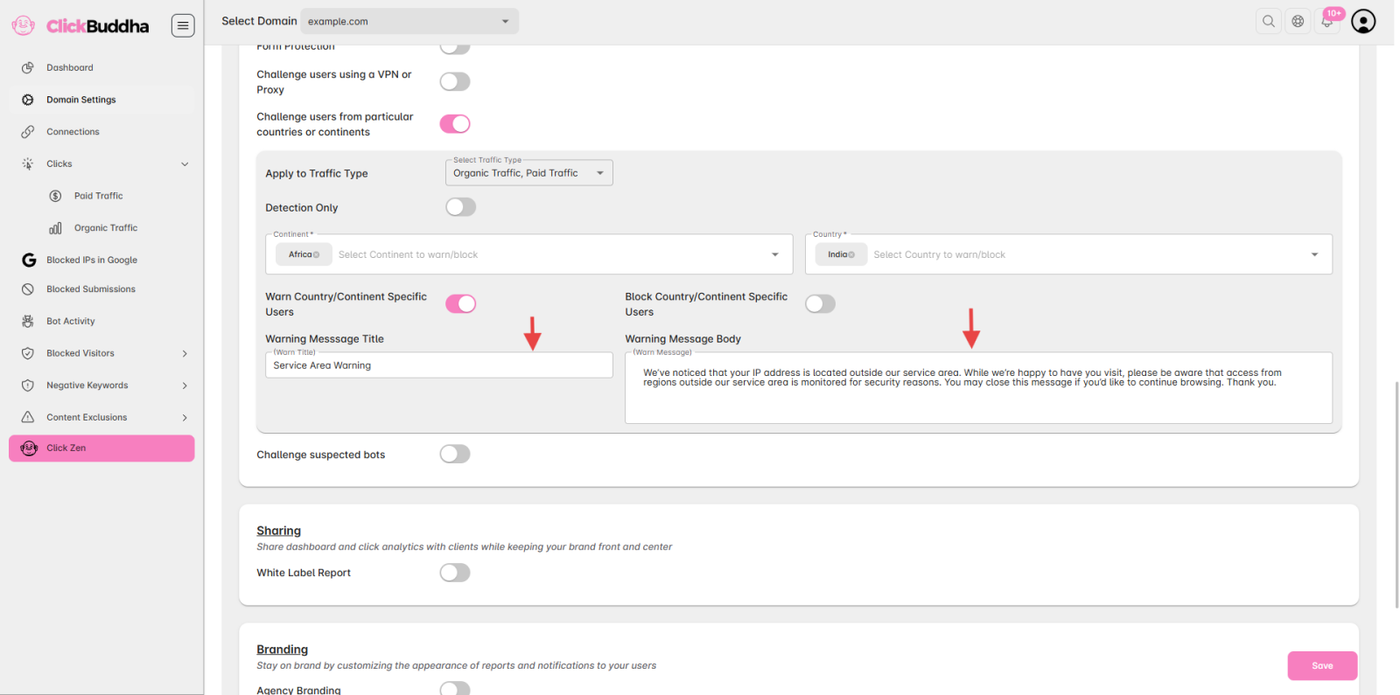
Make sure “Challenge users from particular countries or continents” is enabled.
Step 4: Customize the Warning Message
-
Below the Warn Country/Continent Specific Users and Block Country/Continent Specific Users toggle, you’ll find a Text Field to Edit Warning/Blocking Title & Edit Warning/Blocking Message.
- By Default, Title and Message is set.
-
Enter your custom text — for example:
-
Enter your custom text, such as:
“Access to this website is restricted in your region. Please contact support for more details.”
-
You can include your brand tone, support email, or localized message if needed.
Step 5: Save Changes
-
Click Save Settings at the bottom of the page.
-
Visit your website from a restricted country (using VPN for testing) to verify the message.
✅ Tip: Keep your warning messages clear and polite — it helps maintain trust while protecting your site.