
Click Buddha automatically records all visitors that are blocked, warned, or detected under your Country & Continent Security settings.
You can easily review these logs to monitor which regions are being restricted.
Step 1: Log in to Click Buddha
Open your Click Buddha Dashboard.
Step 2: Go to Click Logs
From the sidebar, open Clicks -> Paid Clicks/Organic Clicks.
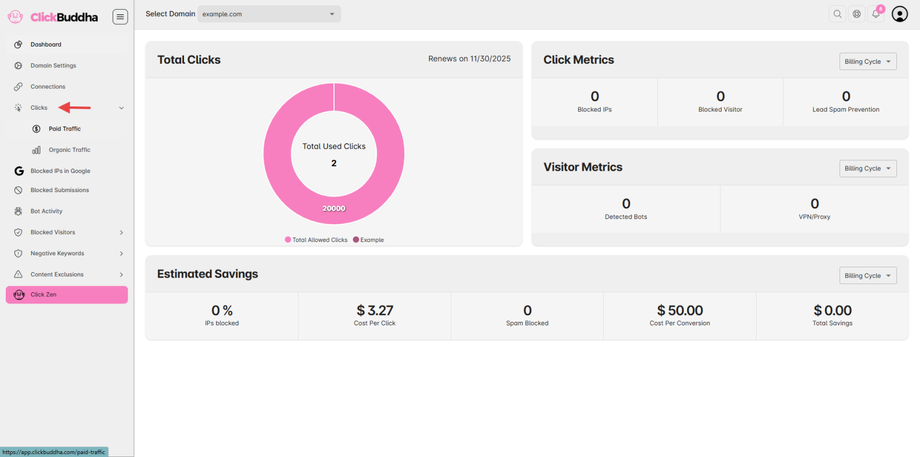
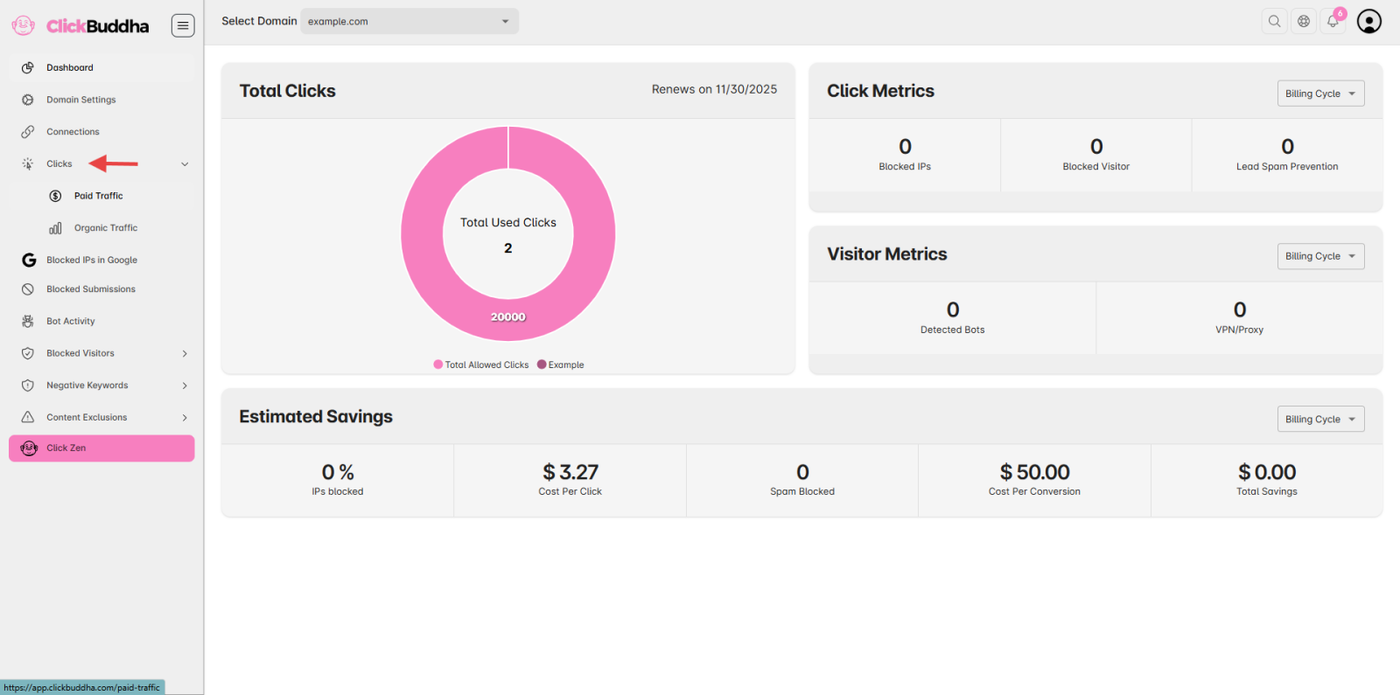
Step 3: View Country or Continent Security List
In the Logs page, view the list of IPs marked with Icon (🌍) is detected/blocked by Country/Continent.
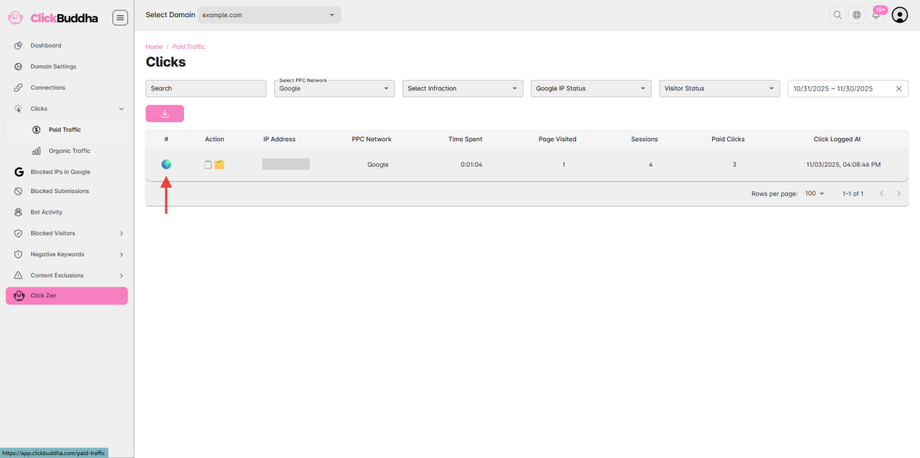
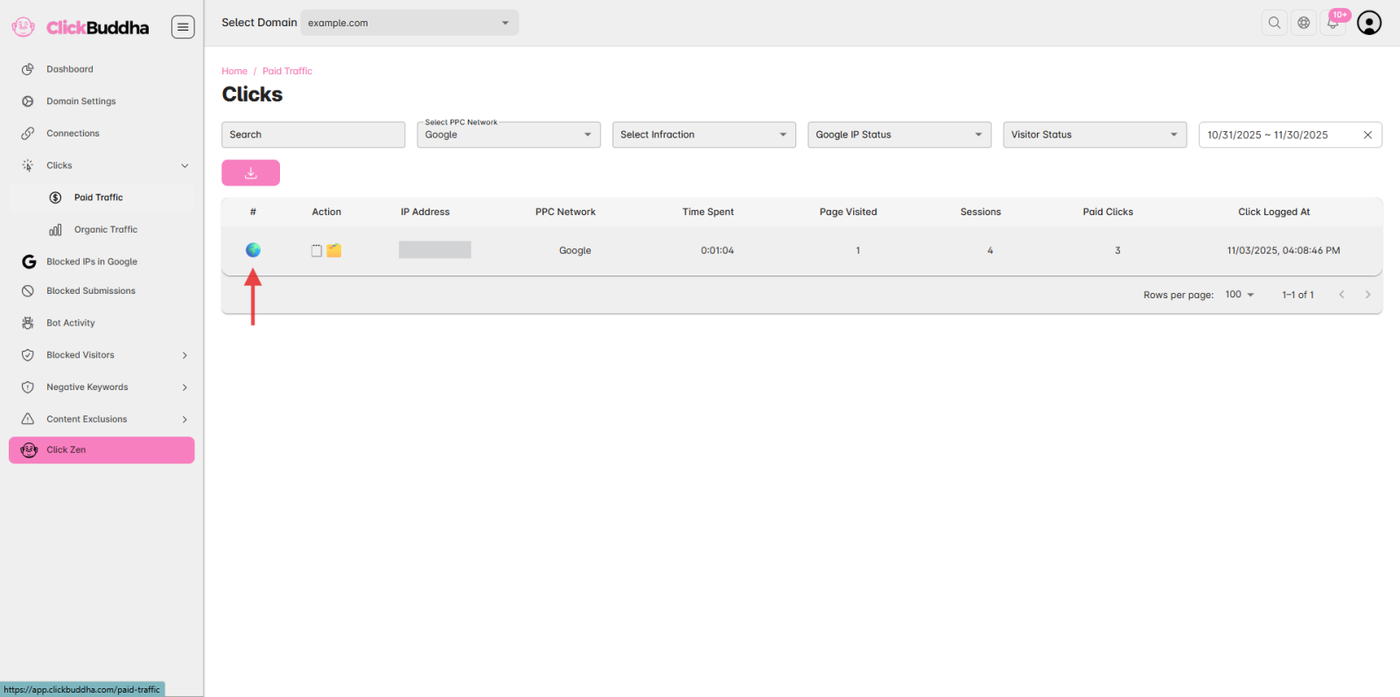
Step 4: Review Blocked Entries
In the clicks table, look for the 🗒️ (Details) icon in the Action column.
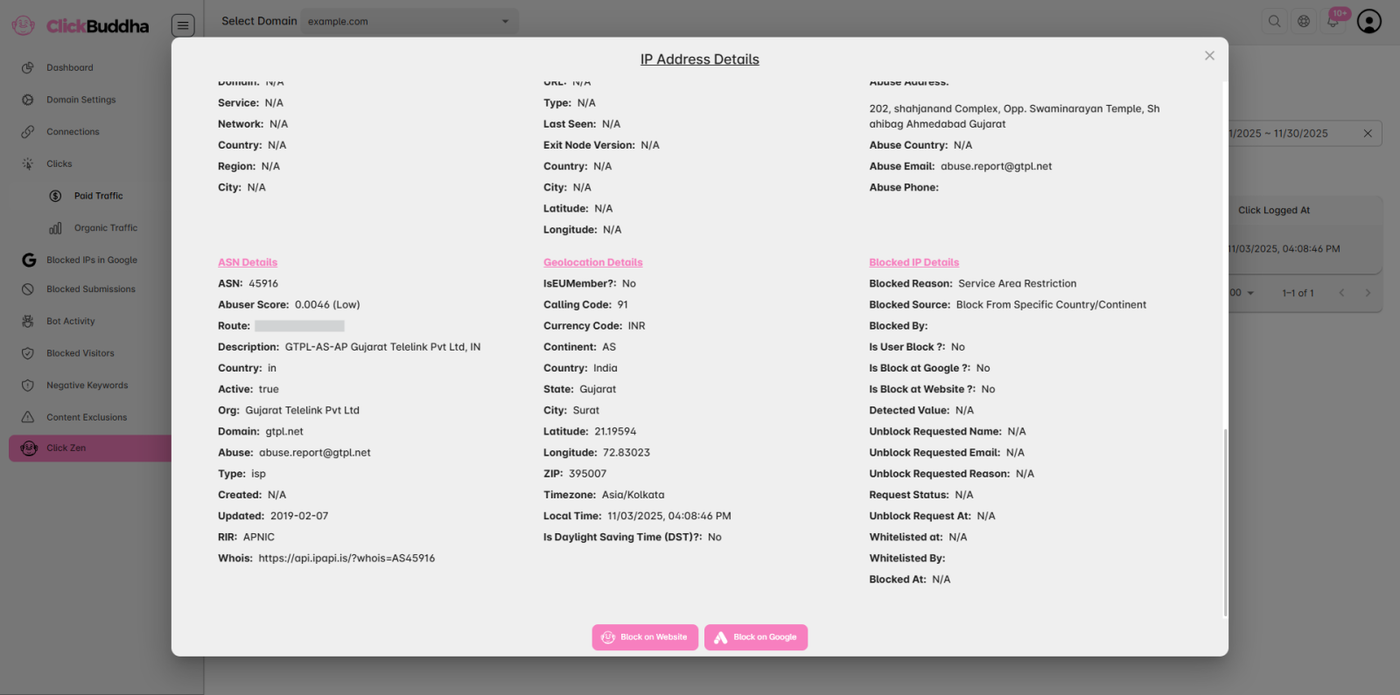
Click this icon for any row to open the detailed click view with geolocation details.
You’ll see detailed information such as:
Visitor IP Address
Country / Continent Name
Action Taken (Blocked, Warned, or Allowed)
Timestamp
Traffic Type (Paid / Organic)
✅ Tip: Regularly reviewing these logs helps you fine-tune your Country & Continent Security rules and avoid over blocking genuine visitors.