
Click Buddha helps prevent spam submissions and bot activity on your website forms, ensuring that only genuine users can submit forms.
Step 1: Open Dashboard
Log in to your Click Buddha Dashboard.
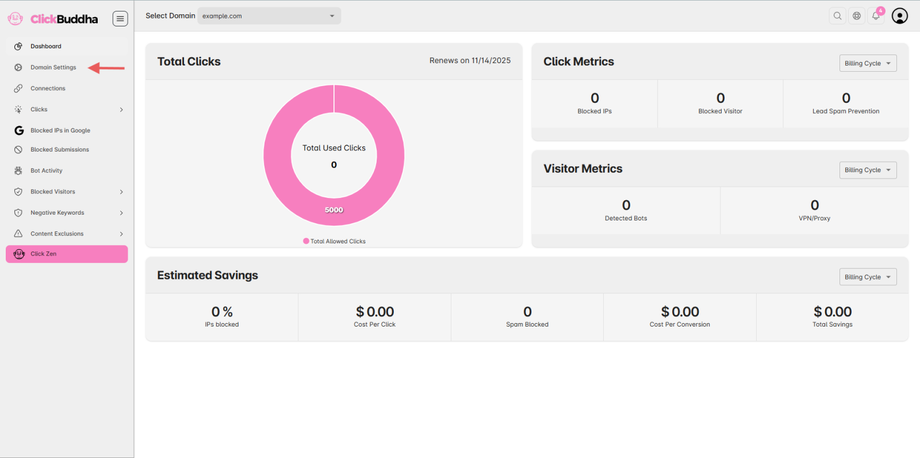
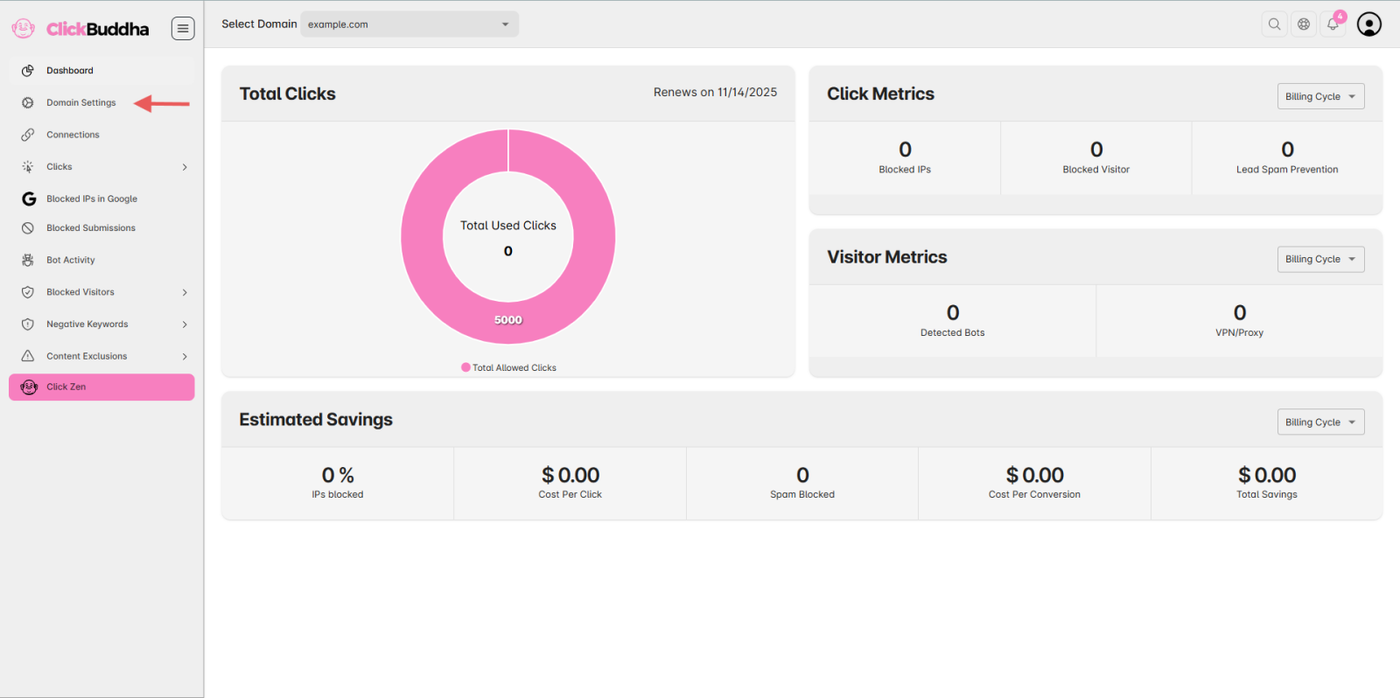
Step 2: Go to Domain Settings
From the sidebar and open Domain Settings.
Step 3: Enable Google Ads Form Protection
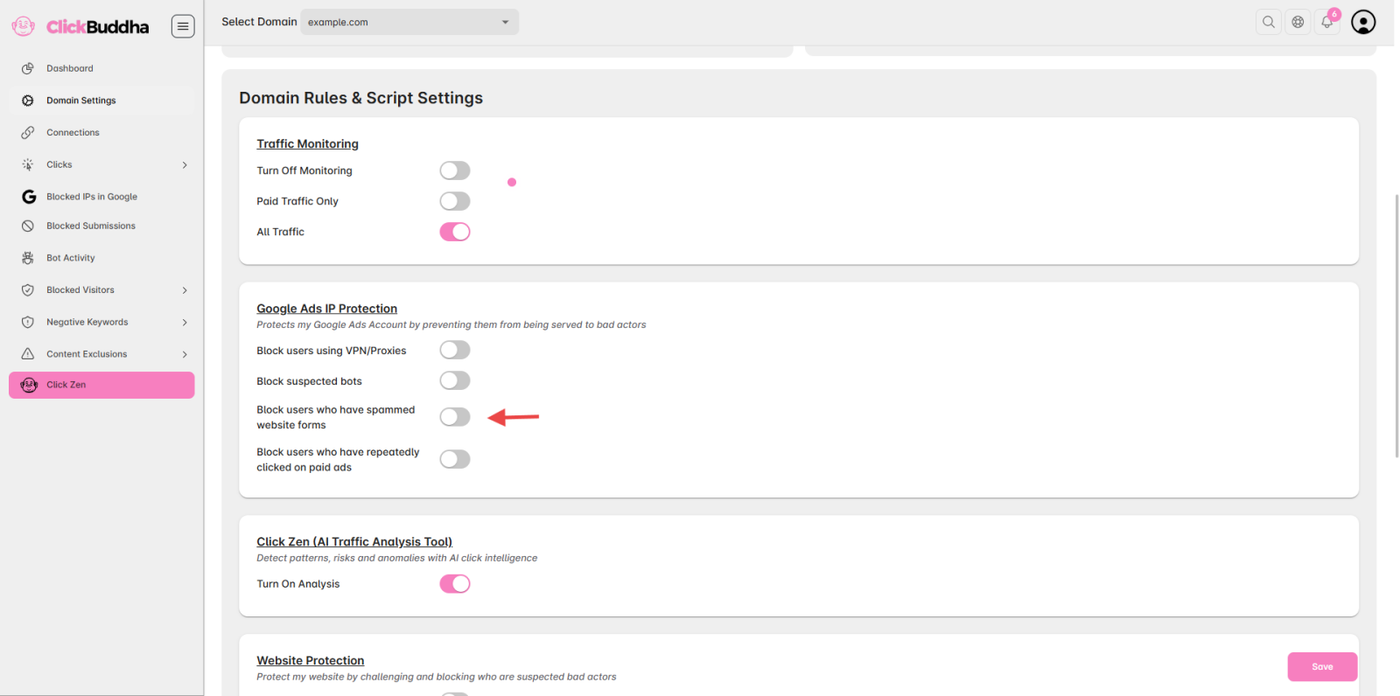
Scroll down to the Google Ads IP Protection section.
Enable the toggle “Block users who have spammed website forms.”
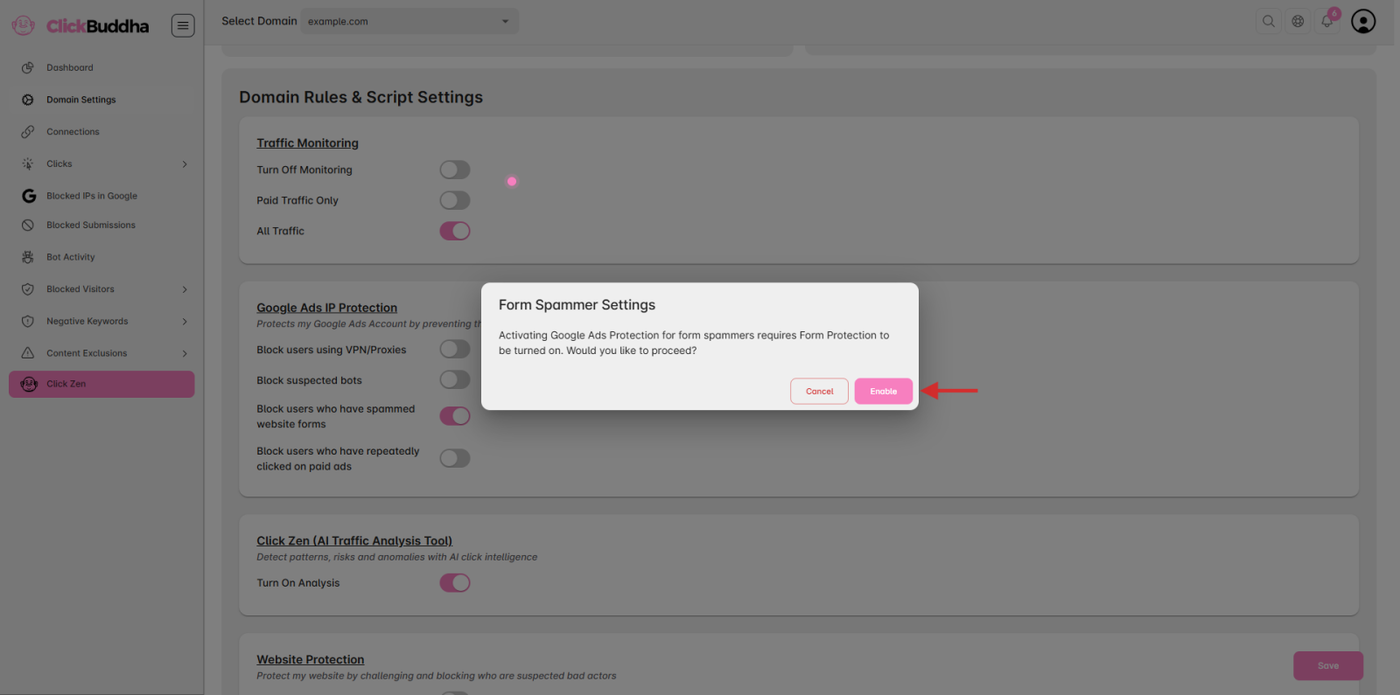
A prompt will appear to configure Form Protection — click Enable.
If you click Cancel it won't enable the protection.
Step 4: Configure Website Form Protection
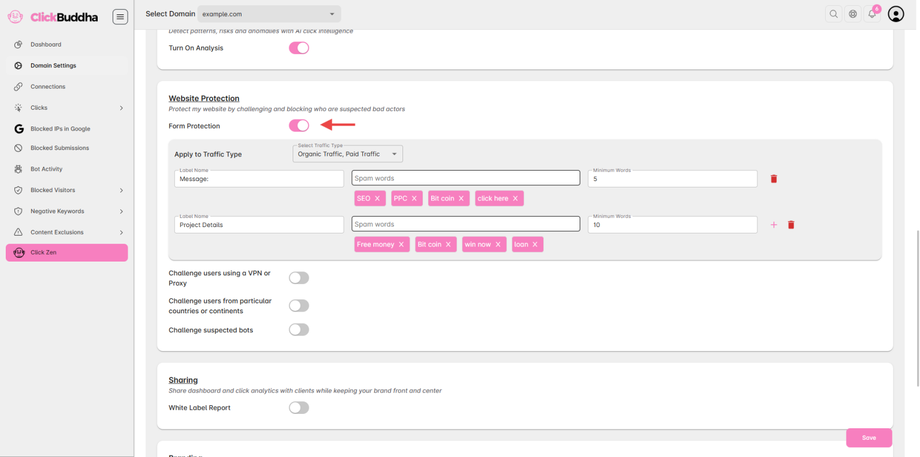
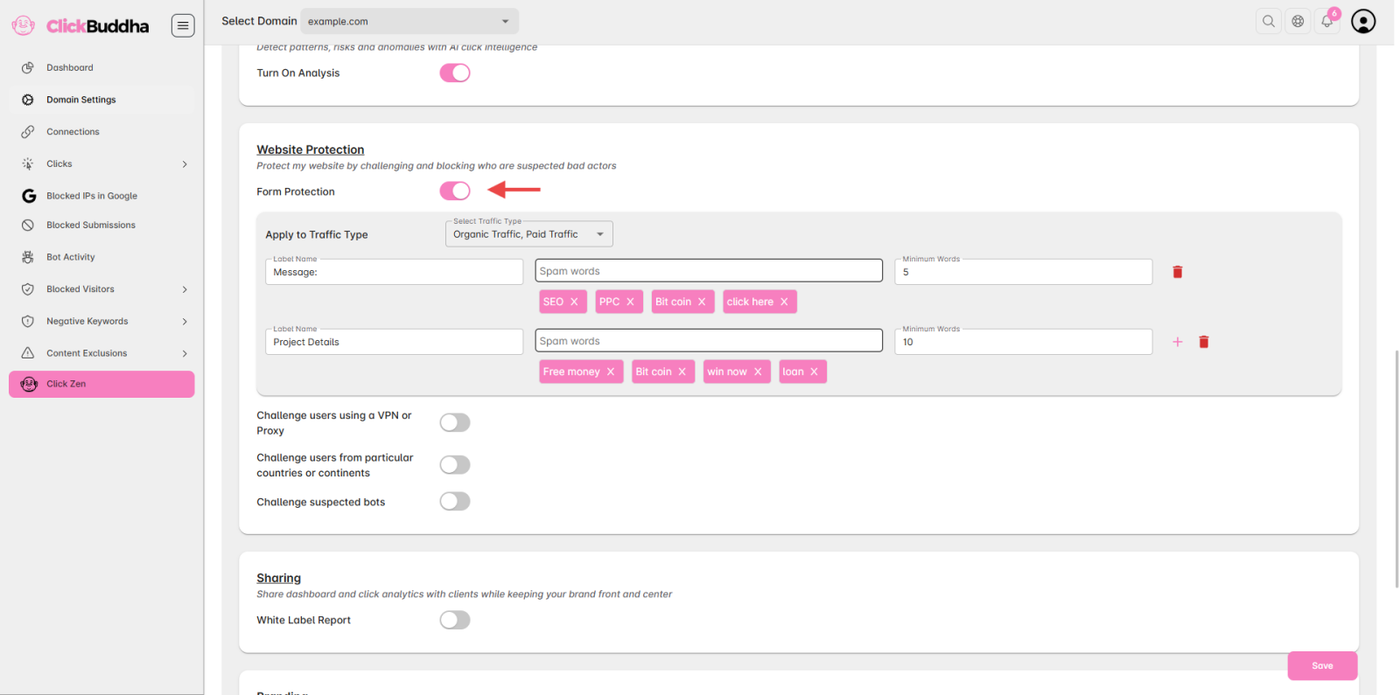
Scroll down to Website Protection.
Select the Traffic Type (Paid, Organic, or Both) for detection or blocking actions.
Configure the form fields you want to protect:
Label Name – The name of your website’s form field.
Spam Words – Words that should trigger form protection.
Minimum Words Count – Minimum number of words required in the field.
Add multiple fields by clicking the + icon.
Remove fields by clicking the Delete icon.
Step 5: Save Settings
Once configured, click Save to apply the form protection rules.
Click Buddha will now detect and block users who trigger spam rules.
✅ Tip:
For maximum protection, combine Form Protection with Bot Detection and VPN/Proxy Security.
Regularly review blocked submissions in the dashboard to fine-tune your spam rules.