
Click Buddha lets you monitor and review all form submissions that have been detected or blocked as spam, giving you insights into potential threats and patterns.
Step 1: Log in to Click Buddha
Open your Click Buddha Dashboard.
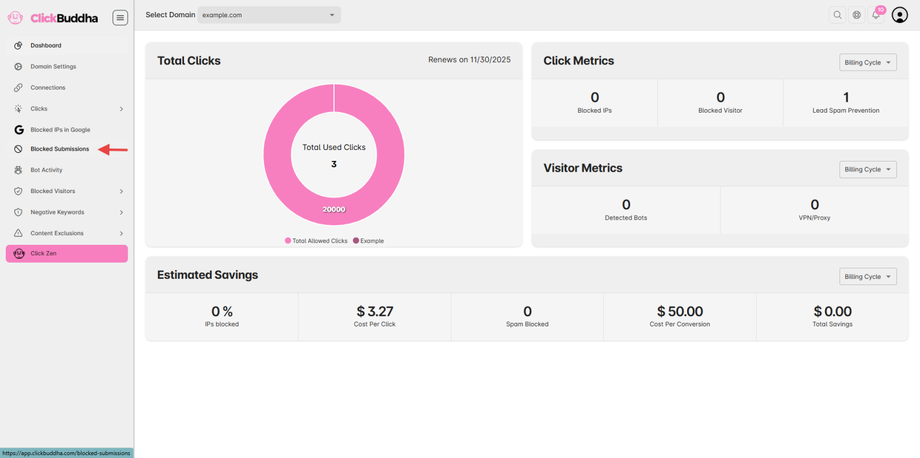
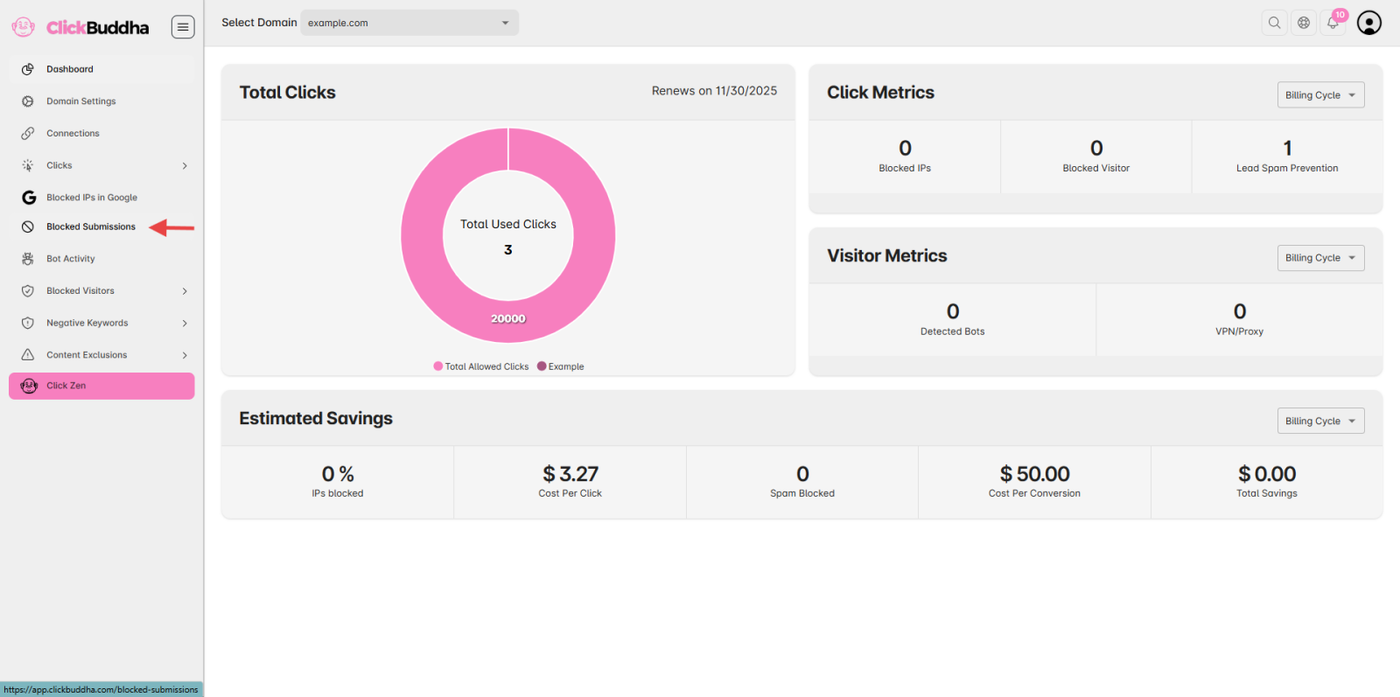
Step 2: Go to Blocked Submissions
From the sidebar, open Blocked Submissions.
Step 3: View Submission List
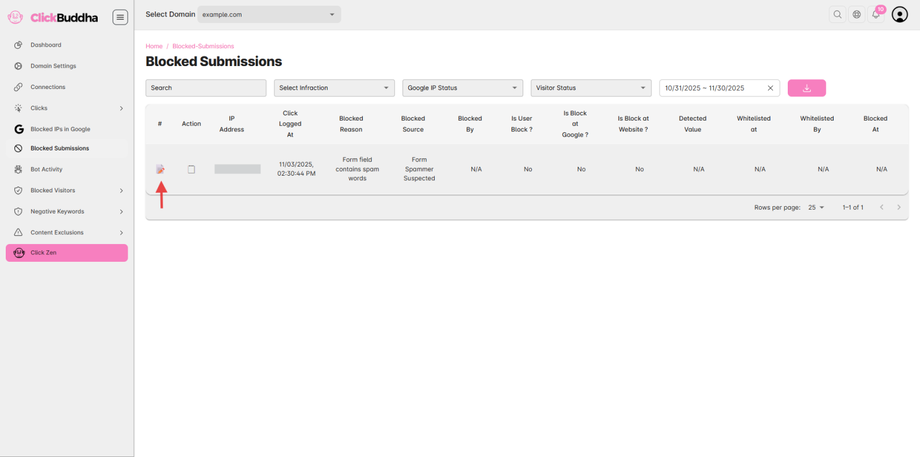
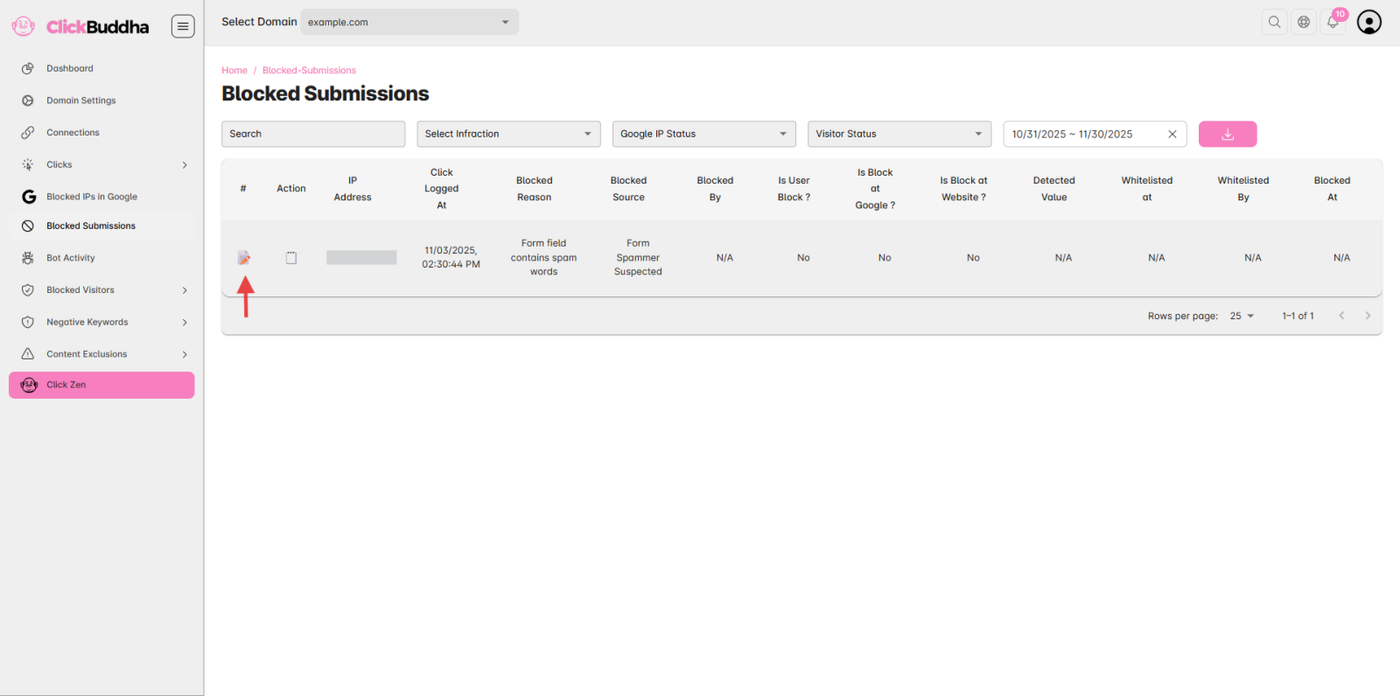
View Logs or Blocked Submissions List.
In the table, look for the 🗒️ (Details) icon in the Action column for more Detailed View.
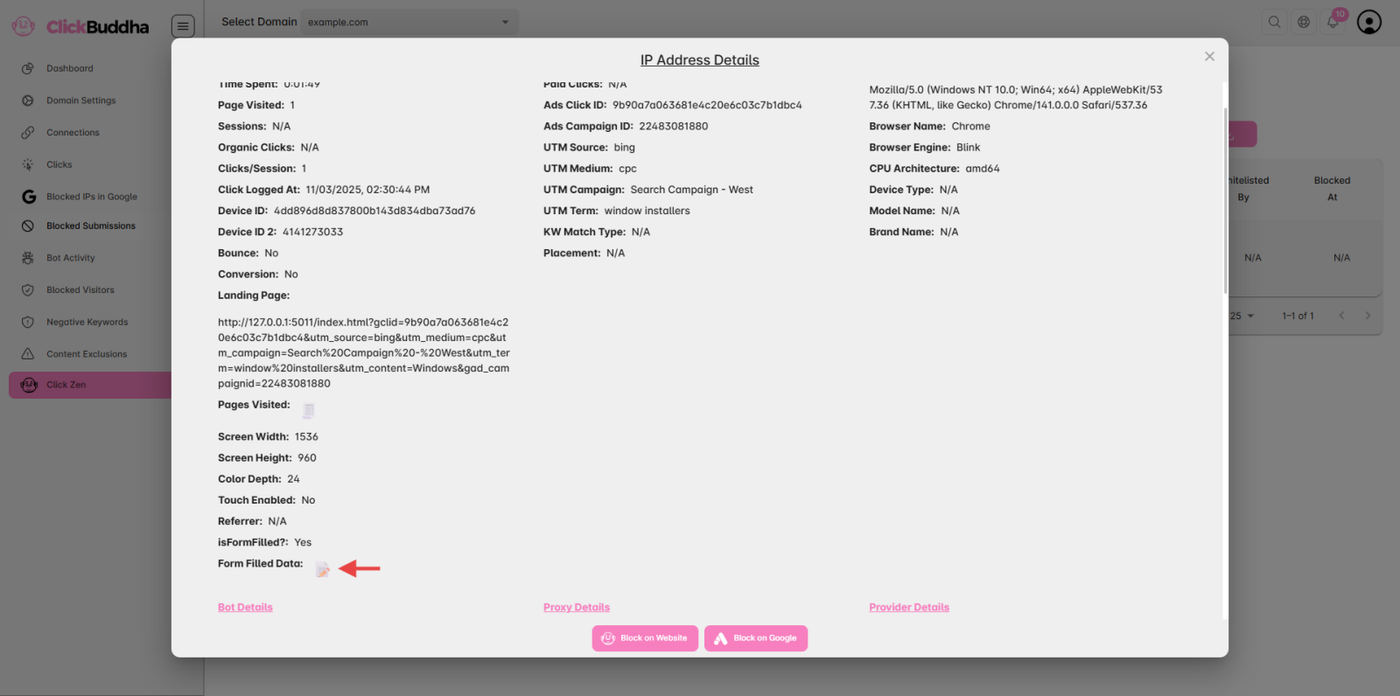
Form Spammer Click marked with this icon📝.
Step 4: Review Submission Details
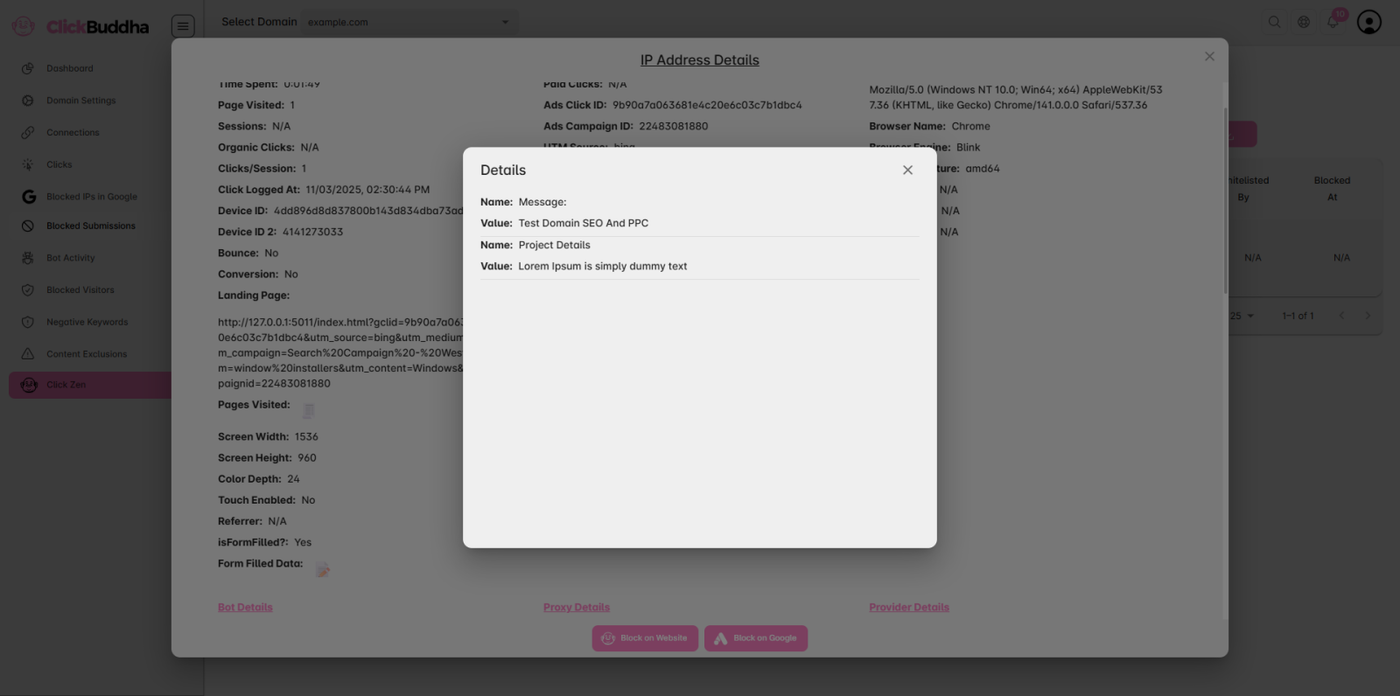
Click on the Icon (📝) it will open a popup with form spammer details.
Each blocked submission entry will display:
Form Field Name (Label Name)
Detected Spam Words
User IP and Location
Traffic Type (Paid/Organic)
Date & Time of Submission
✅ Tip:
Regularly reviewing these logs helps you fine-tune spam words and field settings to reduce false positives and improve protection.