
Blocking spam and bot IPs helps protect your ad budget from fake clicks, bots, and form spammers. Click Buddha makes this process easy by letting you block suspicious IPs directly from your dashboard with just one click.
Step 1: Go to Click Logs
Log in to your Click Buddha Dashboard.
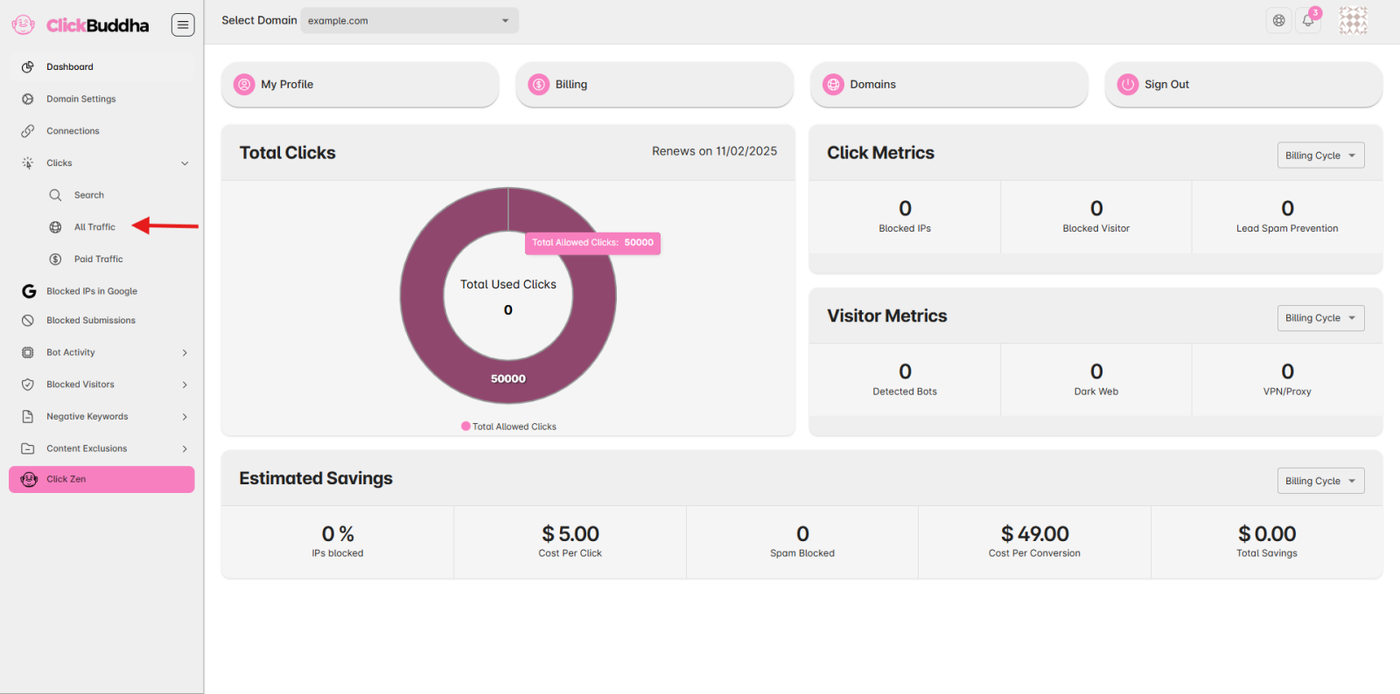
From the sidebar, open Click Logs page.
This page lists all clicks detected from your ads, including potential bot or spam traffic.
Step 2: Review Google Paid Click Details
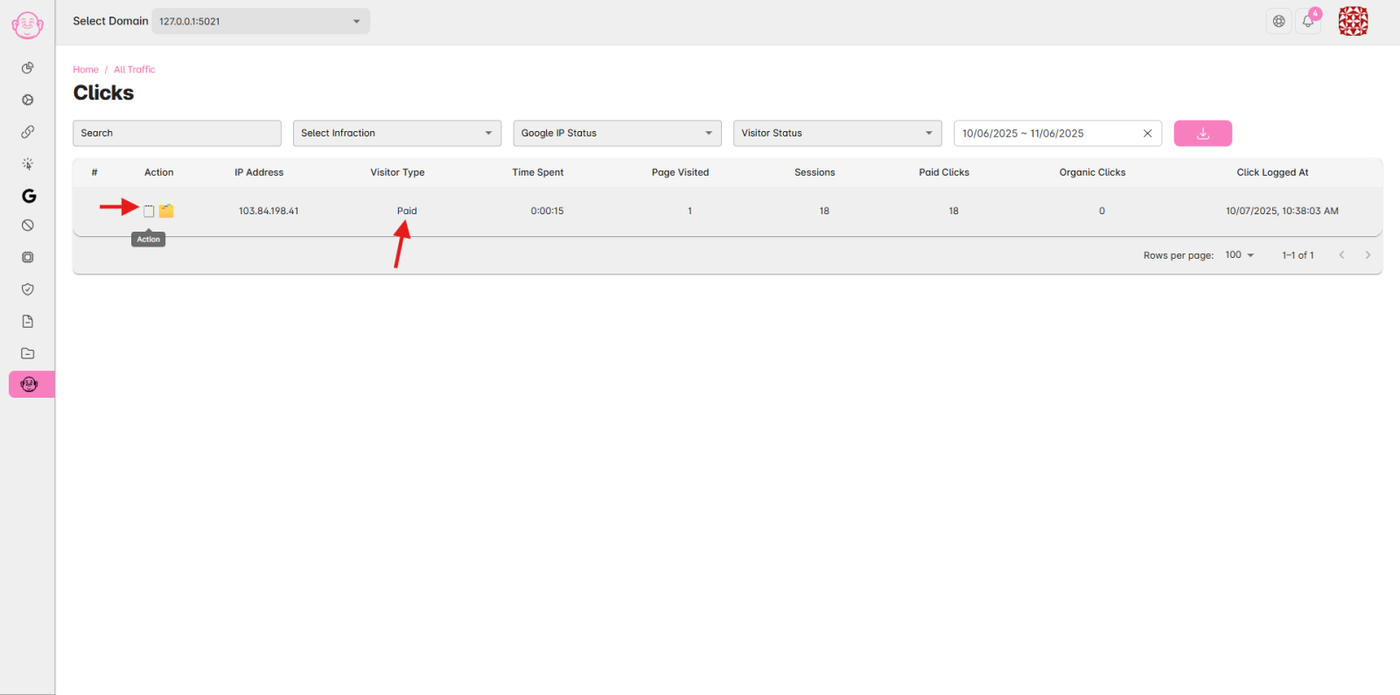
In the Action column, click the icon or button to open the details popup for a specific click.
Here you can see information such as:
-
IP address
-
Visitor Type
- Click Logged At
-
Source and campaign
-
Detection notes (if flagged as suspicious)
Step 3: Block the IP at Google
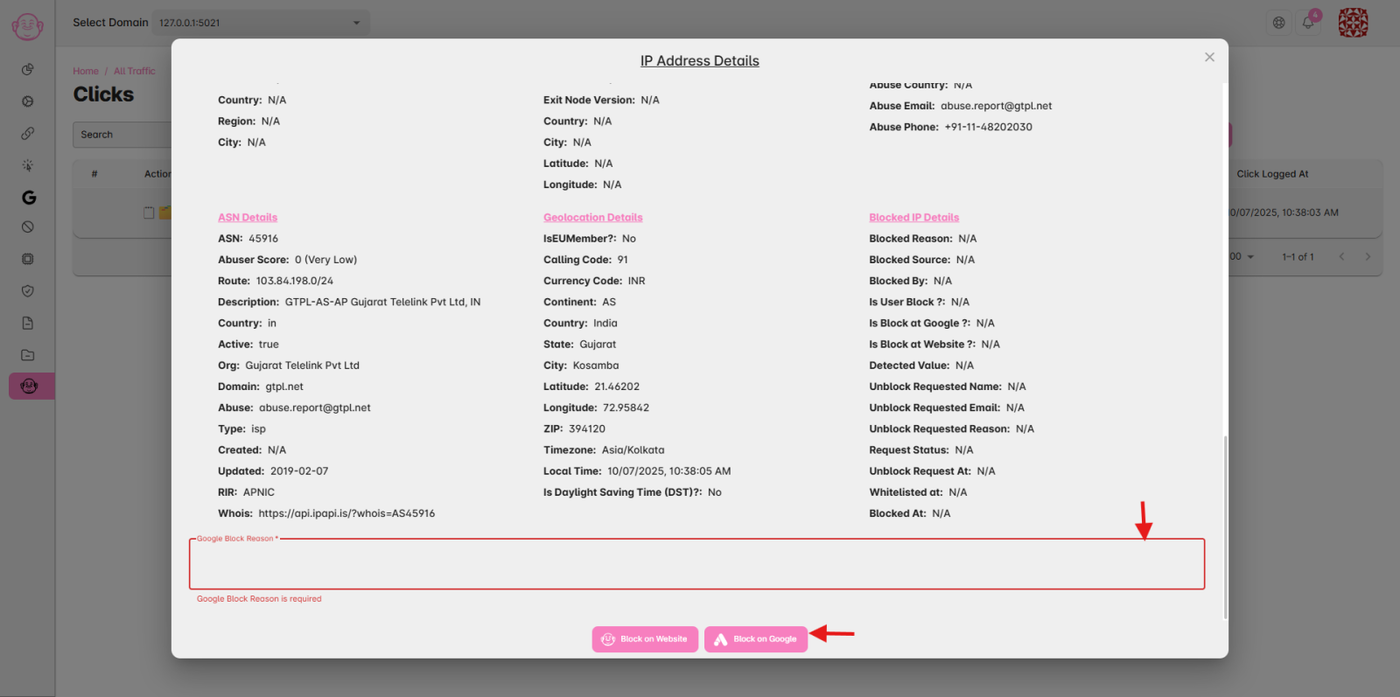
Inside the popup, click the “Block at Google” button.
A small text input will appear asking for a remark. You can write a short note (for example, “Bot detected” or “Spam form submission”).
✅ Then click Block at Google.
Click Buddha will automatically send the request to your connected Google Ads account and exclude the IP from your campaigns.
Step 4: Verify Blocked IPs
To confirm that the IP has been blocked:
-
Open your Google Ads account.
-
Go to Campaigns → Settings → Additional Settings → IP Exclusions.
-
You’ll see the newly blocked IP listed there.
✅ Once added, this IP will no longer see or click on your ads.

Step 5: Stay Protected Automatically
Click Buddha continuously monitors traffic to detect:
-
Bot activity
-
Fraudulent clicks
-
Suspicious repeat visits
When such traffic is found, it can be automatically added to your exclusion list — saving your ad spend and improving ROI.