Connecting your Google Ads account allows Click Buddha to analyze your traffic, detect fraudulent clicks, and automatically block bad actors from wasting your ad budget.
Step 1: Go to Connections
-
Log in to your Click Buddha.
-
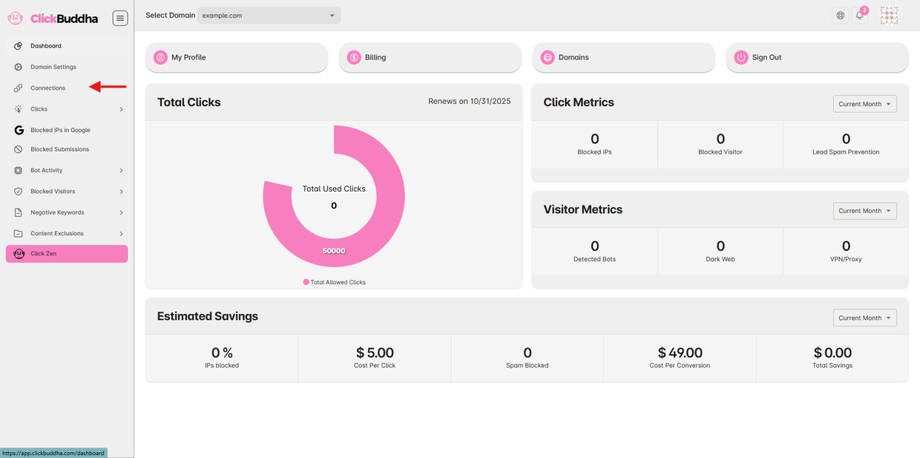
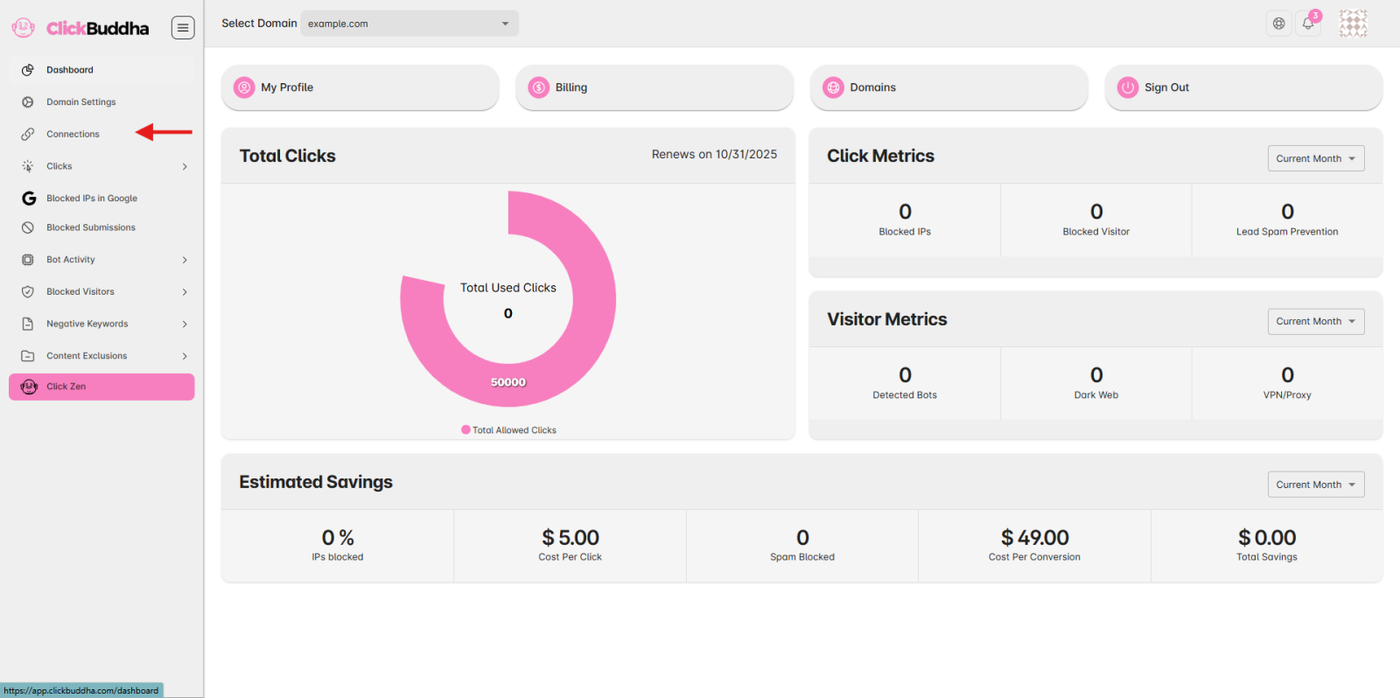
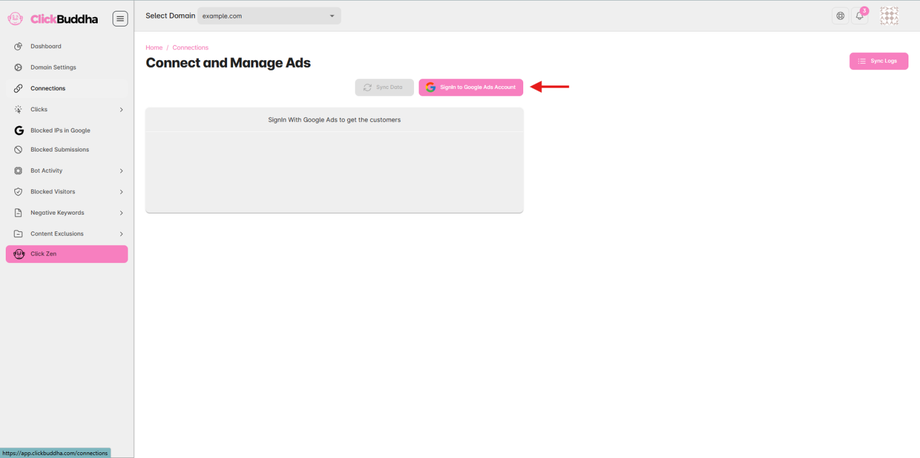
From the sidebar, click Connections.
-
Select the domain you want to connect (from the dropdown at the top).
Step 2: Sign in with Google
-
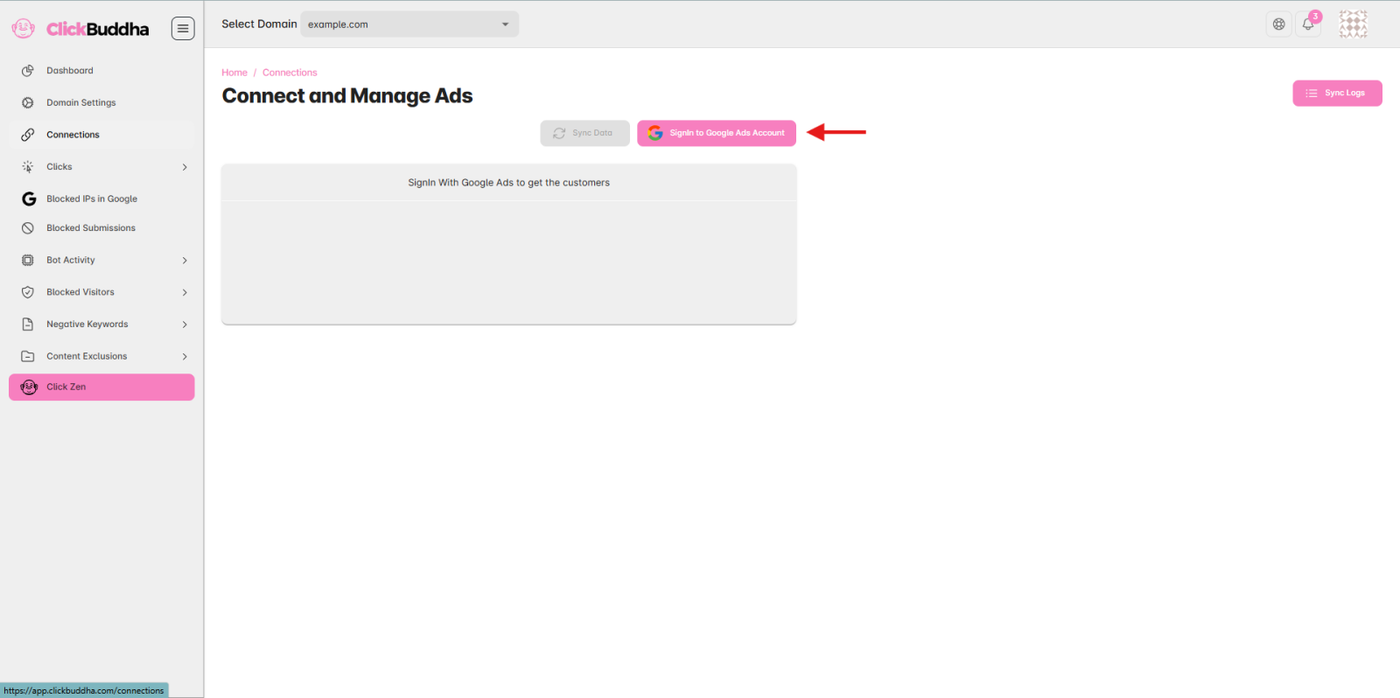
On the Connect and Manage Ads page, click the pink button Sign in to Google Ads Account.
-
A Google login popup will appear.
-
Choose the Google account that manages your Ads.
Step 3: Grant Permissions to Google Ads
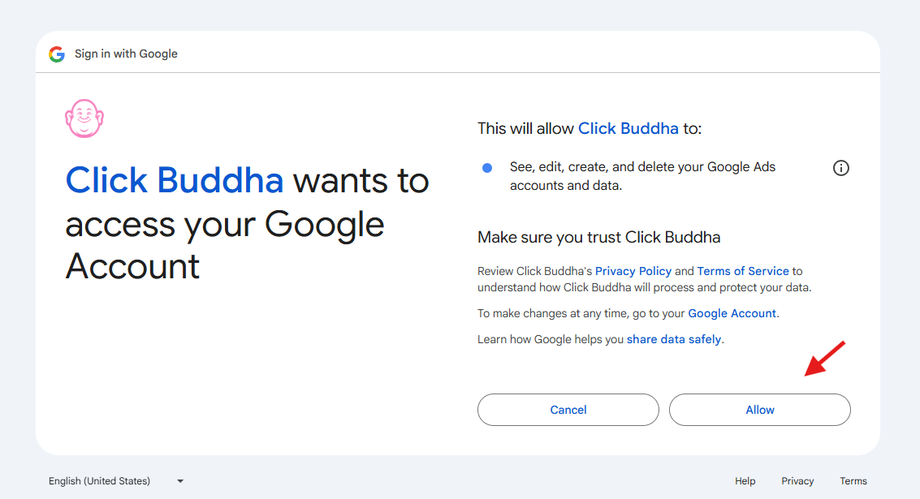
You will be asked to approve access so Click Buddha can:
-
Read campaign and ad performance data
-
Manage IP exclusions (to block bots/spam)
-
Sync traffic reports
-
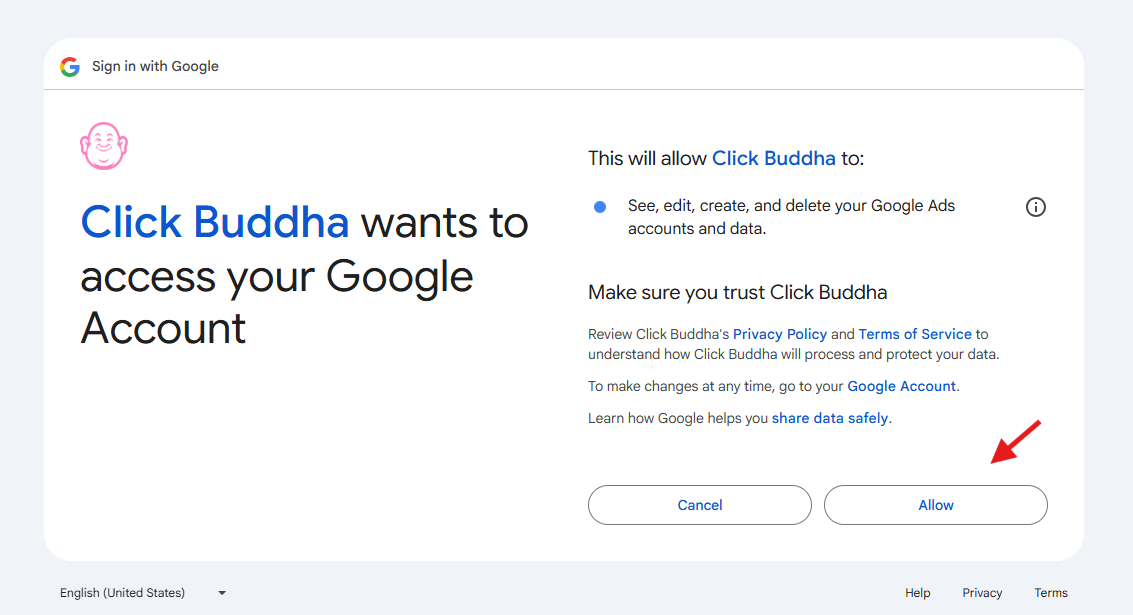
✅ Click Allow/Continue to finish.
Step 4: Sync Data
-
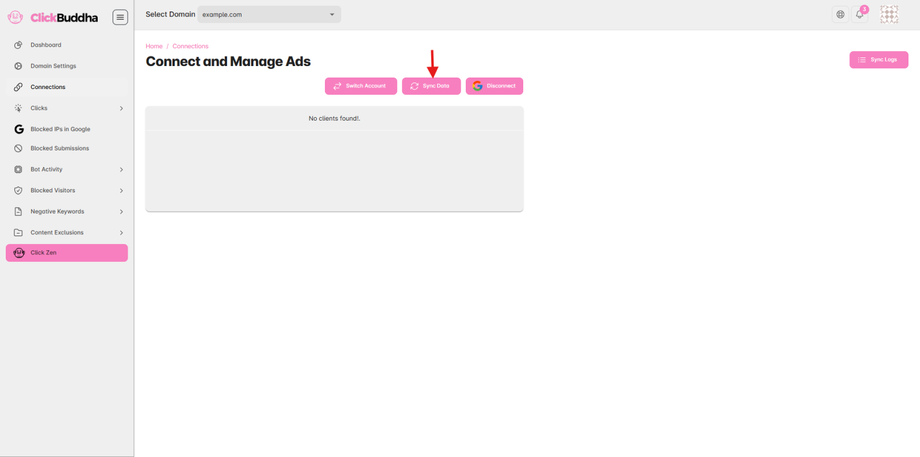
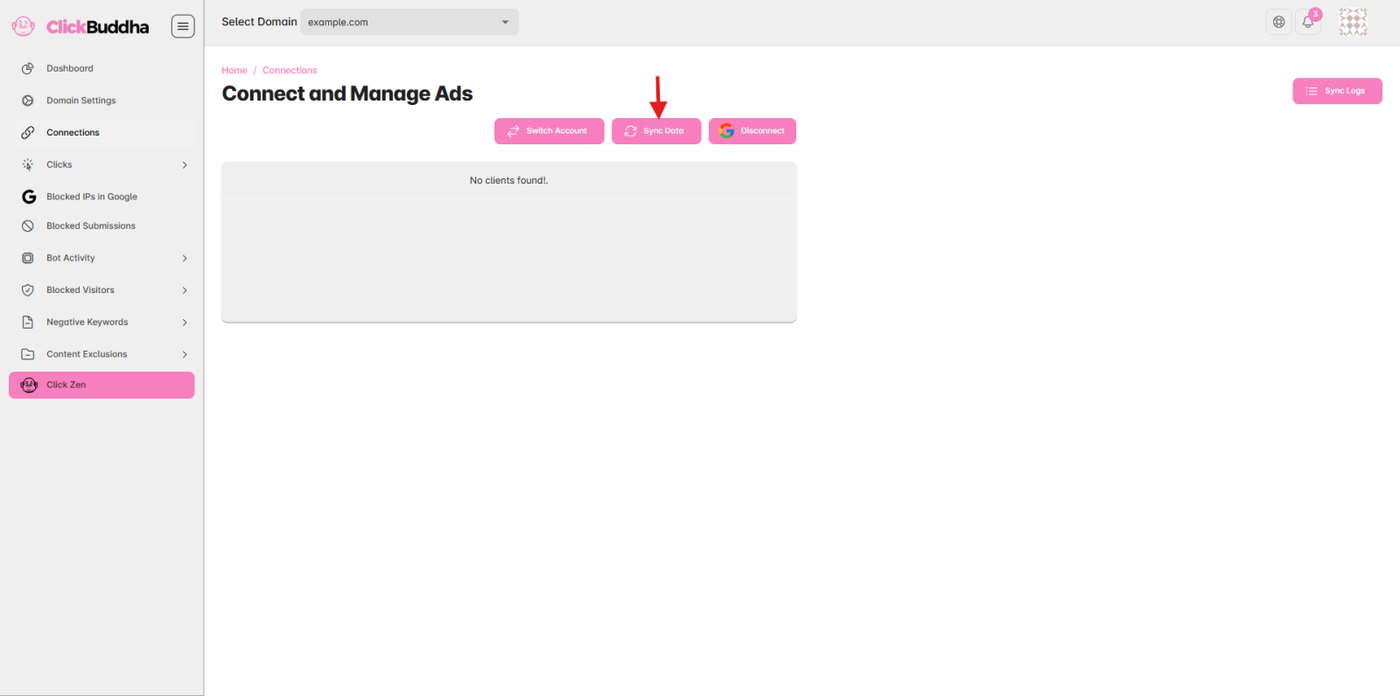
Once connected, your Ads account will appear in the list.
- Data synced automatically to pull latest campaigns and settings.
-
You can manually click Sync Data to pull in your latest campaigns and settings.
-
You can also click Sync Logs (top right) to view the activity.