
If you want to apply negative keywords to only one specific campaign instead of using a shared list, Click Buddha allows you to do that quickly within the Google Ads integration section.
Step 1: Log in to Click Buddha
Login into your account and Open your Click Buddha Dashboard.
Step 2: Go to Negative Keywords Section
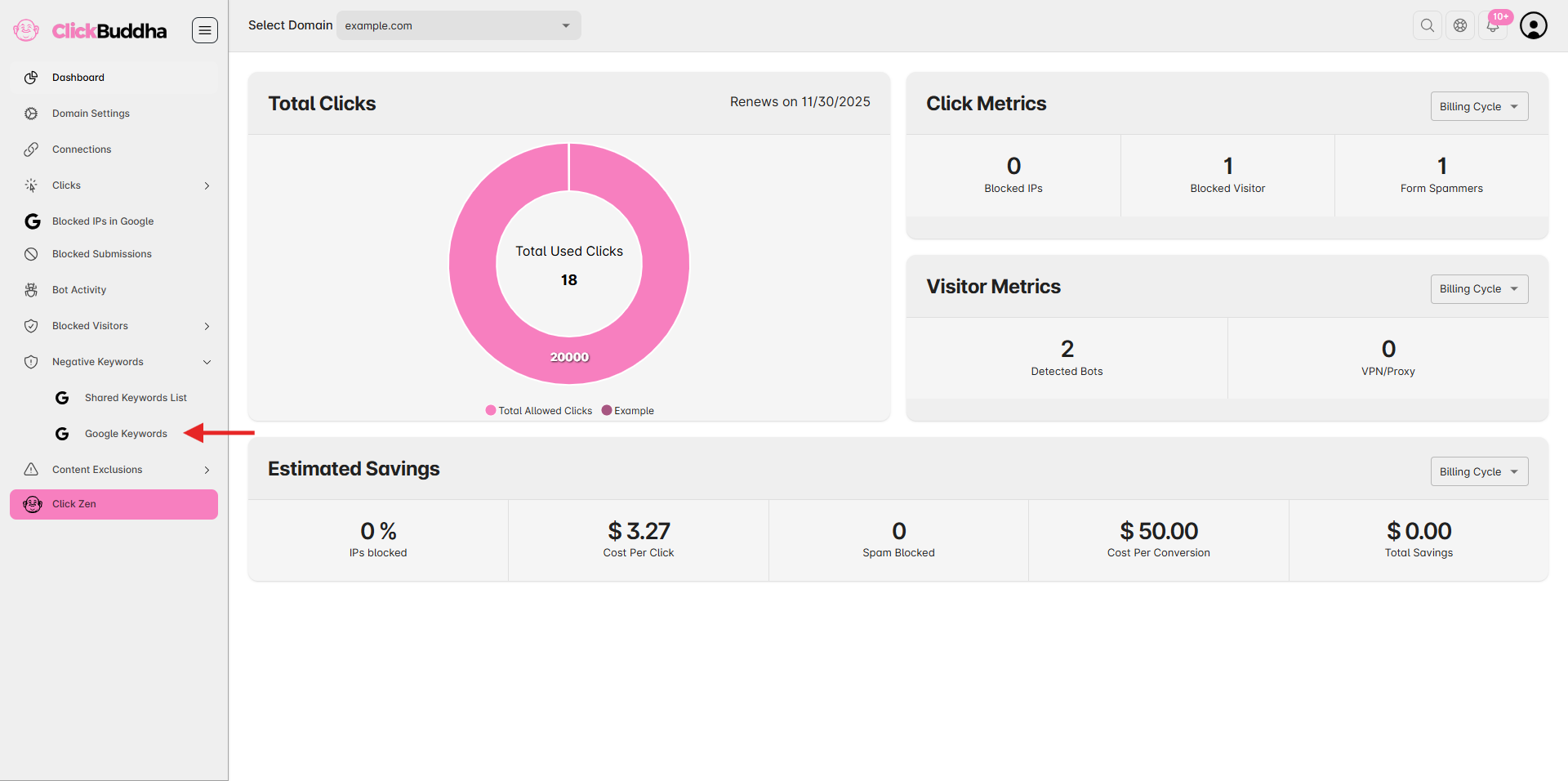
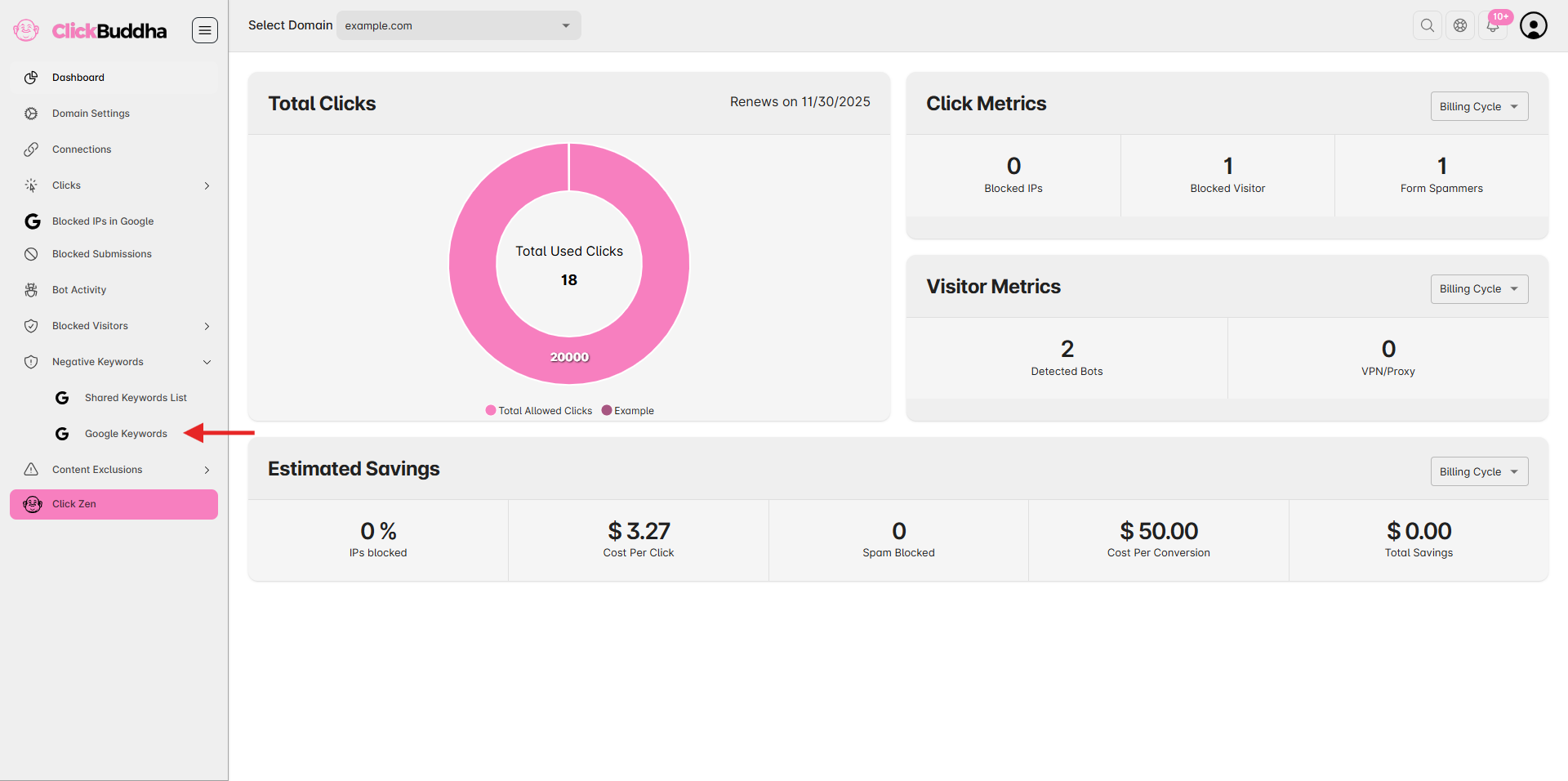
From the sidebar, navigate to Negative Keywords → Google Keywords.
Step 3: Select the Campaign
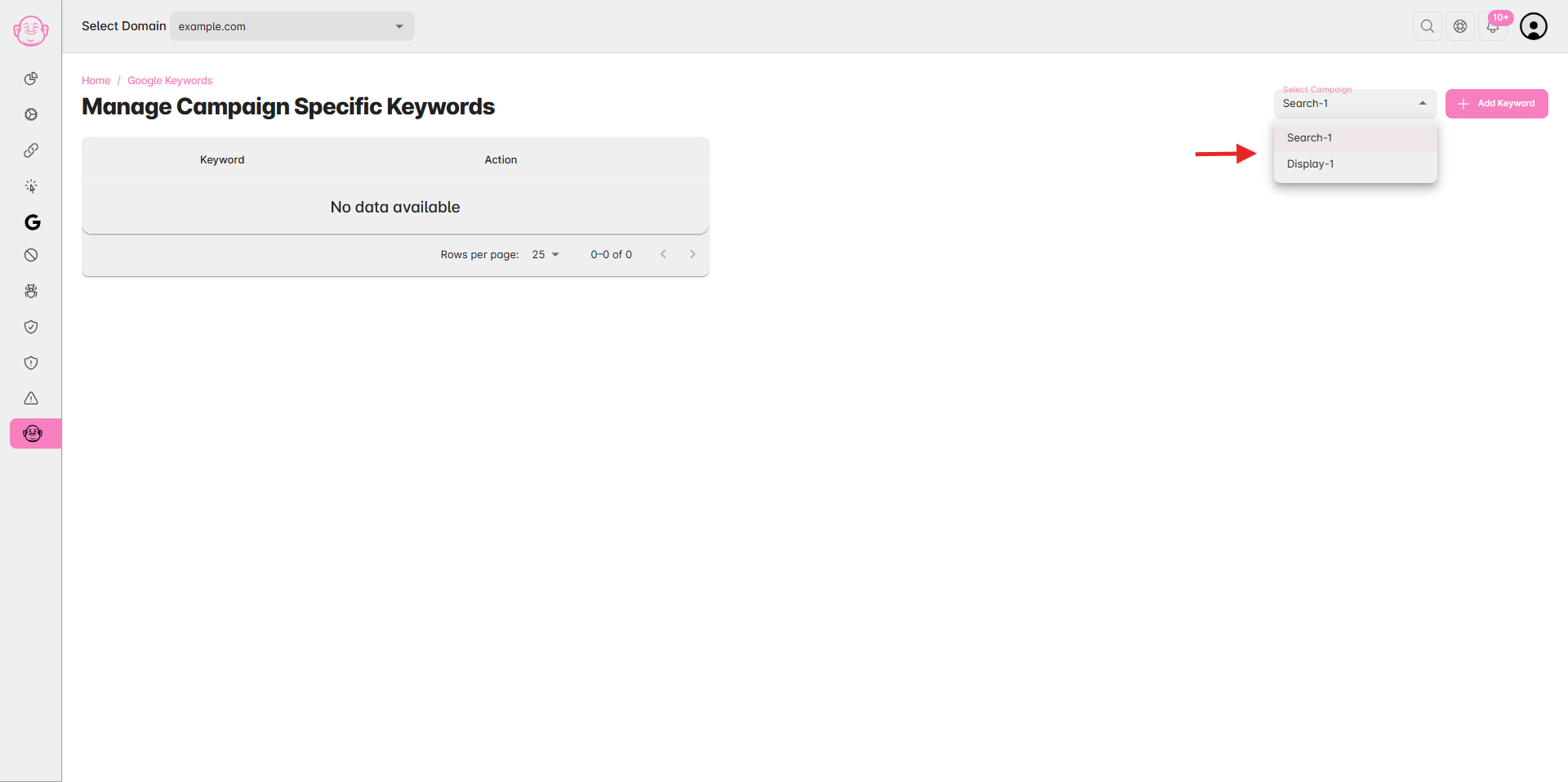
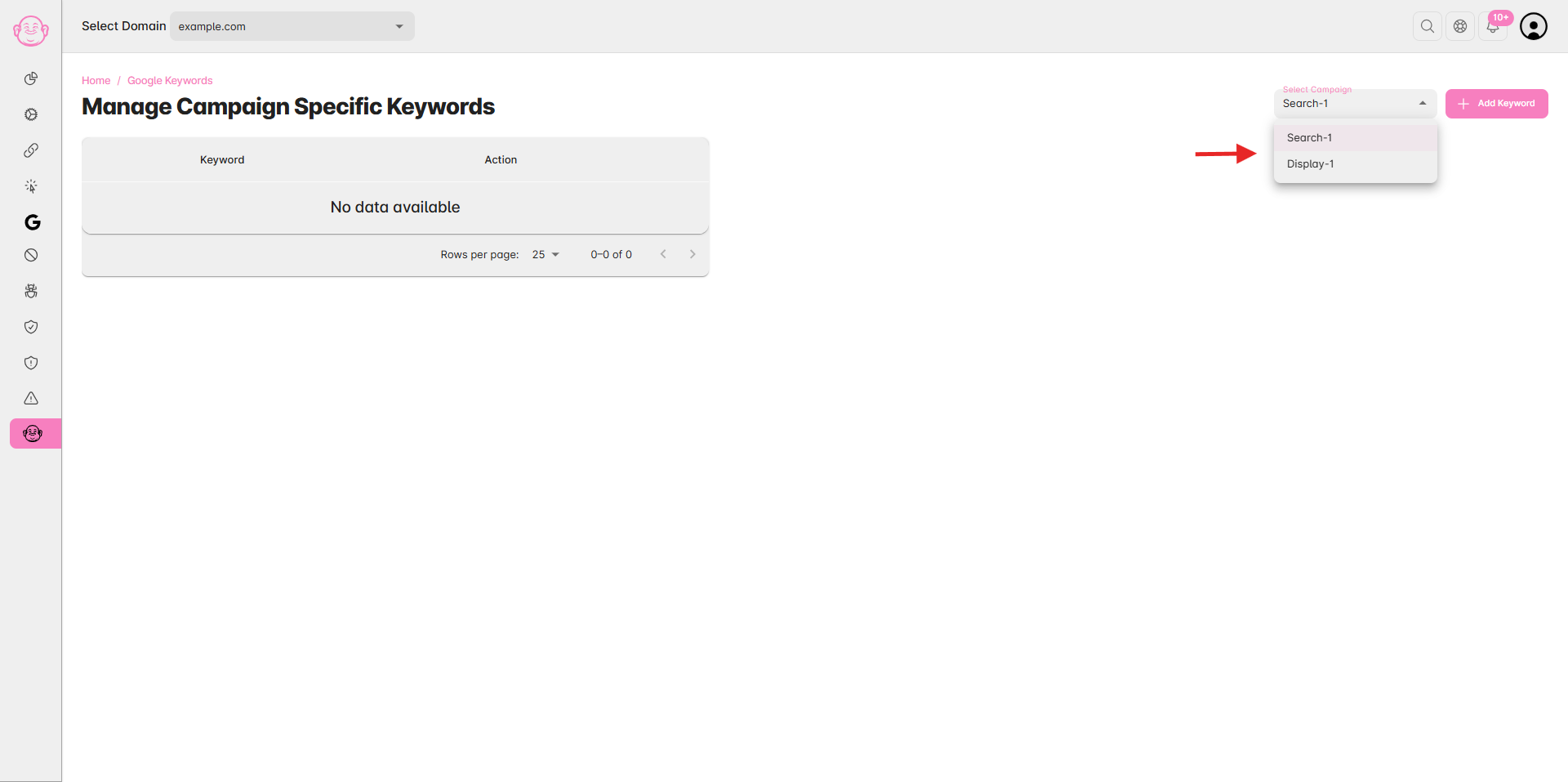
From the list of connected campaigns, select the campaign where you want to add negative keywords.
Step 4: Add Negative Keywords
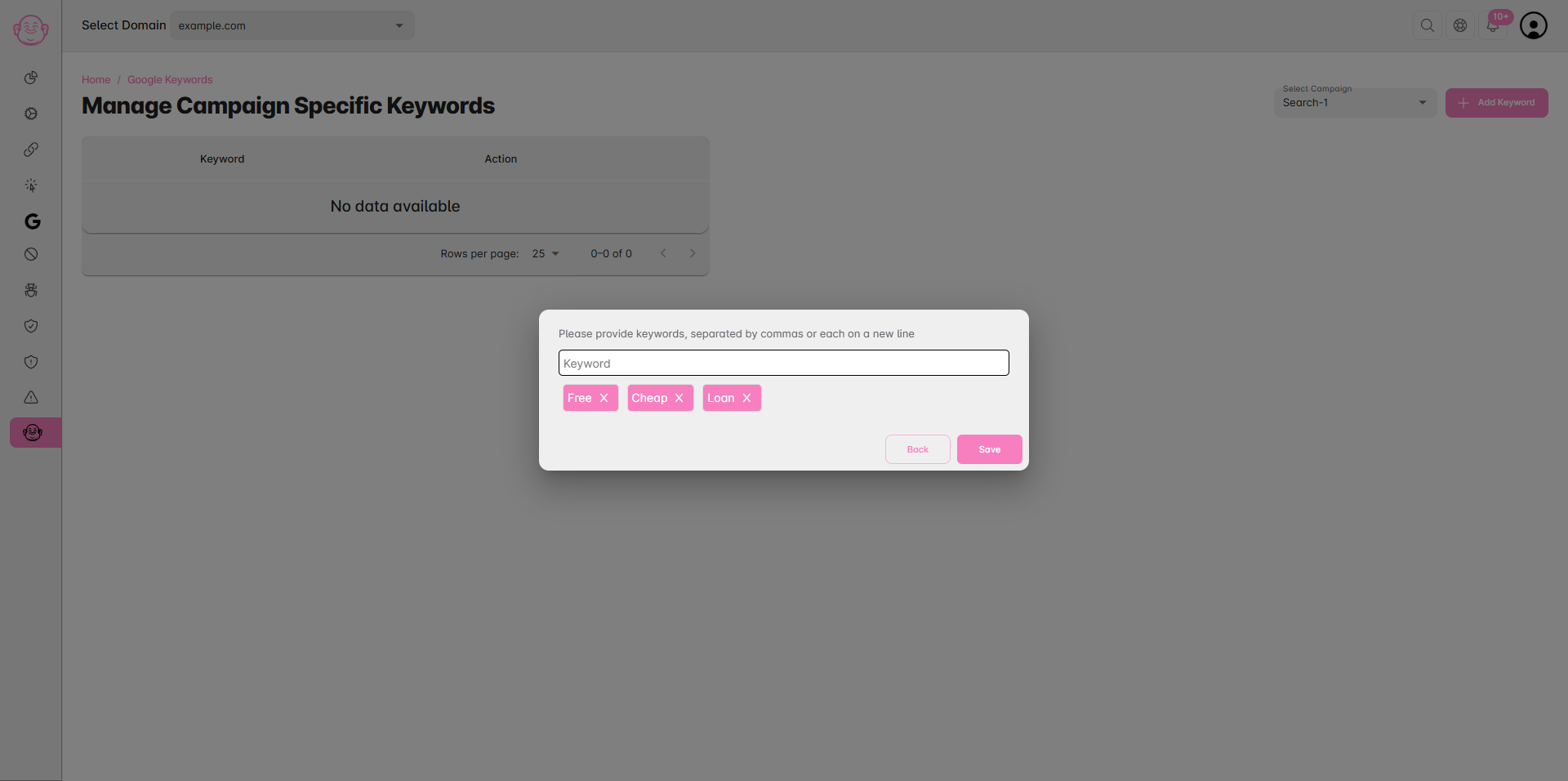
Click on the “Add Keyword” button located at the top-right corner.
Enter the keywords you want to exclude.
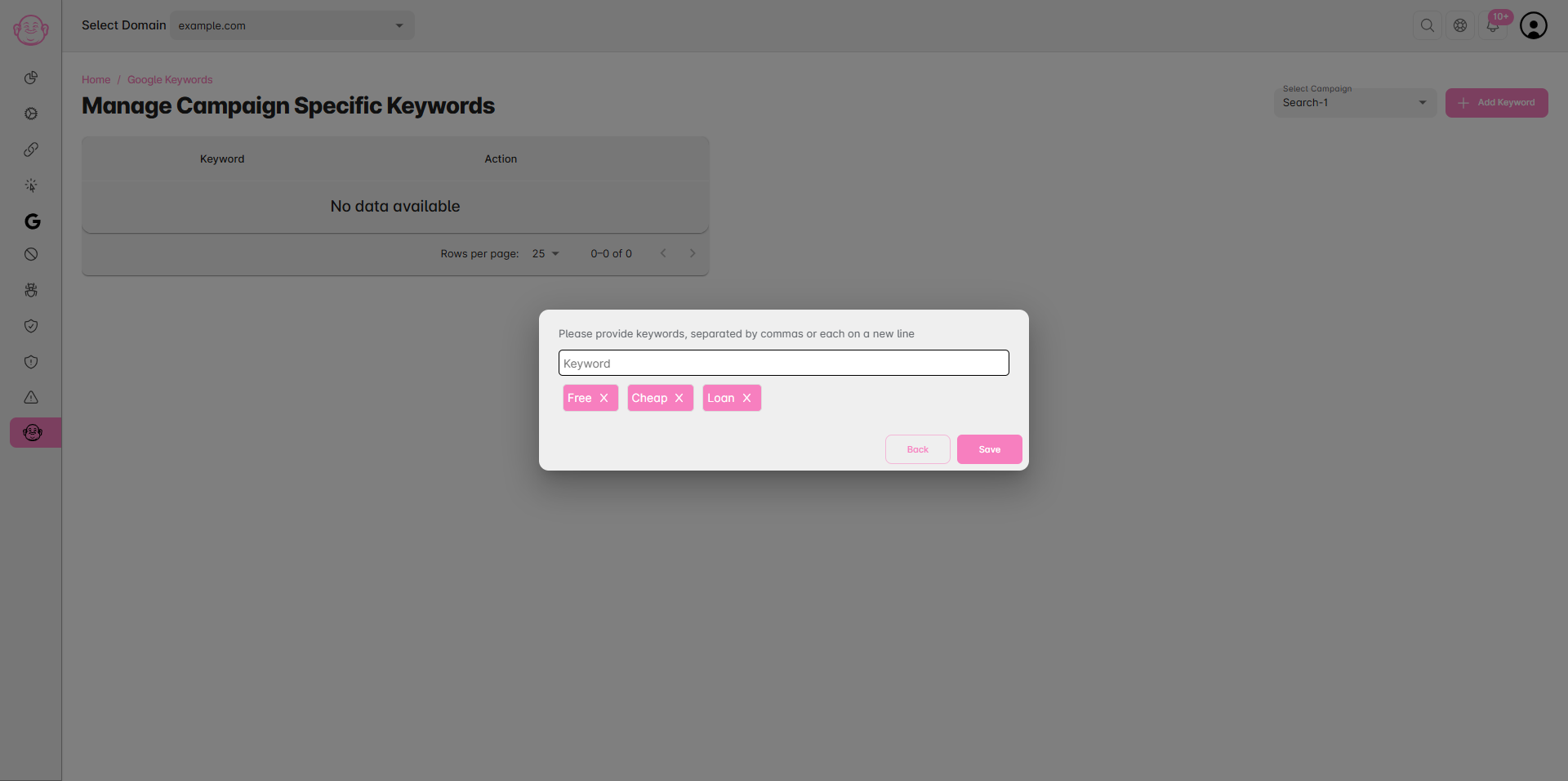
You can add multiple keywords at a time by separate with comma (,) i.e. “Free, Cheap, Loan “
Click Save to apply the keyword to that specific campaign.
Step 5: Review and Manage Keywords Match Type
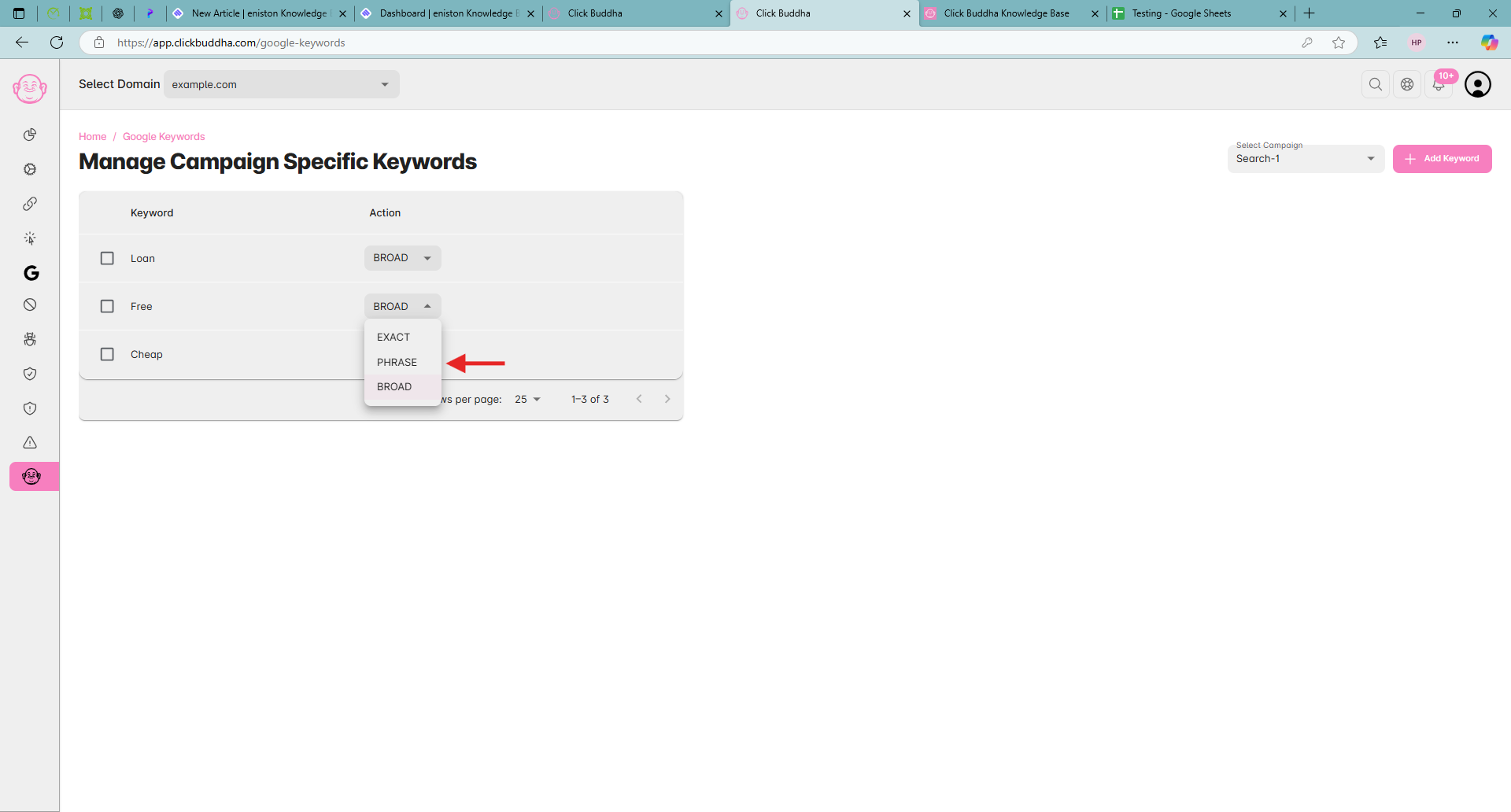
Choose the match type — Broad, Phrase, or Exact — depending on how you want it filtered from the list.
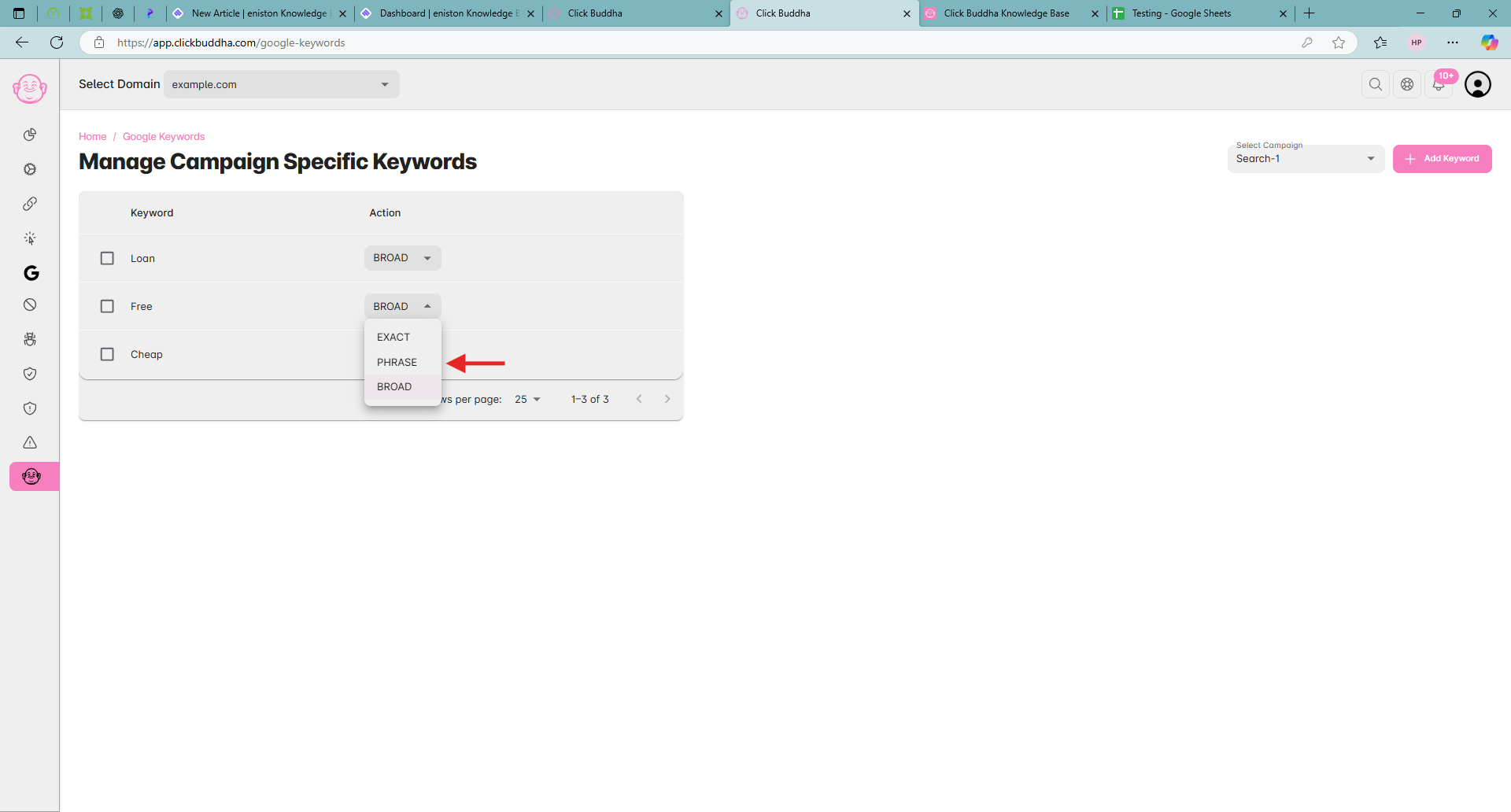
✅ Tip: Use Exact Match for very specific exclusions and Broad Match for broader keyword filtering.