
Click Buddha makes it easy to update or delete your shared negative keyword lists that are applied across multiple Google Ads campaigns.
Step 1: Log in to Click Buddha
Sign in to your account and Open your Click Buddha Dashboard.
Step 2: Navigate to Shared Negative Keyword Lists
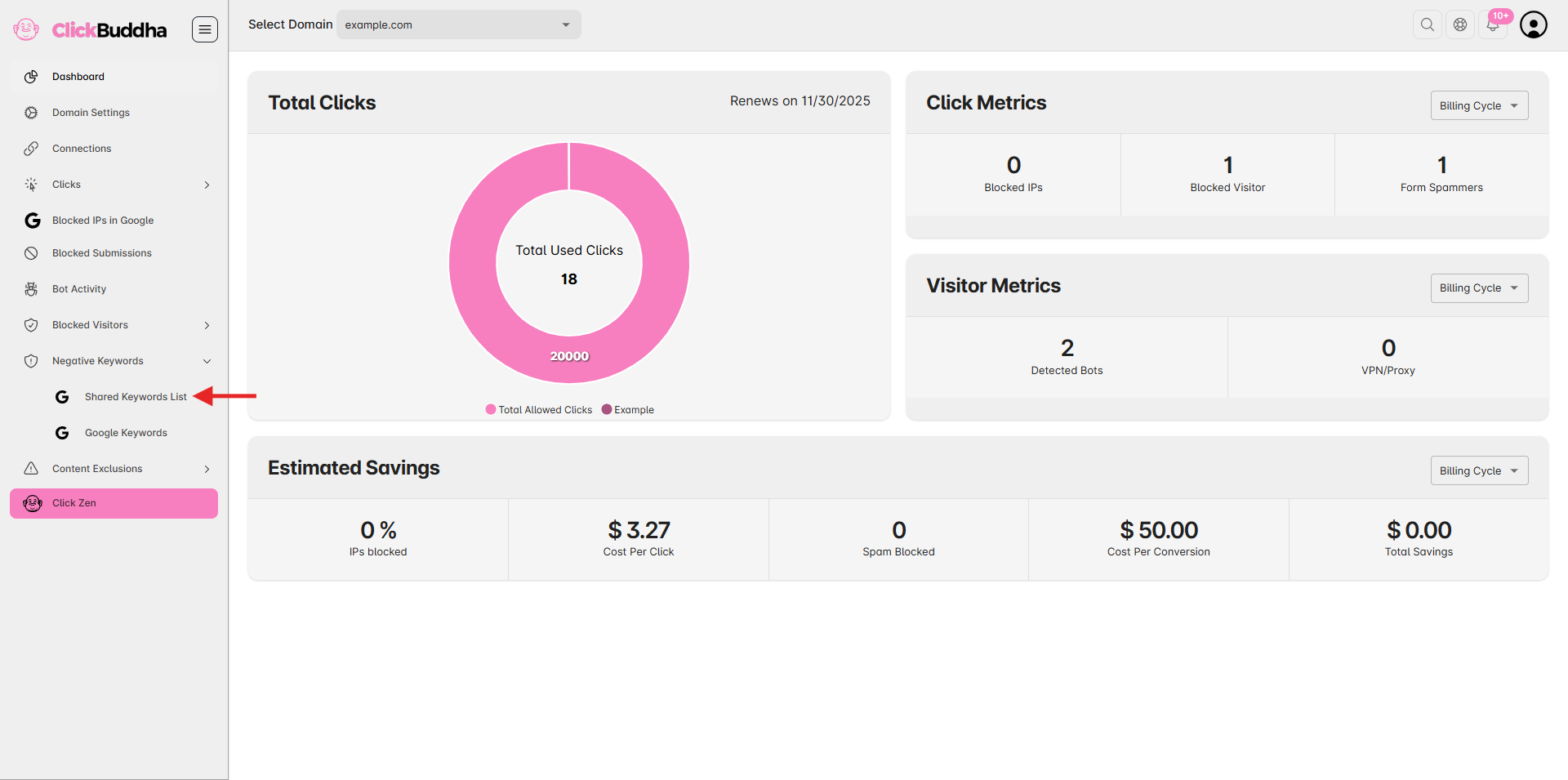
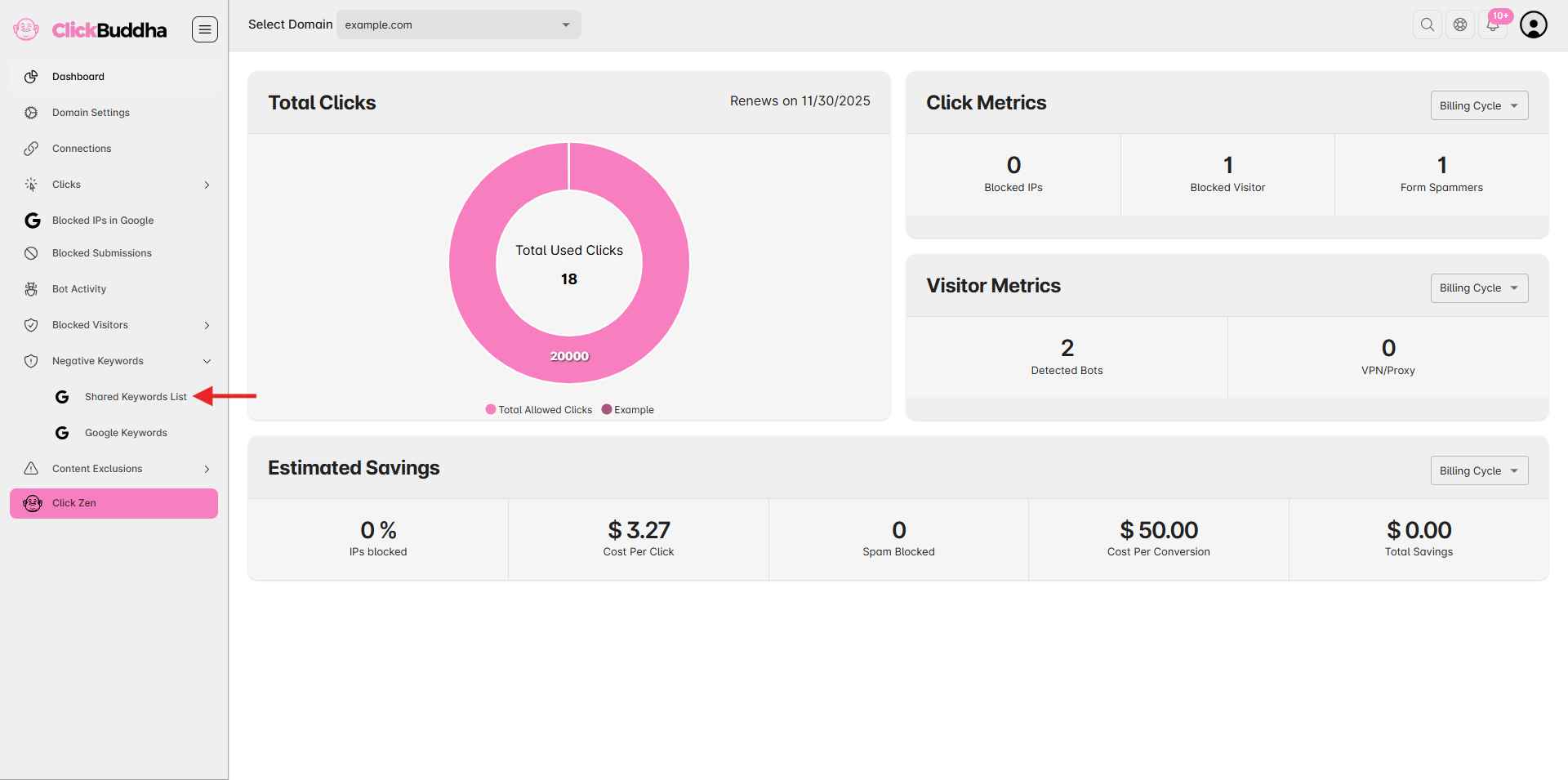
From the sidebar, go to Negative Keywords → Shared Keyword List.
Step 3: Choose the List to Edit or Remove
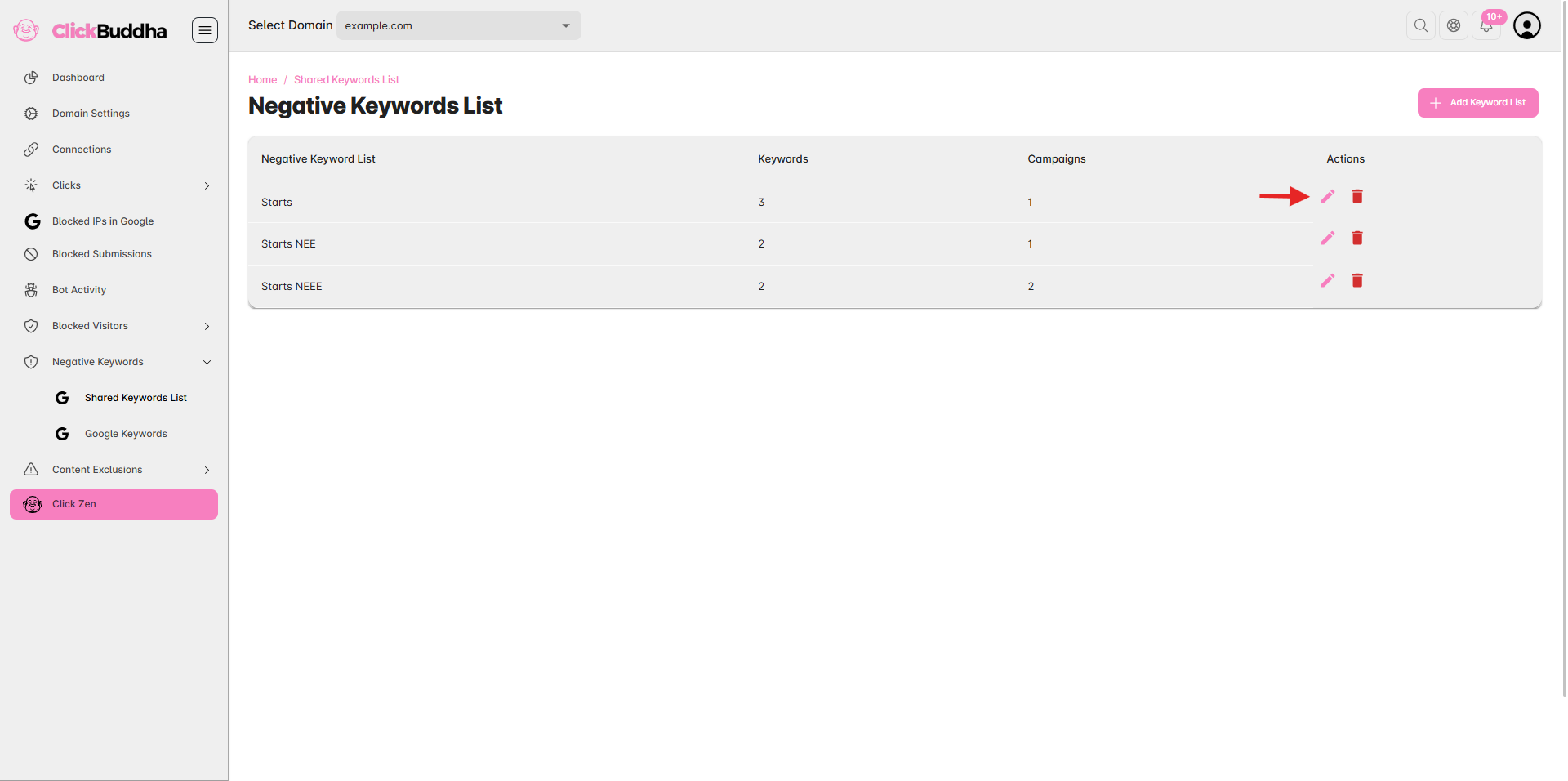
This section displays all the shared negative keyword lists created for your account.
Find the shared list you want to modify.
In the Action column in a table, you’ll see options to:
✏️ Edit – Modify keywords or associated campaigns.
🗑️ Delete – Permanently remove the list from Google Ads and all connected campaigns.
Step 4: Edit the List (if applicable)
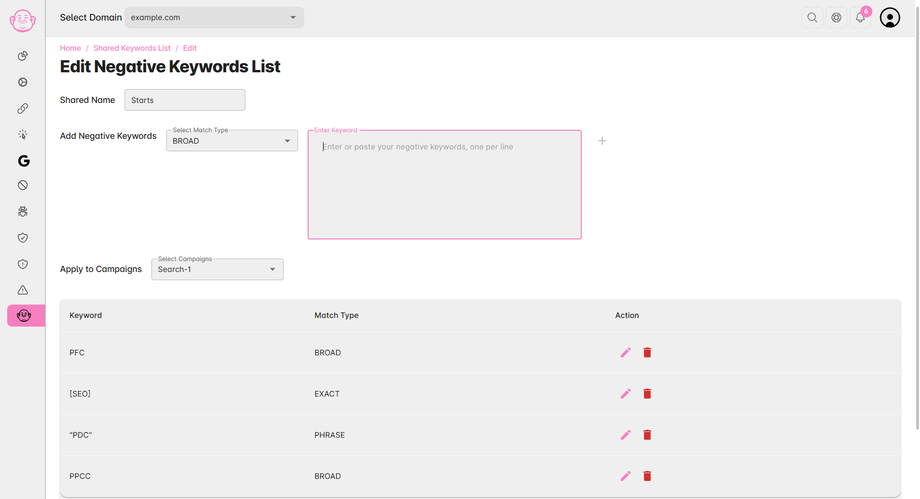
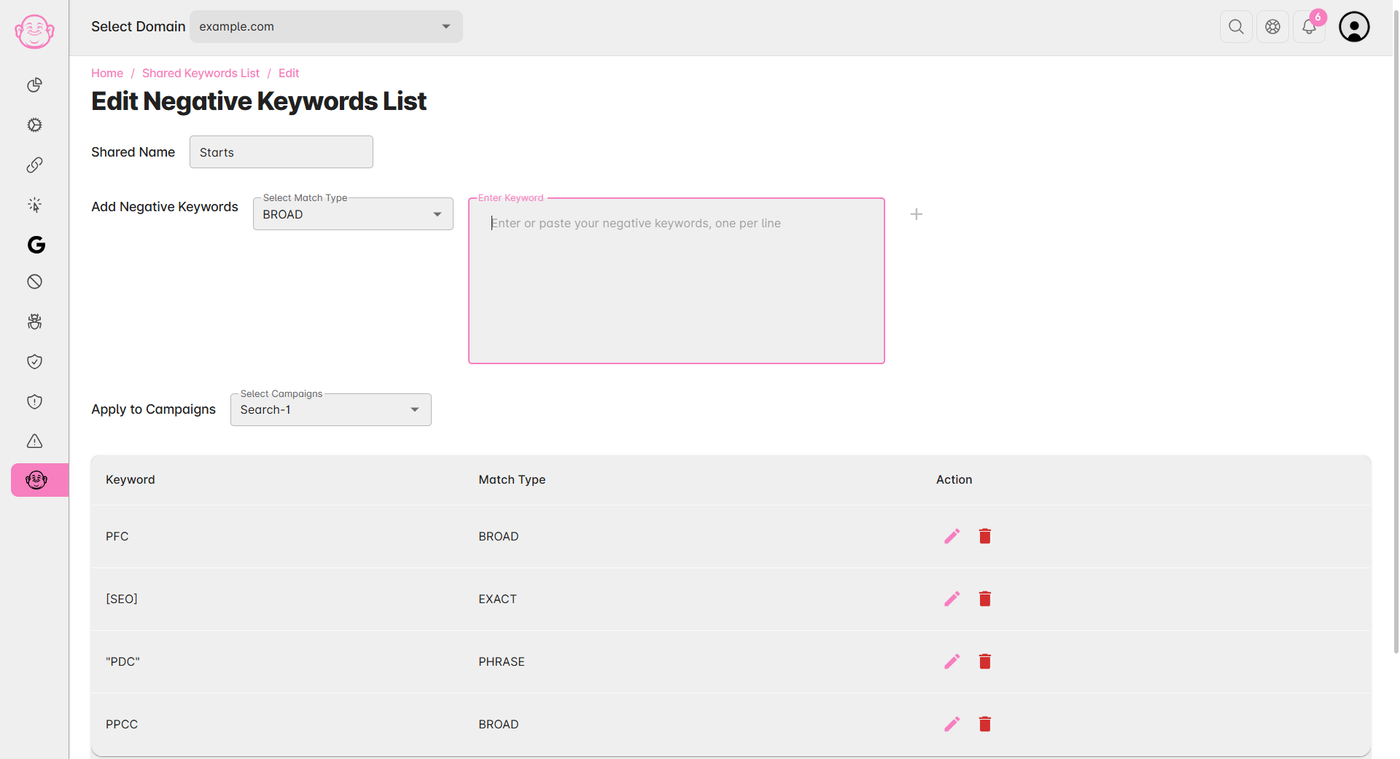
If you selected Edit, you can:
Change the keyword list name.
Add or remove individual keywords.
Change match types (Broad, Phrase, Exact).
Update the campaigns linked to this keyword list.
Click Save once you’ve made your changes.
Step 5: Confirm Deletion (if removing)
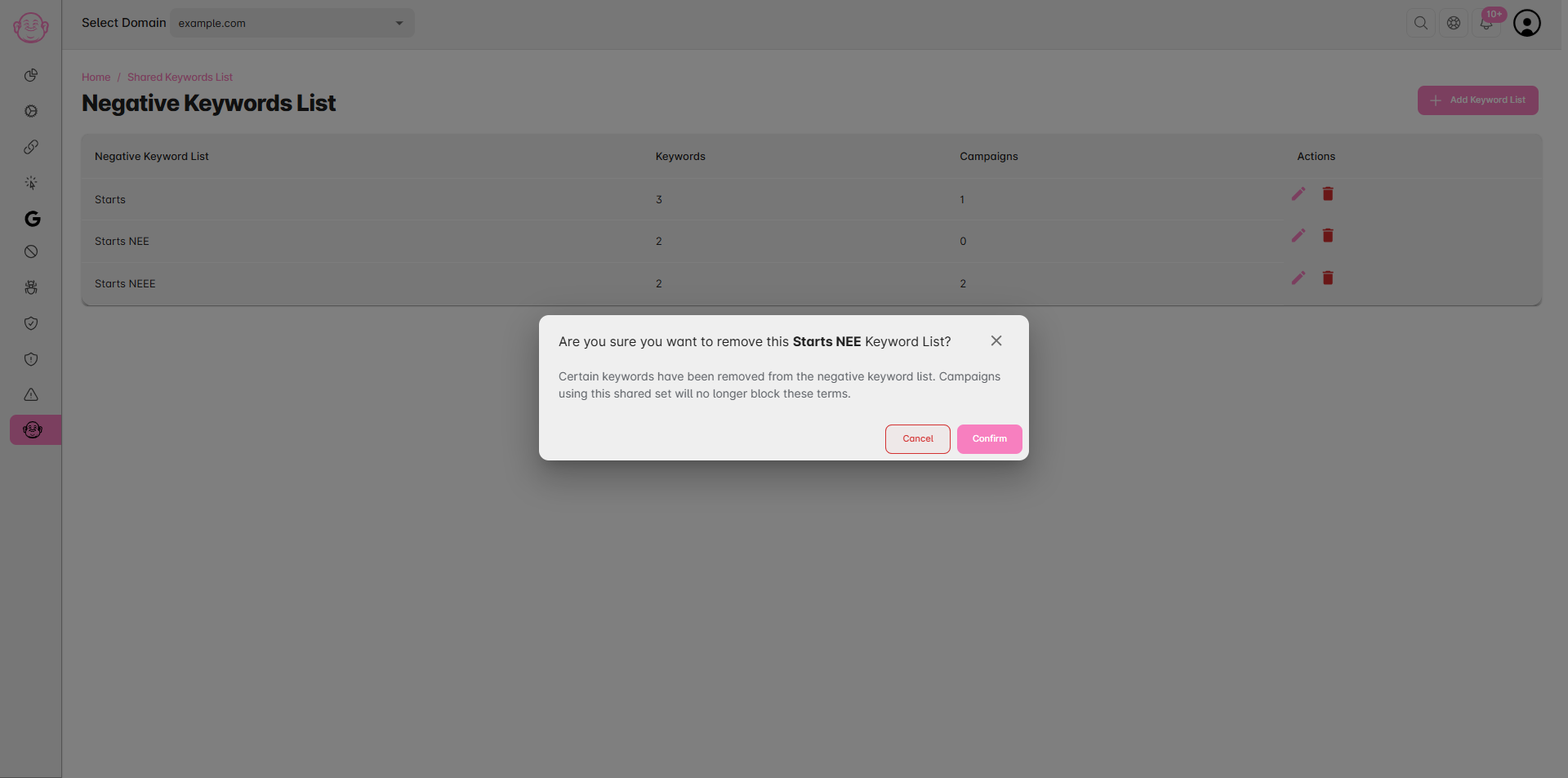
If you selected Delete, a confirmation prompt will appear.
Click Yes, delete to confirm.
⚠️ Certain keywords have been removed from the negative keyword list. Campaigns using this shared set will no longer block these terms.
✅ Tip: Regularly review your shared keyword lists to ensure they stay aligned with your marketing goals. Outdated or overly broad lists can accidentally block valuable traffic.