
Click Buddha makes it easy to create, manage, and apply negative keyword lists across multiple Google Ads campaigns — helping you filter out irrelevant traffic and improve ad performance.
Step 1: Log in to Click Buddha
Login into account and Open your Click Buddha Dashboard
Step 2: Go to Negative Keywords Section
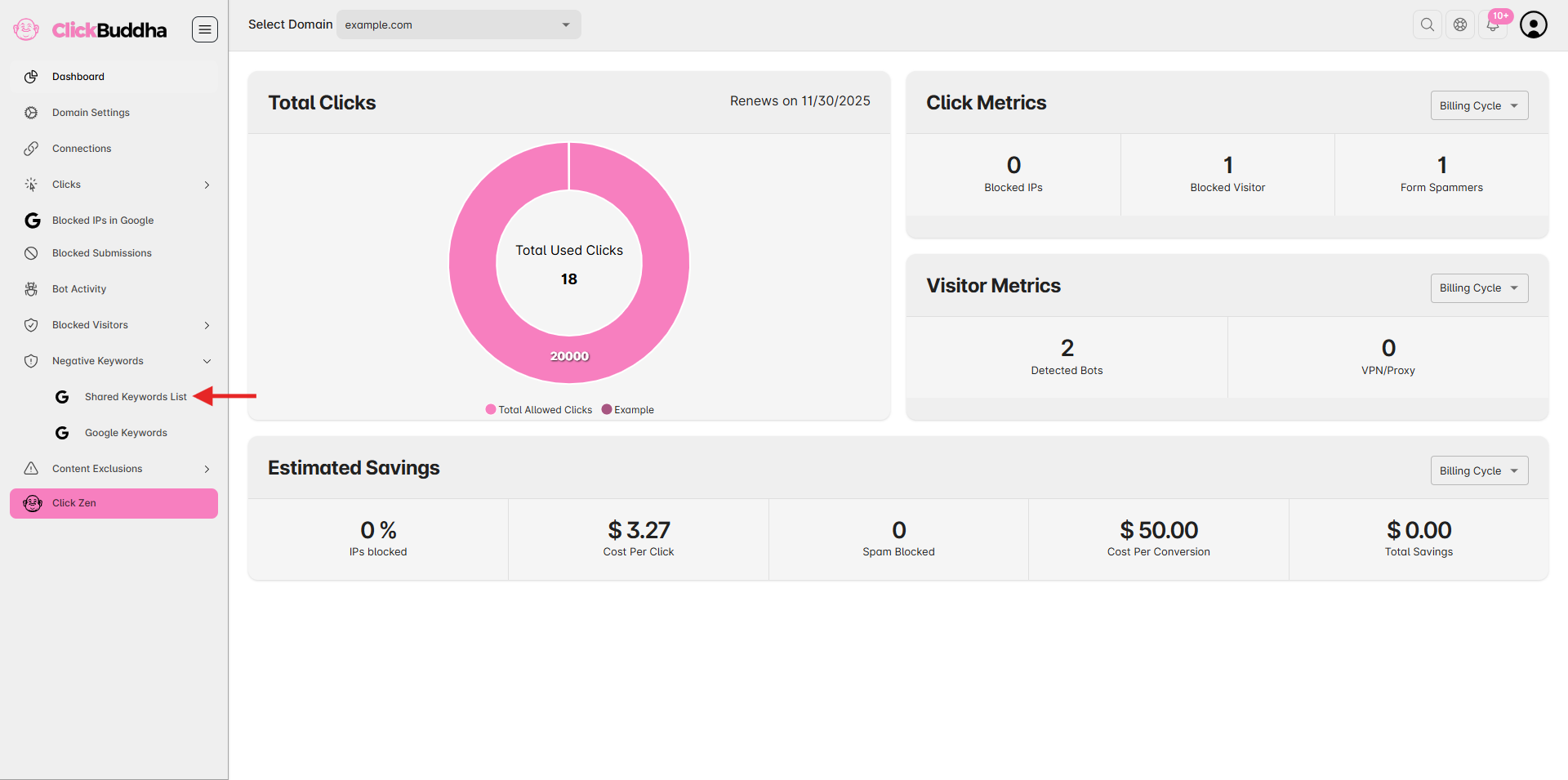
From the sidebar, navigate to Negative Keywords Section → Shared Keyword List.
Step 3: Add a Negative Keywords List
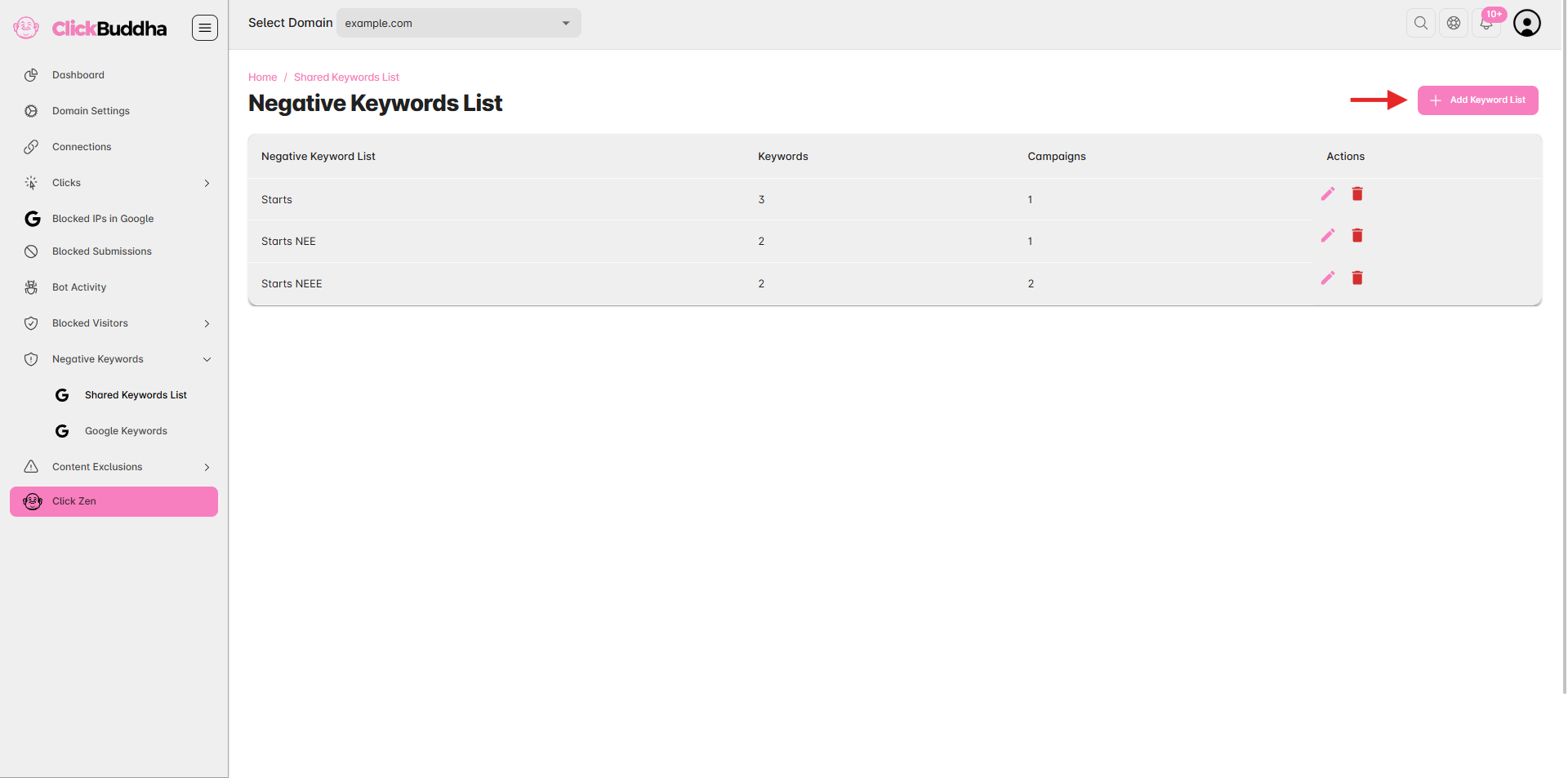
Click on the “Add Keyword List” button located at the top-right corner.
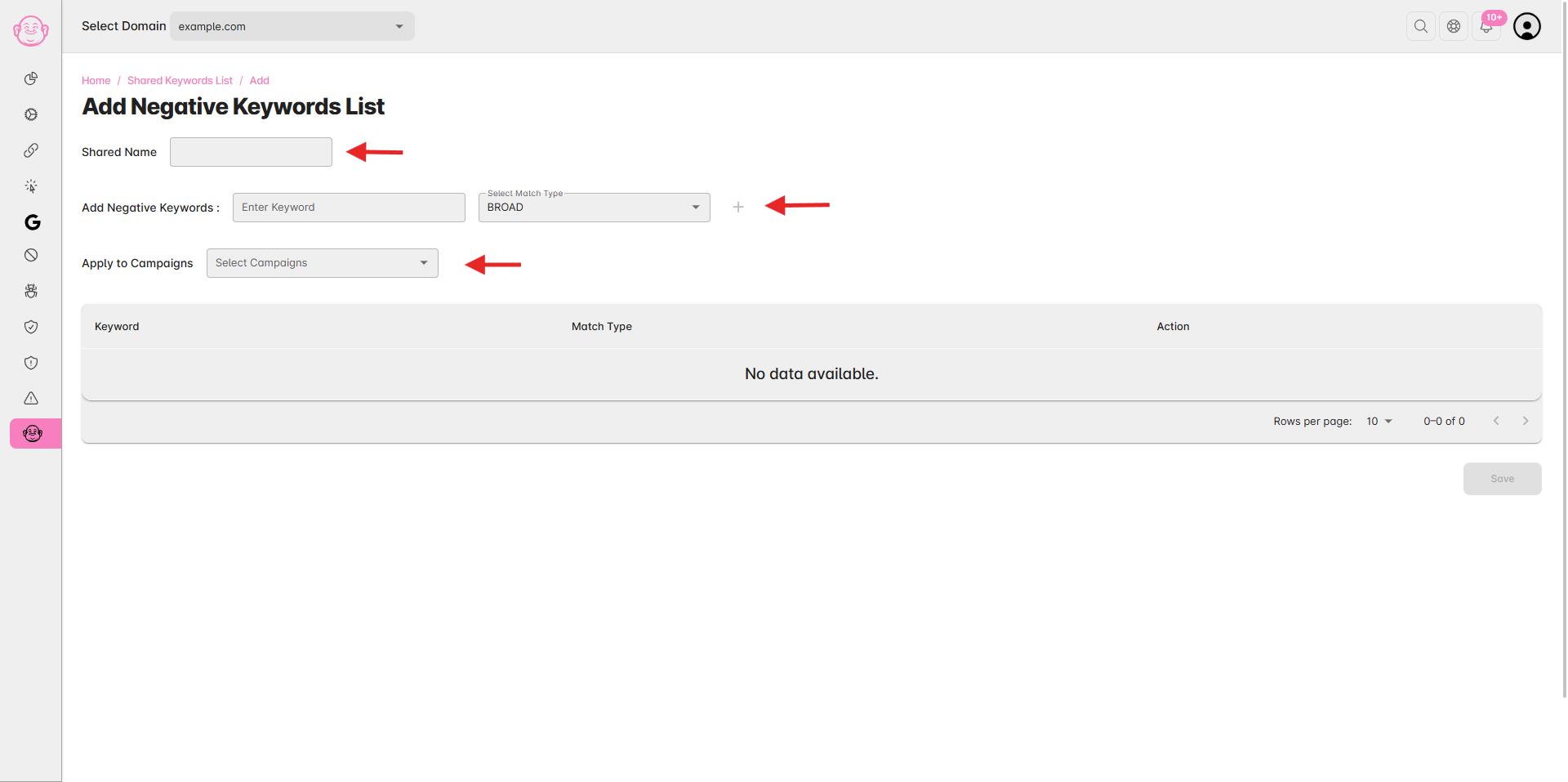
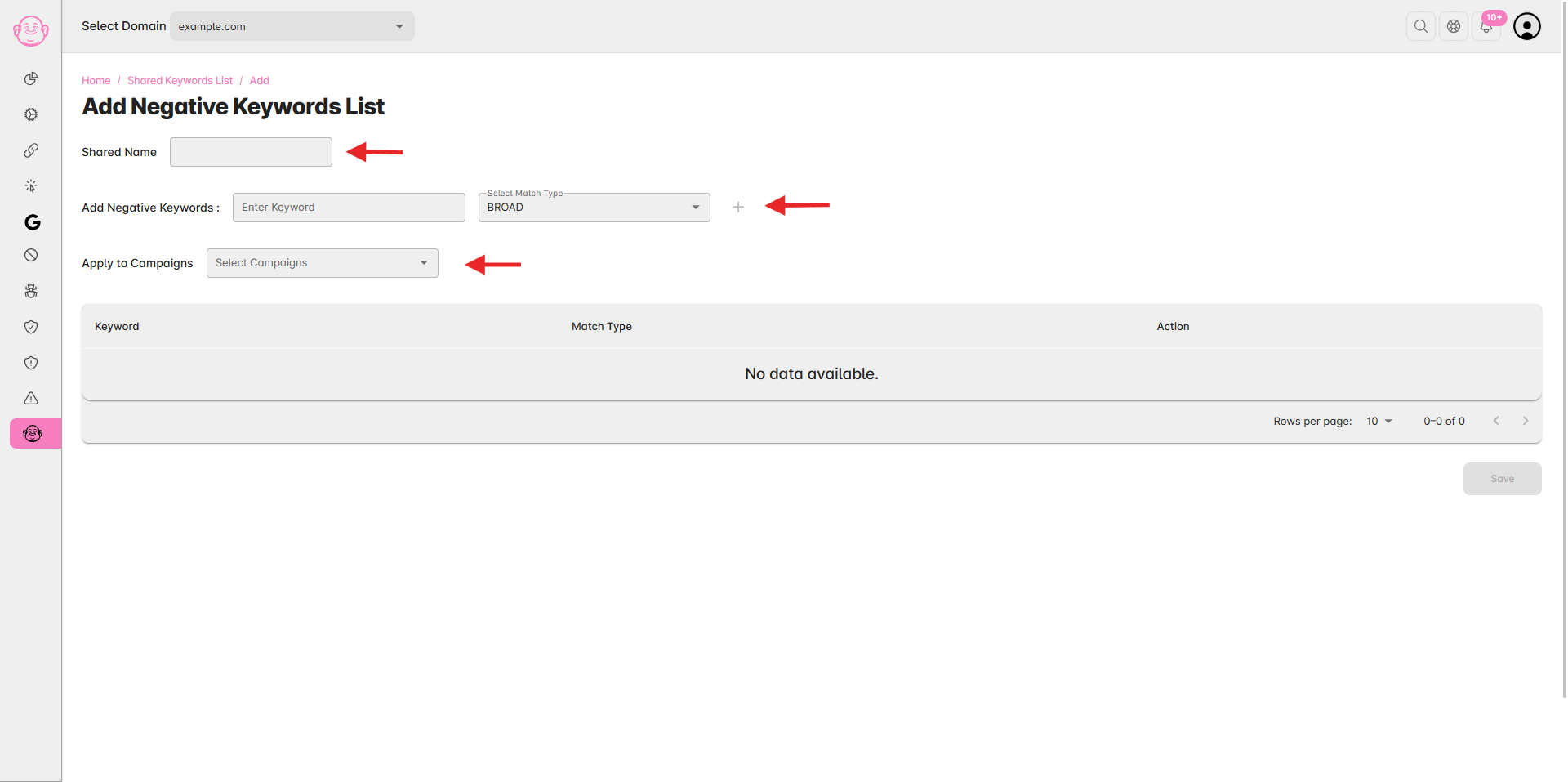
Step 4: Fill the Keywords List Details
Enter or type a Keyword List Name.
Add keywords based on your preferred match types — Broad, Phrase, or Exact.
Select the campaigns to which you want this keyword list to apply..
Step 4: Save the Keyword List
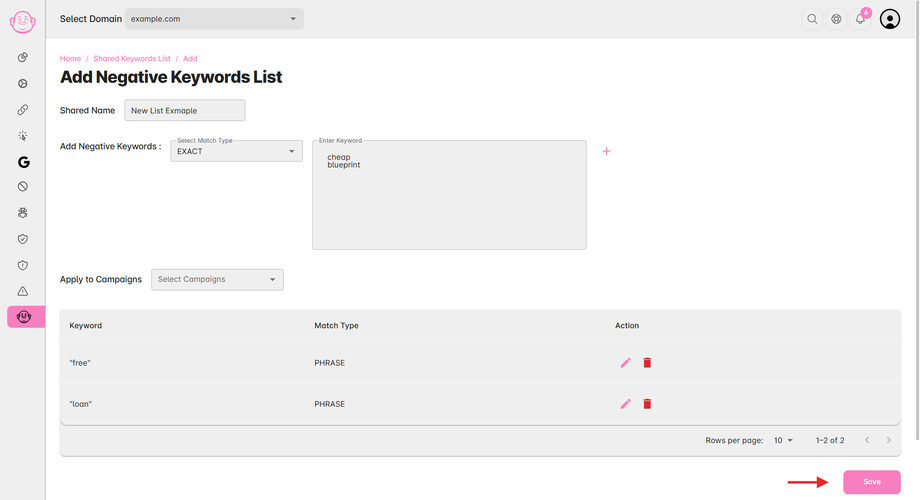
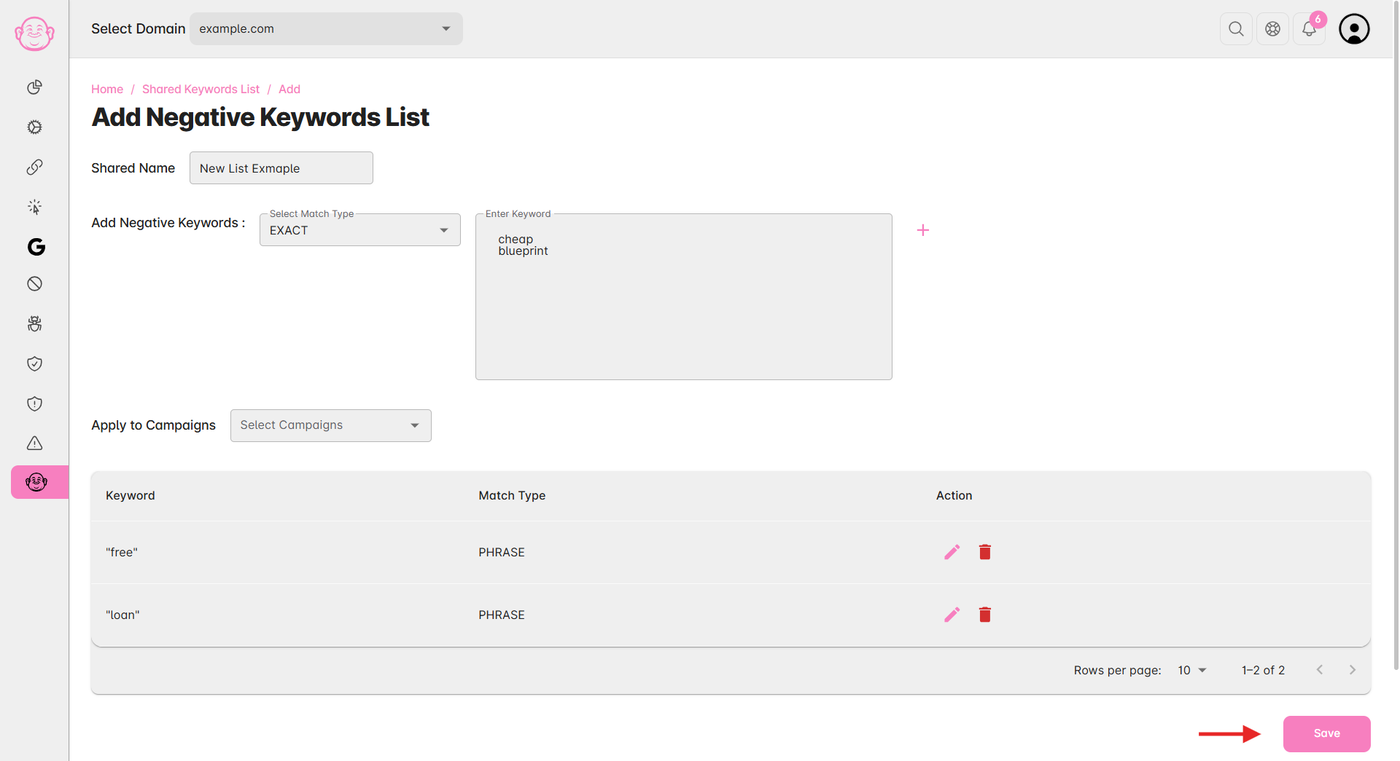
Click Save to create and apply the list across selected campaigns.
✅ Tip: Use shared lists for common themes (like “free,” “jobs,” “DIY”) and maintain separate lists for specific campaigns to improve targeting accuracy.