
Yes — Click Buddha allows you to customize the warning or blocking message that appears to visitors detected using a VPN or Proxy.
You can personalize the text to match your brand tone or provide specific instructions to your users.
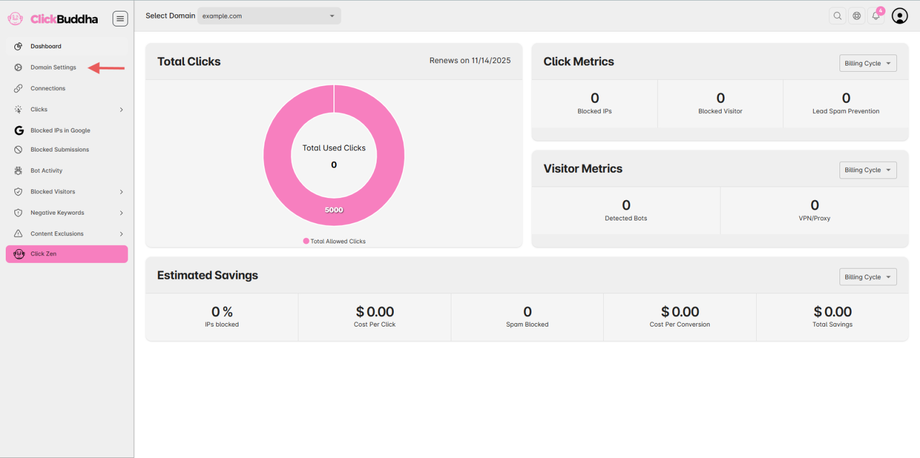
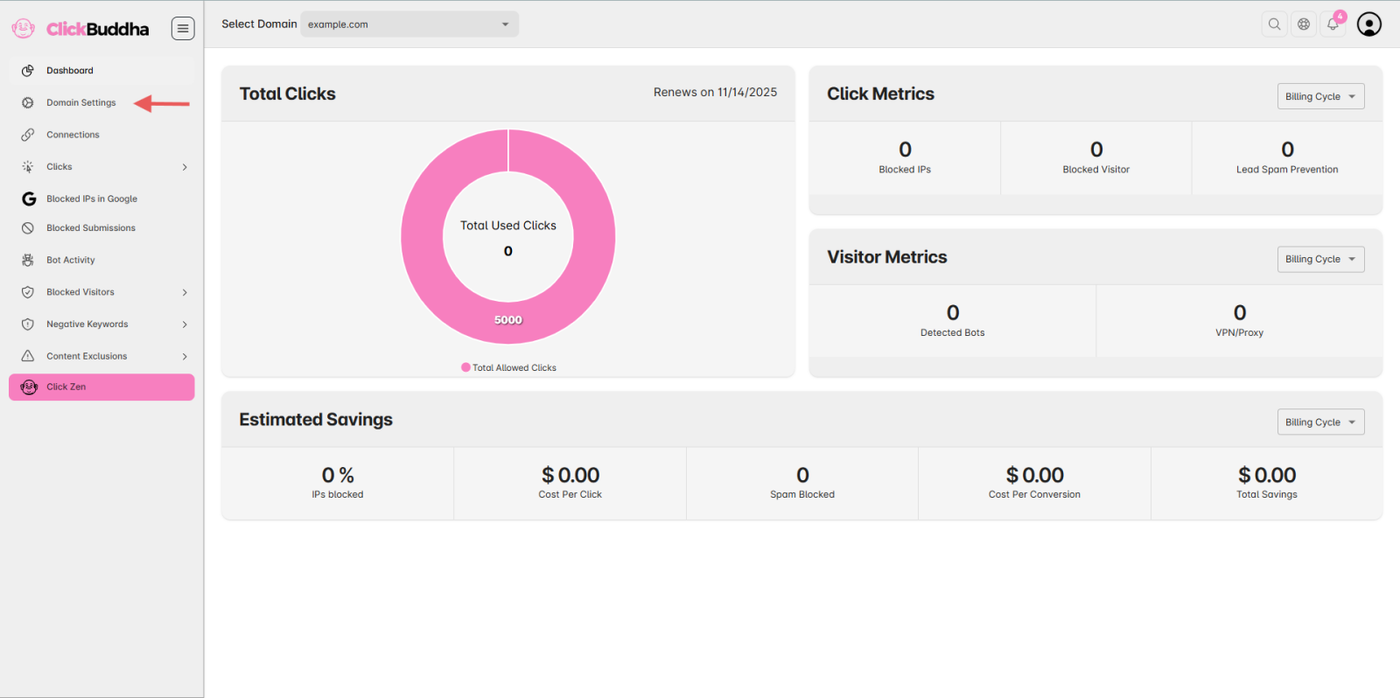
Step 1: Open Domain Settings
From the sidebar and Open Domain Settings.
Step 2: Go to Website Protection
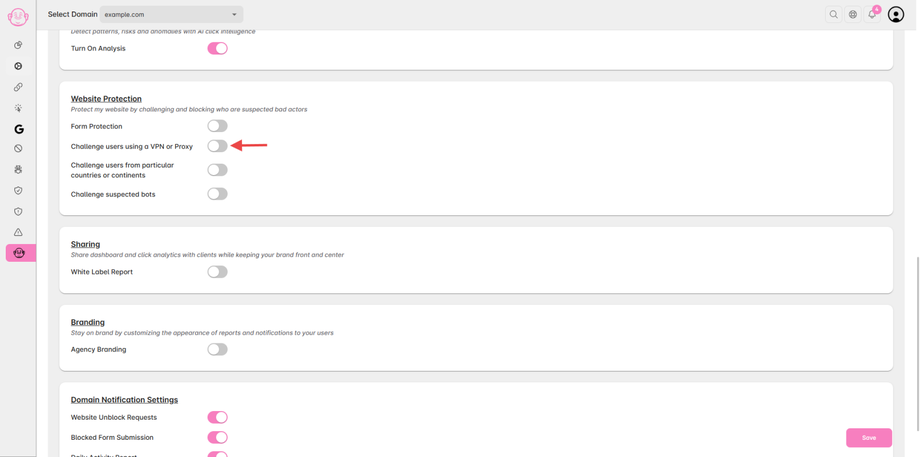
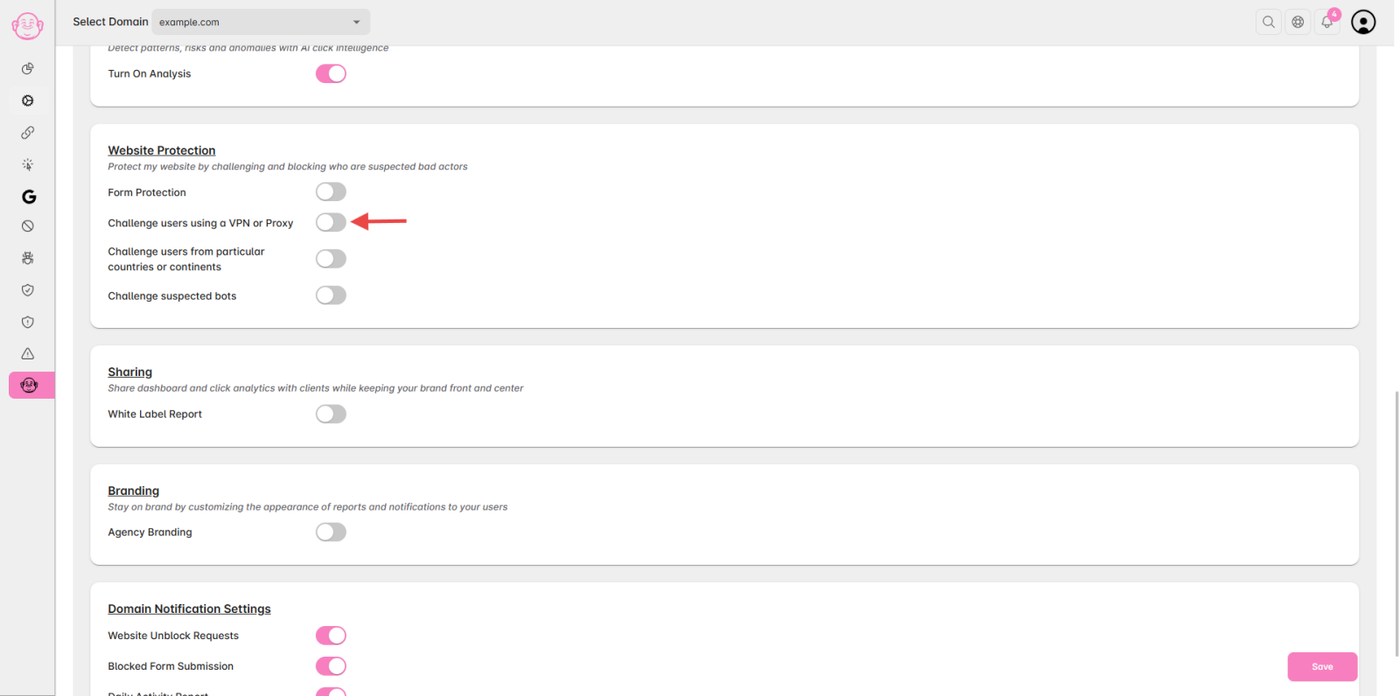
Scroll to the Website Protection section.
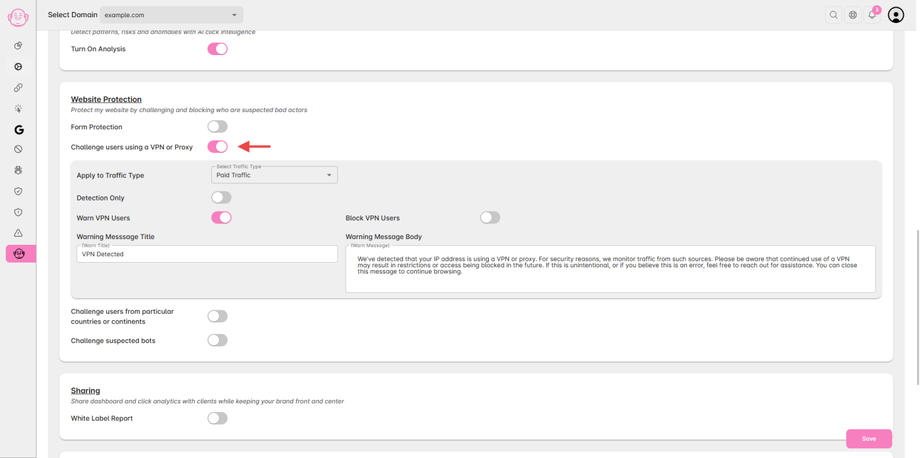
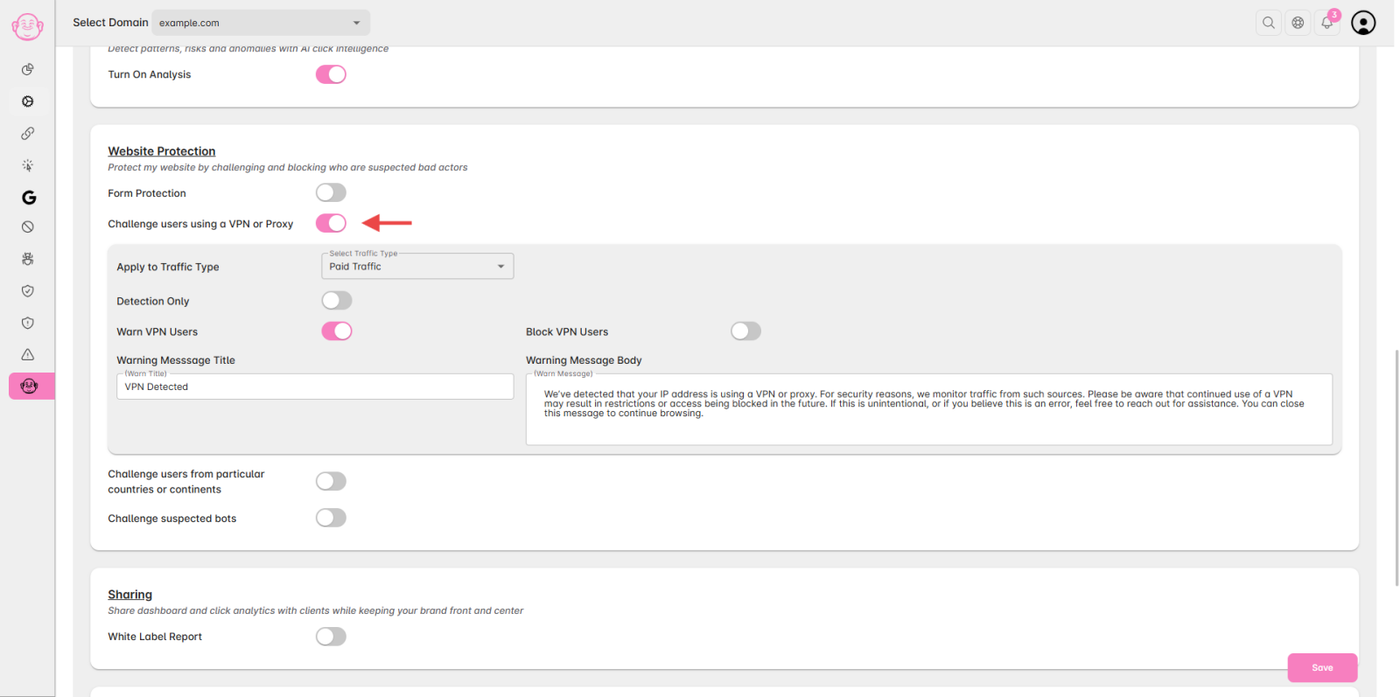
Make sure “Challenge users using a VPN or Proxy” is enabled.
Step 3: Customize the Message
Below the Warn and Block toggle, you’ll find a Text Field to Edit Warning/Blocking Title & Edit Warning/Blocking Message.
By Default, Title and Message is set.
Enter your custom text — for example:
“Access restricted. Please disable your VPN or Proxy to continue browsing.”
Step 4: Save Settings
Once configured, click Save to apply the changes.
✅ Tip:
You can set different messages & titles for Warning and Blocking modes.
Use clear, friendly language to avoid confusion for legitimate visitors.