
Yes — Click Buddha provides detailed insights for each click, including VPN, Proxy, Data Center, and Provider information.
You can easily view these details directly from your Clicks report.
Step 1: Open Click Buddha Dashboard
Login and Open your Click Buddha Dashboard.
Step 2: Open Clicks Section
From the sidebar, select either Paid Clicks or Organic Clicks depending on the traffic type you want to review.
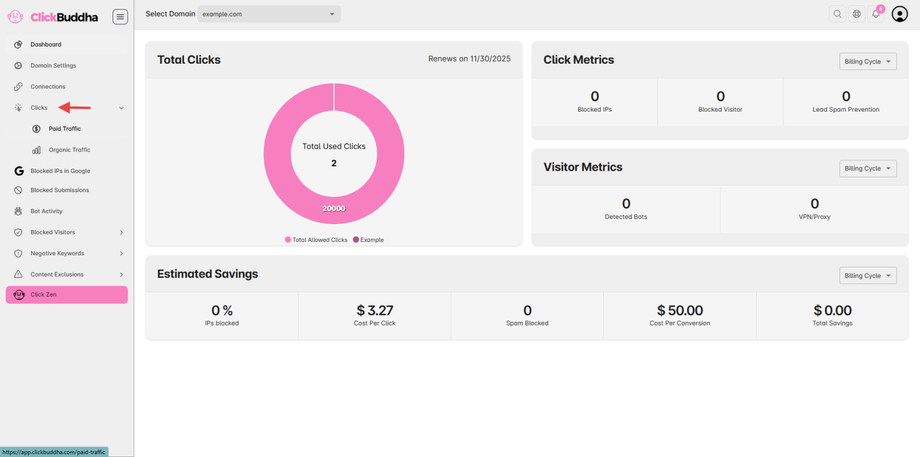
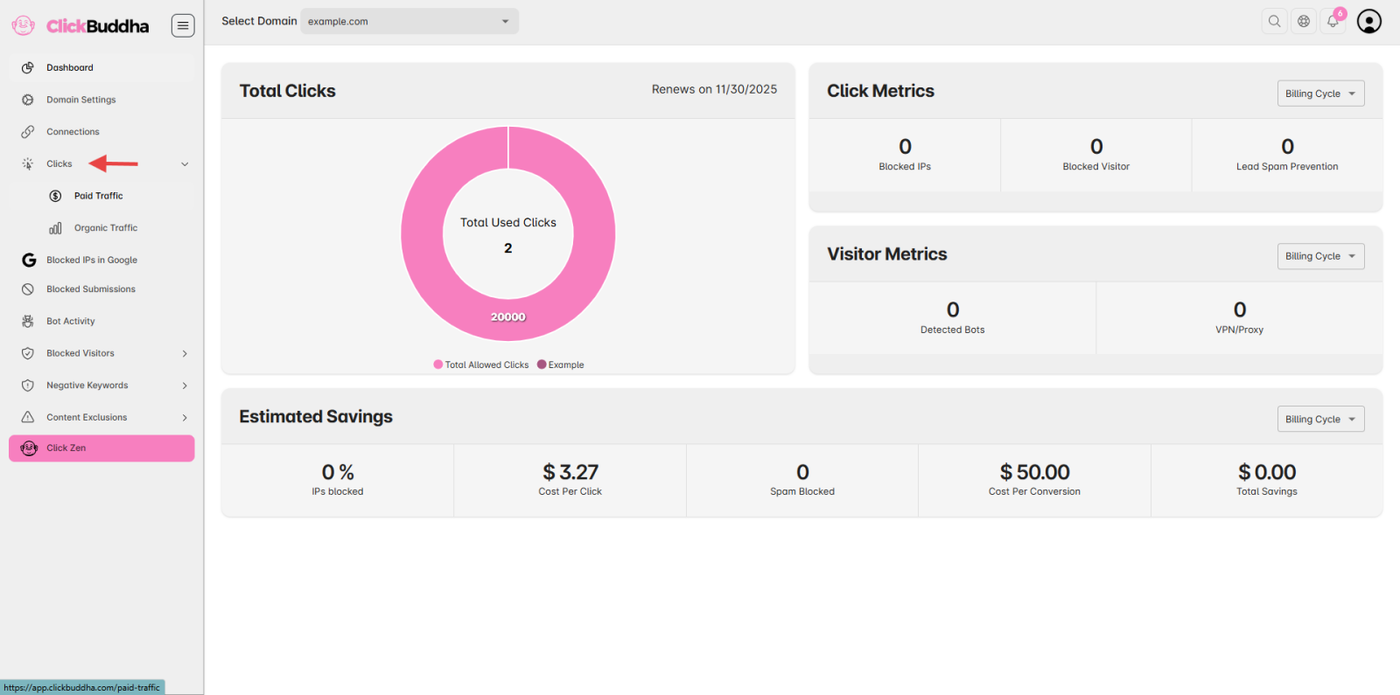
Step 3: View Click Details
In the Logs page, view the list of IPs marked with Icon (🛡️) is detected/blocked by VPN/Proxies.
Use the Filter or Search Bar to select “VPNs.”
This will display all traffic identified or blocked as VPN, Proxy, or Data Center IPs.
In the clicks table, look for the 🗒️ (Details) icon in the Action column.
Click this icon for any row to open the detailed click view.
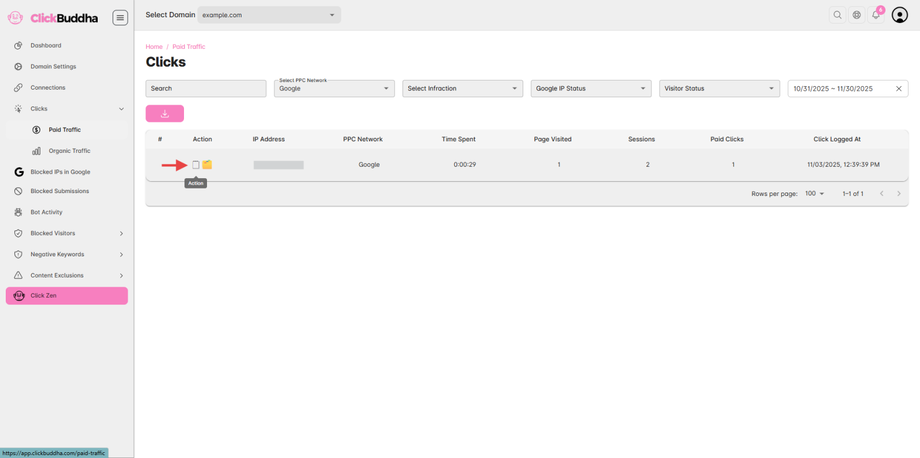
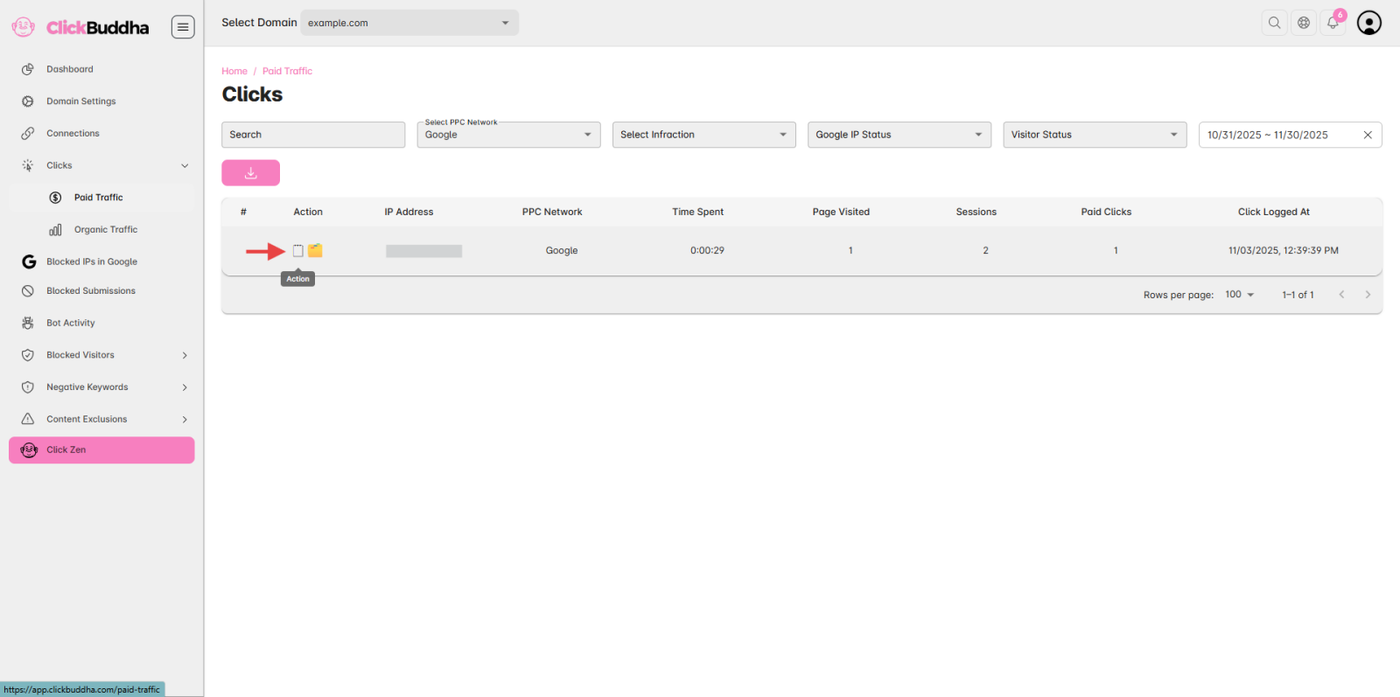
Step 4: Review Detection Details
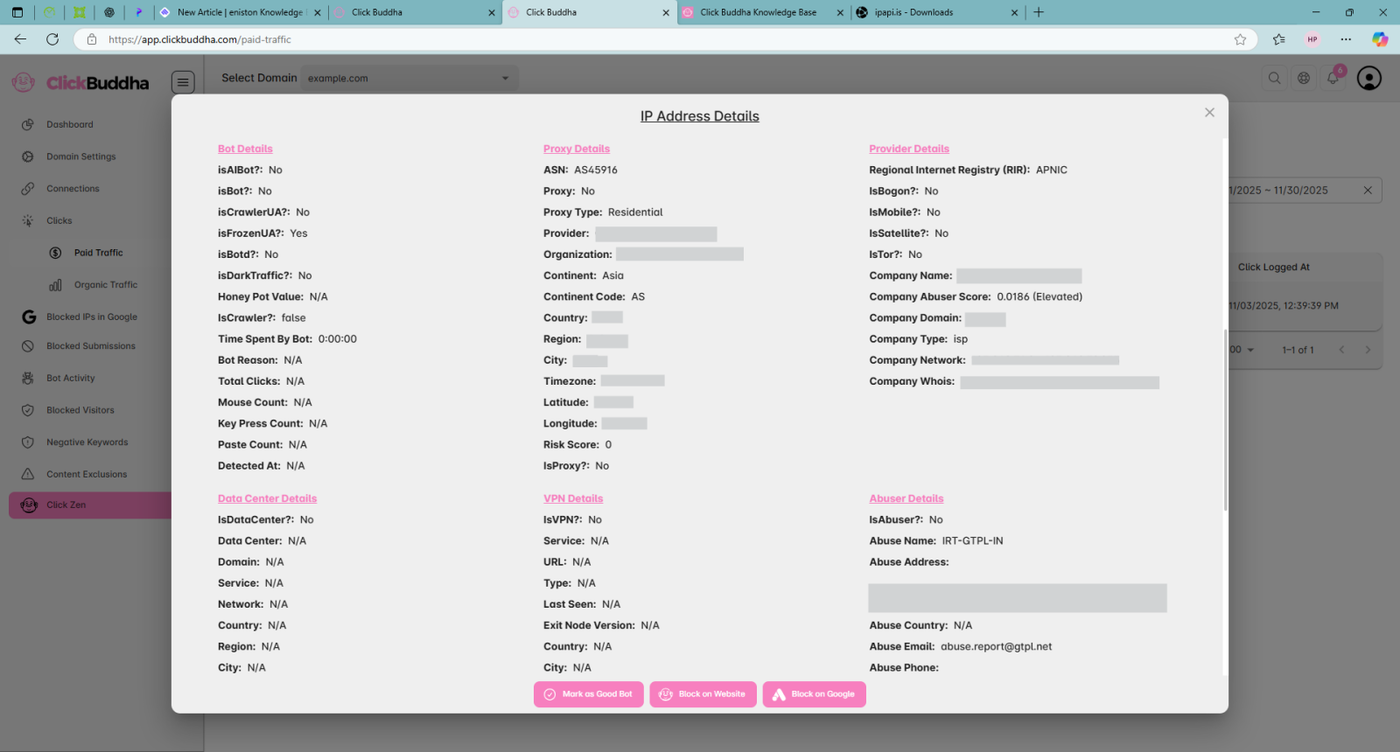
Scroll down in the click details view to see:
Proxy Details
Data Center Details
VPN Details
Provider Details
Other traffic intelligence metrics
✅ Tip:
This detailed view helps you verify whether a visitor was flagged due to VPN/Proxy usage or datacenter routing, improving transparency in your traffic analysis. Also, the details are masked and sample data shown in the images.