
VPN/Proxy Security helps protect your website and ad campaigns from fake or suspicious clicks coming from VPNs, proxies, or masked IP addresses.
When enabled, Click Buddha automatically detects and blocks traffic from anonymized sources to ensure you only receive genuine visitors.
🔍 What It Does
Detects and blocks clicks from VPNs, Proxies, and Datacenter IPs.
Prevents fraudulent or repeated ad clicks from hidden networks.
Protects your Google Ads and website analytics accuracy by filtering out bad traffic.
⚙️ How to Enable VPN/Proxy Security
Step 1: Open Domain Settings
From the sidebar, open Domain Settings.
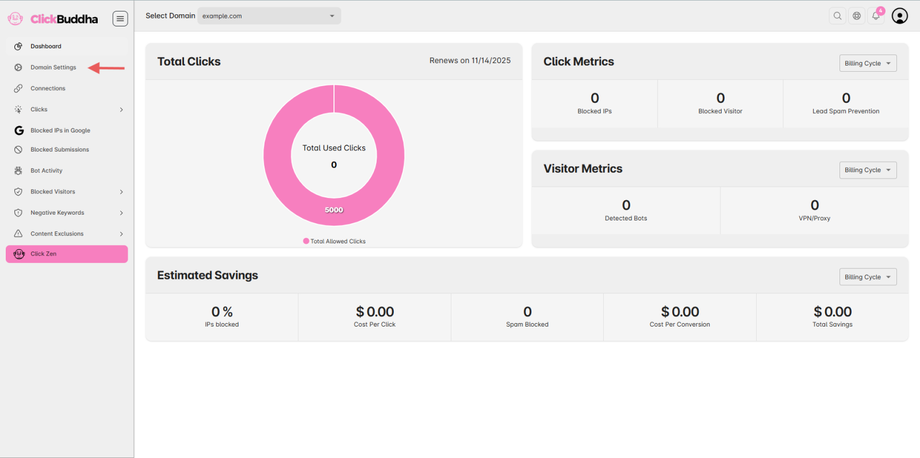
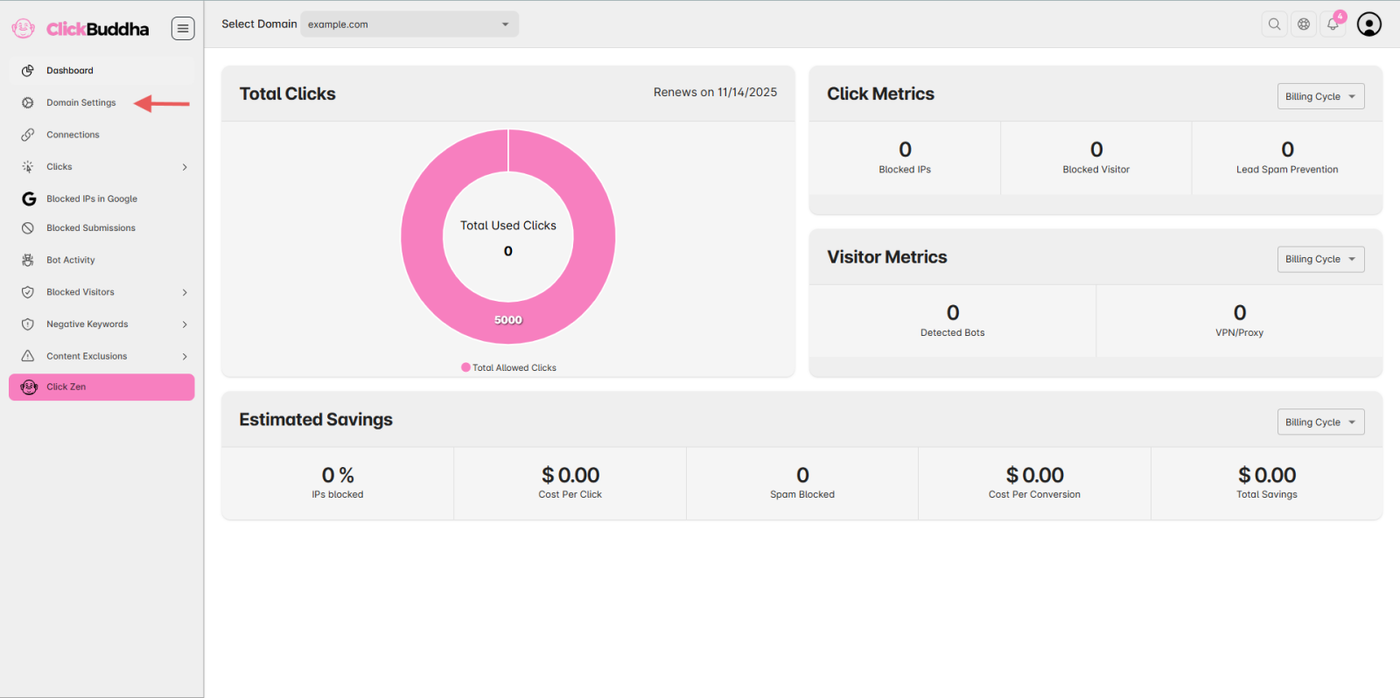
Step 2: Locate VPN/Proxy Security
Scroll down to the VPN/Proxy Security section.
You’ll see two options for protection:
Google
Website
Step 3: Configure Google Protection
By default, VPN/Proxy Security is in Detection Only Mode.
Toggle Block users using VPN/Proxies to enable blocking — this will automatically block VPN/Proxy IPs directly in your Google Ads account.
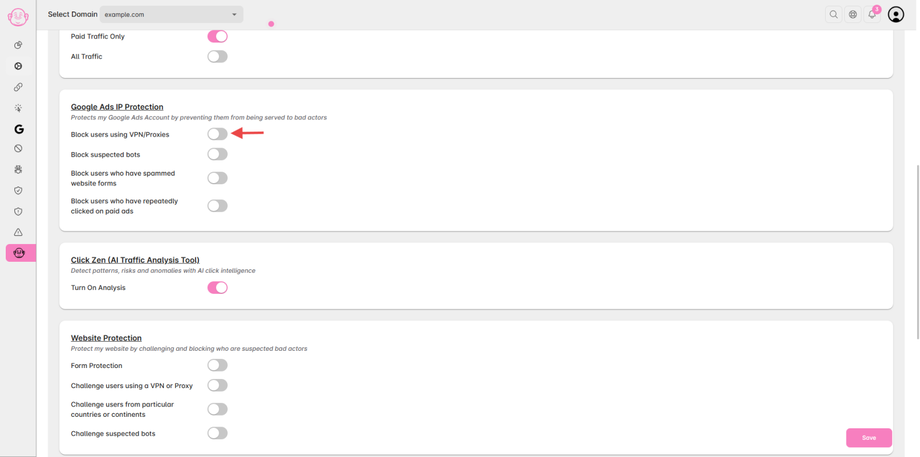
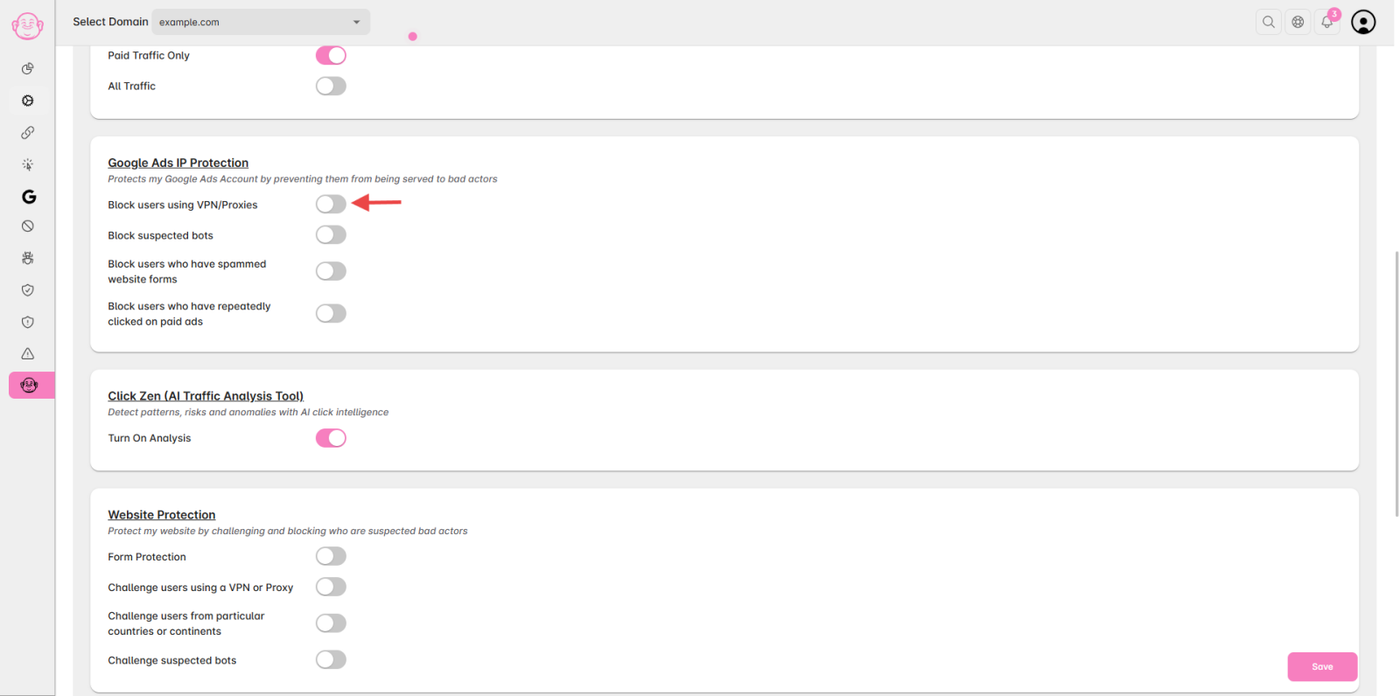
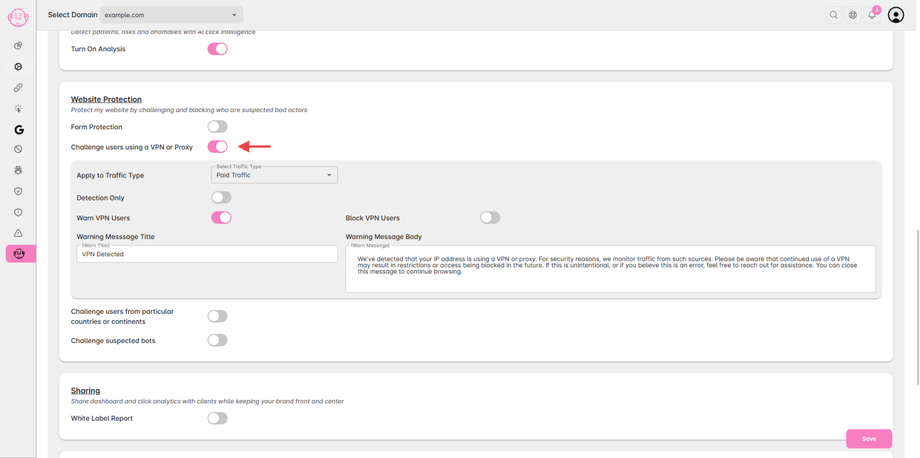
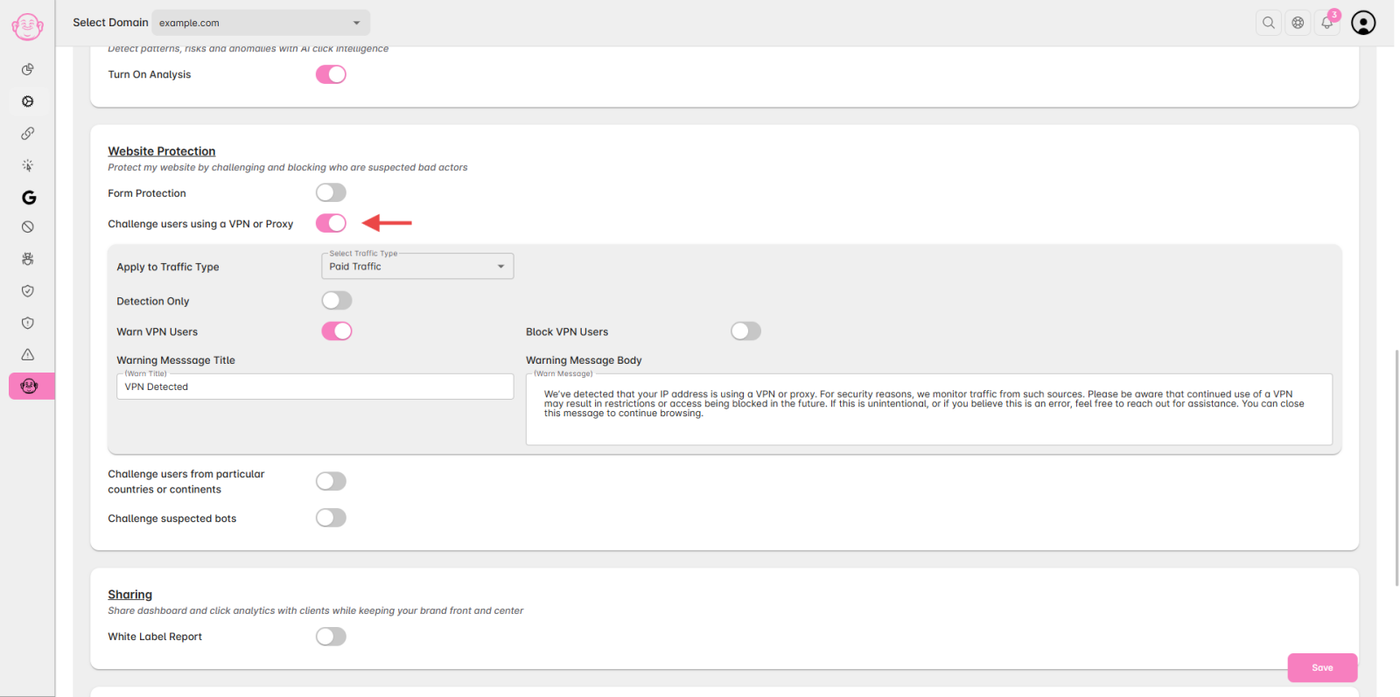
Step 4: Configure Website Protection
For website-level protection, toggle Website.
You can choose how VPN/Proxy traffic is handled based on your Traffic Type setting:
Detect Only (default)
Warn visitors
Block suspicious traffic completely
Step 5: Save Settings
Once configured, click Save to apply the changes.
✅ Note:
Detection mode allows monitoring without blocking.
To ensure full protection, enable both Google and Website blocking options.